

1Creating your account and confirming your address
You create your account and open your session from the sign-in, sign-up and forgotten password pages. They share the same layout: the form in a card on the left, with the logo and the language flag at the top; on the right, on a large screen, a demonstration 360 story you can explore.
Signing in or creating an account
- Signing in: the "Adresse email / Identifiant" (e-mail address or username) and "Mot de passe" (Password) fields, the "Mot de passe oublié ?" (Forgot your password?) link and the "Se connecter" (Log in) button. Under "ou continuer avec" (or continue with), three buttons open the session with a Google, Apple or Microsoft account. Two secondary buttons, "S'inscrire" (Register) and "Nous contacter" (Contact us), complete the card.
- "Je fais partie d'une organisation" (I am part of an organization): this link, at the very bottom, changes the form. You pick your "Organisation" (Organization) from a searchable list, then enter your "Identifiant" (Username) and your password. This is the way in for users created by an account (see users).
- "Créer un compte" (Create an account): an e-mail address, a "Mot de passe" (Password) of at least 6 characters and its confirmation, then "Créer mon compte" (Create my account). You can also sign up with the same Google, Apple or Microsoft accounts.
- "Mot de passe oublié" (Forgot your password): you enter your address, then "Envoyer l'e-mail" (Send email). The platform always answers the same thing, whether the address is known or not: "Si un compte existe pour cette adresse, un lien vient d'y être envoyé." (If an account exists for this address, a link has just been sent to it.) This is deliberate: nobody can check whether an account exists. A separate failure message only appears if sending genuinely breaks down. The link you receive opens the "Réinitialisez votre mot de passe" (Reset your password) page.
Confirming your address
An account opens in seconds and the platform is usable straight away. One thing stays pending: your e-mail address is not confirmed yet. An orange banner then sits at the top of every page, "Validez votre adresse e-mail : un lien vous a été envoyé." (confirm your e-mail address, we sent you a link), and only leaves once the confirmation is done.

- "Renvoyer l'e-mail" (resend the e-mail) asks for the message again and shows "E-mail envoyé." (e-mail sent). The button then stays unavailable for one minute, giving the mail time to arrive: that is a cooldown, not a failure. A short message reports any failure.
- "J'ai validé" (I have confirmed) asks the platform to check again. If the link has not been opened yet, it answers "Adresse toujours non validée." (address still not confirmed). That message disappears in under a second: watch the banner at the very moment you click.
- The cross clears the banner for the current session. It comes back the next time the application loads, as long as the address is not confirmed.

The e-mail and its fallback link
The message you receive is titled "Validez votre adresse e-mail". It holds one sentence, "Une dernière étape - Confirmez que cette adresse est bien la vôtre pour activer toutes les fonctions de votre compte" (one last step: confirm this address is yours to activate every feature of your account), and a "Valider mon adresse" (confirm my address) button. Under the button, the same link is written in full, to paste into a browser if the button does not work, for instance when the mail client blocks remote resources.
The two landing pages
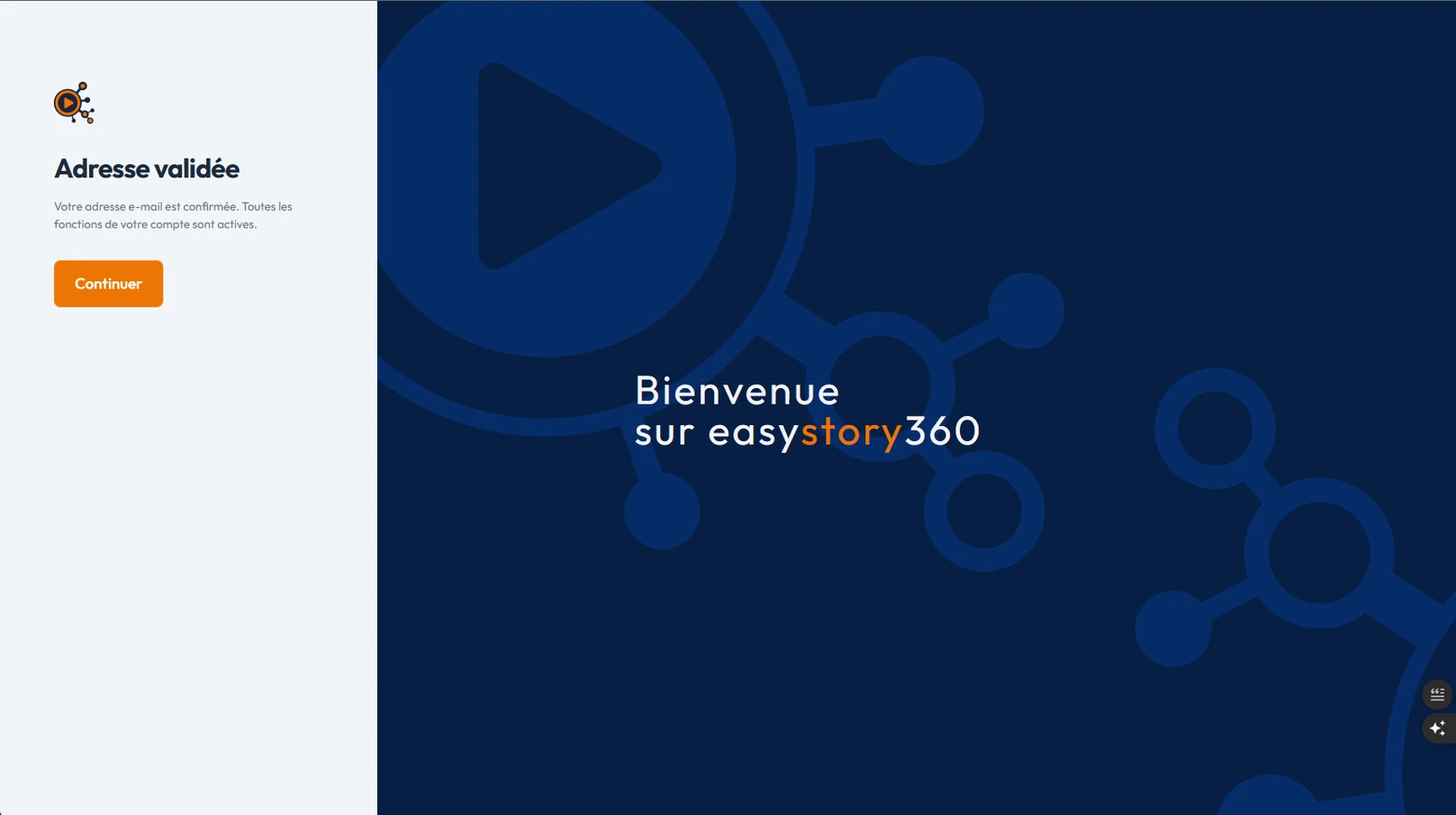
The link opens a platform page showing "Validation en cours…" (confirming), then "Adresse validée" (address confirmed), followed by "Votre adresse e-mail est confirmée. Toutes les fonctions de votre compte sont actives." and a Continuer (continue) button that takes you back to the platform.
Opening the same link a second time, or opening it too late, gives the other page: "Validation impossible" (confirmation failed), with, in red, "Ce lien est périmé ou a déjà été utilisé. Demandez-en un nouveau depuis l'application." (this link has expired or has already been used; request a new one from the application). That is normal behaviour: the platform's banner can send a fresh one, with "Renvoyer l'e-mail".
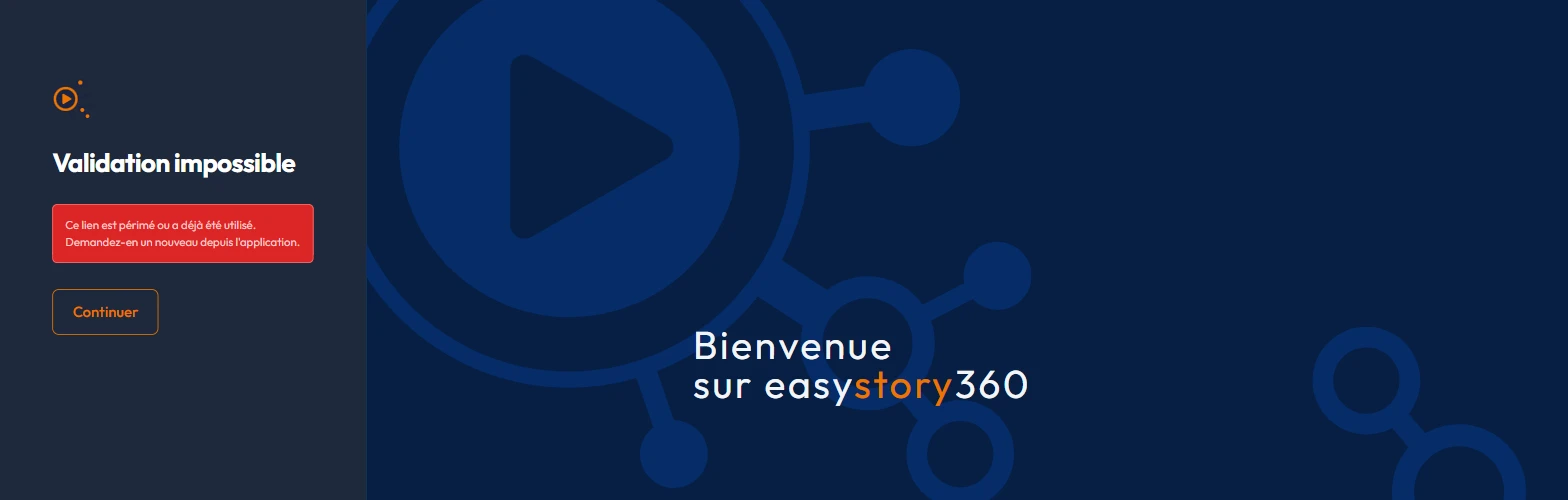
The link works without you being signed in, and from any device: you can open it on your phone while you work on a computer. These two pages follow the light or dark theme of the browser that opens them, not the one chosen in the account menu: their look may vary, their content is identical.
Two cases where the banner does not appear
- Older accounts, opened before this confirmation was introduced, are exempt: you will never see this banner and there is nothing to do.
- Accounts created through an identity provider that supplies an already verified address have nothing to confirm and receive no e-mail. The others go through ordinary confirmation.
The first sign-in
On the first sign-in, two screens come before the home page: a four-card introduction, "Créez vos stories" (Create your stories), "Interactivité totale" (Full interactivity), "Simple et rapide" (Simple and fast) and "Aperçu en temps réel" (Real-time preview), then a video titled "Découvrez comment créer votre première story" (find out how to create your first story).
A "Ne pas réafficher" (do not show again) box stops them coming back; they can be turned back on in "Mon compte" (My account), "Préférences" (Preferences) section, with "Afficher le tutoriel" (Show tutorial).
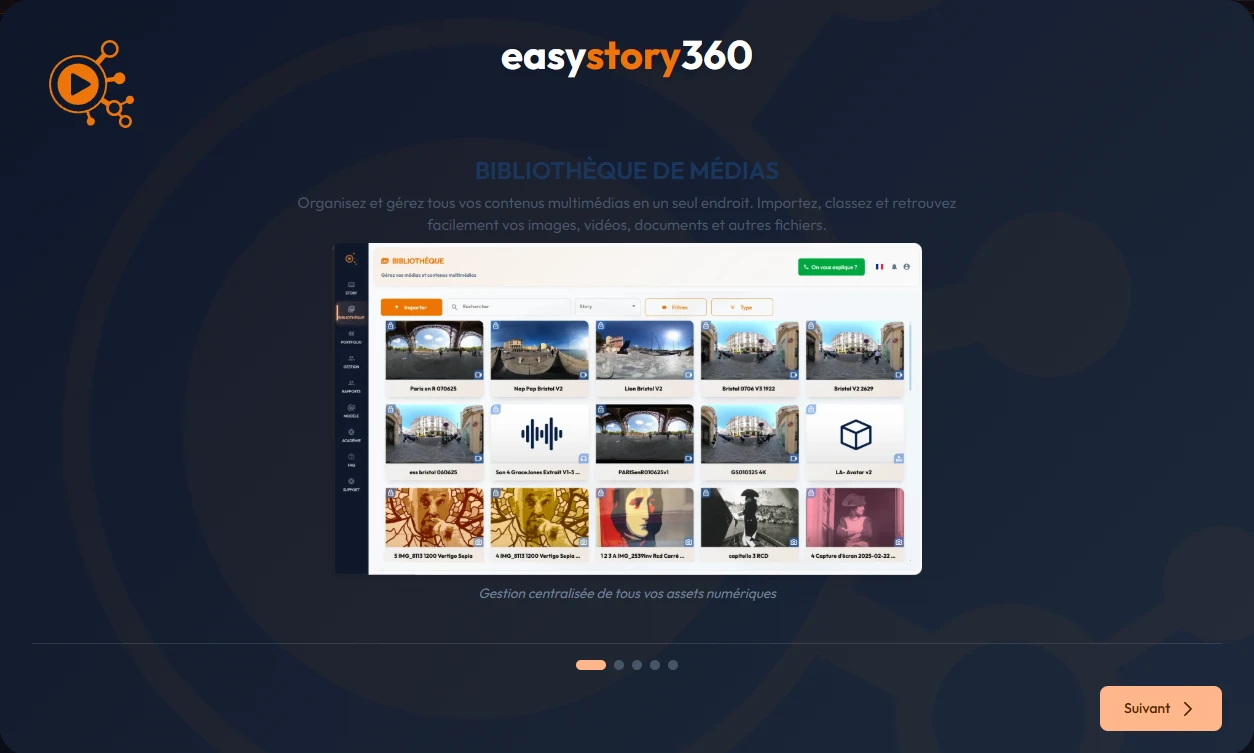
Closing them starts "Installation du modèle en cours…" (installing the template): the platform installs a demonstration story called EXEMPLE-1 while a five-screen carousel introduces the media library, the editor and the rest. So you never land on an empty page.
2Platform vocabulary
Seven words come up everywhere in easystory360. Knowing them prevents the most common mix-up: a media file is not a scene. The media is the file; the scene is what you build with it. The platform's interface is in French, so this wiki keeps the on-screen labels in French with their English meaning alongside; the most recently added settings stay in French whatever interface language you pick.
| Term | What it is |
|---|---|
| Story | A complete immersive experience: a set of scenes linked together, with a beginning, navigation and, if you wish, an ending. The story is what you publish, share and track in the reports. |
| Scène (scene) | A setting the visitor looks around in: a 360 image or video, more rarely a flat media file. A story holds one or more scenes. Each scene carries its own settings (duration, gaze limits, ambient sound) and its events. |
| Événement (event) | An interactive element placed in a scene: a point of interest that shows a text, a question, a sound, an arrow to another scene... It is the basic building block of interactivity (see the event catalogue). |
| Média (media) | A file imported into your library: image, video, audio, PDF, GPS track or 3D object. The same media file can be used in several stories. |
| Variable | A value internal to the story (true/false, number, text or stopwatch) that records what the visitor does. Events can change it and use it as a condition: this is what makes branching journeys possible. |
| Box | A dedicated account that groups headsets and the content they receive. It is the fleet management tool: one box for the training room, another for the trade show. |
| Appareil (device) | A VR headset or tablet paired with your account, listed in "Appareils" > "Mes appareils" (Devices > My devices). A device can run on its own or be driven by a control tablet, and can be attached to a box. |
3How the interface is laid out
easystory360 runs entirely in a recent web browser, with nothing to install. Whatever screen you are on, the page is organised in three areas:
- The menu, on the left: a narrow column of icons with their labels, the logo at the top. An entry with submenus, such as "Appareils" (Devices) or "Aide" (Help), unfolds them next to the menu. On a small screen the menu folds away and a "Menu" button appears at the top of the page.
- The central area: the content of the current page (your stories, your library, your reports...).
- The page header: on the left, the page's icon, title and subtitle; in the middle, the actions specific to that page; on the right, always in the same order, the green "On vous explique ?" (Need explanation?) button, the language flag, full screen, notifications and the account icon, which opens the account menu. Depending on your plan, a "Passer à la formule supérieure" (Update your account) button slots in after "On vous explique ?".
The "On vous explique ?" button opens, in a new tab, the booking page for an appointment with an expert from the team, for a tour of the features. On a very small screen only its phone icon remains. The flag changes the interface language, available in six languages: French, English, Spanish, German, Italian and Breton. Dates on story cards are written in the chosen language.
What you open from a page (a form, a setting, a list) usually arrives in a panel: it opens against the menu, full height, and the page stays visible beside it. Its footer carries a single button, "Enregistrer" (Save), "Valider" (Validate) or "Créer" (Create) as the case may be; to back out, use the cross in the panel header.
Once a story is open, you switch to the editor, which has neither this menu nor this header: it has its own top bar and its own rail of buttons (see the editor). Everything else on the platform follows the pattern above.
4Menus and submenus
The menu, on the left of every page, lines up nine entries, always in this order: "Stories", "Bibliothèque" (Library), "Appareils" (Devices), "Portfolio", "Rapports" (Reports), "Mes quiz" (My quizzes), "Modèles" (Templates), "Gestion" (Management) and "Aide" (Help). Four of them unfold submenus next to the menu.
| Menu | Submenus | What it is for |
|---|---|---|
| Stories | - | The "Mes Stories" (My Stories) page: the list of your stories, their creation, editing, duplication and publishing. |
| Bibliothèque (Library) | - | All your imported media: images, videos, audio, PDF, GPS tracks, 3D objects (see Importing media). |
| Appareils (Devices) | Mes appareils (My devices) · Suivi en direct (Live tracking) · Mes box (My boxes) · Organisation des contenus (Content organization) | The hardware fleet: pairing headsets and tablets, tracking headsets live, boxes, the content groups offered to the devices. The headset home has no menu entry: it is a card on the "Organisation des contenus" page. |
| Portfolio | - | Your public showcase: a shareable page gathering the published stories of your choice. |
| Rapports (Reports) | - | A single page with four tabs: "Statistiques" (Statistics, your stories' audience), "Résultats" (Results, the questionnaires), "Regard" (Gaze, the gaze heat map) and "Formulaires" (Forms, the answers collected). A bar of shared filters, by story, period, origin and user, applies to all four. |
| Mes quiz (My quizzes) | - | Your reusable question sets, to prepare ahead of time or to import. |
| Modèles (Templates) | Médias (Media) · Stories | Ready-made media and sample stories provided by the platform, to copy into your account for a quicker start. |
| Gestion (Management) | Mon compte (My account) · Mes utilisateurs (My users) · Mon abonnement (My subscription) | Your account, your users' accounts, your current plan and your invoices. Clicking "Gestion" opens "Mon compte" directly. |
| Aide (Help) | FAQ · Compatibilité (Compatibility) · Académie (Academy) · Support | The built-in FAQ, the table of what each app can play, the tutorials and training resources (external link) and the contact with the team (external link). See The built-in help. |
Not every entry shows for everyone. A shared-library user only sees "Stories", "Bibliothèque" and "Aide". Under "Gestion", "Mes utilisateurs" and "Mon abonnement" only appear if your plan includes them.
The account menu
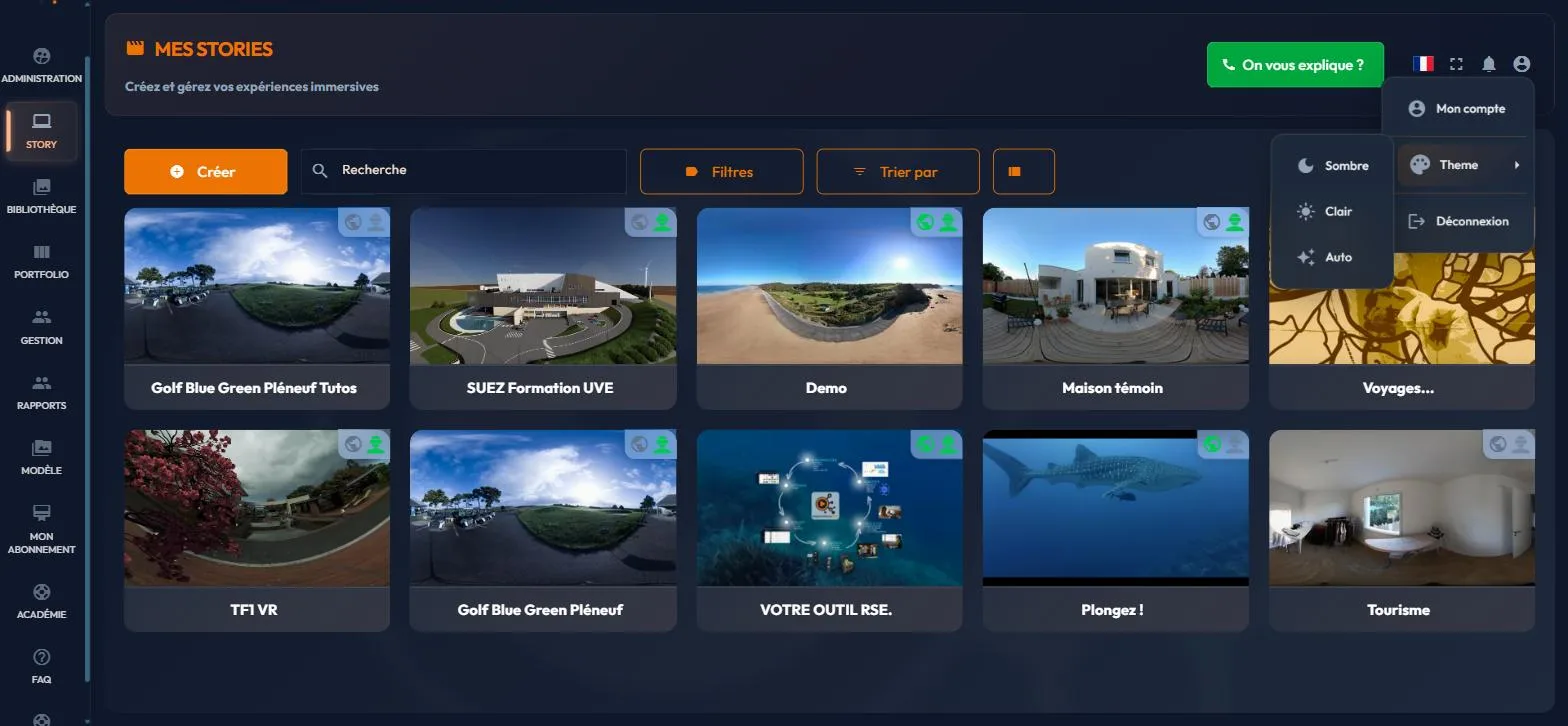
At the top right of every page, the account icon opens a short menu:
- "Mon compte" (My account): the page holding your details and preferences, described below. It is the same page as the one in the "Gestion" menu.
- "Thème" (Theme): the interface appearance, either "Sombre" (Dark theme), "Clair" (Light theme) or "Auto" (the interface then follows your computer's setting). This choice is kept by the browser, not by the account: on another computer, you set it again.
- "Déconnexion" (sign out). For a shared-library user, the "Mon compte" entry does not appear: the menu is limited to the theme and signing out.
The "Mon compte" page
The "Mon compte" (My account) page is split into five sections, listed in a column on the left (inline tabs on a narrow screen). Only one section shows at a time.
| Section | What you set there |
|---|---|
| Compte (Account) | The "Informations générales" (General information) card (user name, first name, last name), your e-mail address with its "Changer d'adresse mail" (change e-mail address) pencil, and the "Sécurité" (Security) card for "Changer votre mot de passe" (Change your password). The address and the password cannot be changed here when you sign in through an identity provider. |
| Préférences (Preferences) | The "Langues" (Languages) card: the "Langue par défaut" (Default language) and the "Langues additionnelles" (Additional languages) of your stories (see Multilingual). The "Préférences d'affichage" (Display preferences) card: "Afficher le tutoriel" (Show tutorial) at start-up. |
| IA (AI) | The "Fonctionnalités IA" (AI Features) card, with its two switches (see The library's AI tools), and the linking of a speech synthesis account. |
| Stockage et licences (Storage and licenses) | "Espace de stockage réservé" (Reserved Storage Space): the space used and the total space, with the "Synchroniser" (Synchronize) icon that recalculates usage. Your account's "Licences d'appareils" (Device Licenses). |
| Zone de danger (Danger zone) | "Supprimer mon compte" (Delete my account). |
The orange e-mail confirmation banner that may sit above these pages is described in Creating your account and confirming your address.