

45Users and their rights
The "Mes utilisateurs" page ("Gestion" > "Mes utilisateurs" (Management > My users)) creates and manages the accounts you hand out. Three buttons drive it: "Nouvel utilisateur" (New user), "Exporter les utilisateurs" (Export users) and "Interface utilisateur" (User interface).
The two profiles
The "Partager ma bibliothèque" (Share my library) switch sets a user's profile. It stays editable afterwards, when editing the user:
- Simple user: they access the stories you created and their own account. This is the learner profile, managed through enrolments.
- Shared library: they create their own stories drawing on your content library. This is the co-author profile.
Creating a user
"Nouvel utilisateur" asks for an "Identifiant" (username, 6 to 20 characters), an optional e-mail, first and last name. The username and the e-mail address are frozen at creation: they are locked from then on.
The list and the passwords
The list sums up, for each user, their name, username, e-mail, password, the "Partage de bibliothèque" (Library sharing) column, their "Stories créées" (Stories created) and "Stories publiées" (Published stories), their "Inscriptions" (Enrolments) and "Dernière connexion" (Last connection). "Exporter les utilisateurs" downloads the whole list as CSV.
In the list, the "Mot de passe" (Password) column is hidden by default. An eye shows the value ("Afficher le mot de passe" (Show password), then "Masquer le mot de passe" (Hide password)); the "Copier le mot de passe" (Copy password) button copies it without showing it. When editing, the panel's "Mot de passe" block shows the "Mot de passe actuel" (Current password) and a "Changer le mot de passe" (Change password) button, which draws a new one, shown at once under "Nouveau mot de passe" (New password).
Enrolments
For a simple user, each enrolment subscribes them to a story over a given period, with a "Nombre de tentatives autorisées" (number of allowed attempts, 0 for unlimited). The user's read-only detail view then tracks their attempts: dates, best score as a percentage, attempt in progress or finished. This is the individual follow-up of a training course; the answers, session by session, are read in the "Résultats" (Results) tab of the reports.
For a shared-library user, the same panel opens on a "Connexions à l'éditeur" (Editor sign-ins) block: "Dernière modification" (Last edit), "Dernière présence" (Last seen), then a table "Connexion" (Signed in), "Durée" (Duration), "Méthode" (Method), "Navigateur" (Browser), or the note "Aucune connexion enregistrée pour l'instant" (No sign-in recorded yet). A simple user does not enter the editor: they have no such block.
Framing authors: the event menu
The "Interface utilisateur" button opens "Configurer le menu événements" (Configure the event menu). There you choose which event types your shared-library users may use ("Présent dans le menu" (In the menu)) and which are pinned as "Accès rapide (favori)" (Quick access (favourite)), six favourites at most. The "Par défaut" (Default) button restores the original configuration. It applies to all your shared users: a way to keep novice authors to the essential events.
Your own account
Clicking "Gestion" in the menu opens "Mon compte" (My account) directly; you also reach it from the account menu at the top right. The page lines up five sections, one shown at a time: "Compte" (Account), "Préférences" (Preferences), "IA" (AI), "Stockage et licences" (Storage and licences) and "Zone de danger" (Danger zone: "Supprimer mon compte" (Delete my account)).
These sections are detailed in Menus and submenus; the account's limits in Where to read your account's limits, the "ElevenLabs" card in Synthetic voices.
The amber address-confirmation banner shown on a new account is described in Creating your account and confirming your address: nothing is blocked until the address is confirmed. The forgotten-password page always answers "Si un compte existe pour cette adresse, un lien vient d'y être envoyé" (If an account exists for this address, a link has just been sent to it), whether the address is known or not; a red message only appears if the sending fails, and the button stays inactive while the message goes out.
46Where to read your account's limits
The plan you subscribed to governs several capabilities met throughout this wiki: storage space, the ceiling on devices you can pair, advanced authentication of public links or SCORM export. The rule is constant: when an option is not included, the interface tells you at the very spot where you try to use it.
The "Gestion" > "Mon abonnement" (Management > My subscription) entry opens the plans page. It is absent on accounts whose contract is managed by an administrator and for shared-library users: your usual contact then takes over. The other figures are spread across three screens:
| What you are looking for | Where to read it |
|---|---|
| Your current plan and your invoices | "Gestion" > "Mon abonnement": the plans, the current one highlighted, the "Mensuel" (Monthly) / "Annuel" (Yearly) billing switch and, on a paying account, the "Prochain renouvellement" (Next renewal) date and the "Mes factures" (My invoices) button. |
| Your storage space, used and available | "Gestion" > "Mon compte" (Management > My account), "Stockage et licences" (Storage and licences) section: the "Espace de stockage réservé" (Reserved storage space) card, with its progress ring and a refresh button. "Mon compte" also opens from the account menu at the top right. |
| How many devices you can still pair | "Appareils" > "Mes appareils" (Devices > My devices). On a managed-contract account: an "n / N appareils utilisés" (n / N devices used) counter next to the "Ajouter un appareil" (Add a device) button. Otherwise: the "Licences d'appareils" (Device licences) panel with its "actifs" (active), "utilisables" (usable) and "disponibles" (available) licences, under the "Maximum pour votre plan" (Maximum for your plan) heading. Your plan does not grant you that number of devices, it sets their ceiling. The "Licences d'appareils" card also sits in "Gestion" > "Mon compte", "Stockage et licences" section; licences are explained in Pairing and managing headsets, and the tiers on the prices page. |
| A box's remaining activity time | "Appareils" > "Mes box" (Devices > My boxes): the "Fin d'abonnement" (Subscription end) column, showing a number of days left, "Illimité" (Unlimited) or "Expiré" (Expired), box by box. |
47Reports and audience statistics
The "Rapports" (Reports) menu entry opens a single page, subtitled "Ce que les visiteurs ont fait de vos stories : fréquentation, réponses, regard, formulaires" (What visitors did with your stories: attendance, answers, gaze, forms). It is not offered to shared-library users. It gathers four tabs:
- "Statistiques" (Statistics): the audience, described here.
- "Résultats" (Results): question sets and scores.
- "Regard" (Gaze): the heatmaps.
- "Formulaires" (Forms): the collected answers.
The shared filters
Above the tabs, a filter bar stays in place when you move from one tab to another. It carries the note "Ces filtres s'appliquent aux quatre rapports" (These filters apply to all four reports).
- "Story": "Toutes les stories" (All stories), or one specific story.
- "Période" (Period): "Depuis toujours" (All time), "7 derniers jours" (Last 7 days), "30 derniers jours" (Last 30 days), "90 derniers jours" (Last 90 days) or "12 derniers mois" (Last 12 months).
- "Origine" (Origin): "Web et casque" (Web and headset), "Web" or "Casque" (Headset).
- "Utilisateur" (User): "Tous les utilisateurs" (All users), one of your users, your own account, or "Visiteurs anonymes" (Anonymous visitors), which groups visitors without an account.
The "Réinitialiser les filtres" (Reset filters) button appears as soon as a filter is set. On a small screen, the bar folds away behind a "Filtres" (Filters) button.
The "Statistiques" tab
The tab offers two views. "Nombre de vues" (Number of views) plots the number of views per day, one curve per story. A view is one browsing session; flash visits of less than half a second are not counted.
The story and the period come from the shared filters. With no period chosen ("Depuis toujours"), the curve starts at the first recorded view, within the limit of one year. Two selectors specific to the tab refine the display: "Dates" and "Type d'appareil" (Device type: PC, Smartphone, Tablette, Casque VR, Autres). They are reset every time you change a shared filter.
The "Details" view lists stories as a table: name, "Nombre de vues", "Durée moyenne (en sec)" (Average duration (in sec)). The table applies the same date range as the curve; with no period, it covers the whole history. In both views, the "Exporter (CSV)" (Export (CSV)) button downloads what is on display: one row per day and one column per story for the curve; name, views and average duration for the table.
A story's detail
Each table row carries two icon buttons, with the tooltips "Afficher les informations" (Show information) and "Réinitialiser les statistiques" (Reset statistics). The first opens the story's detail in a full-width panel, in five tabs:
- average time per scene;
- number of views per scene;
- the detailed scene-by-scene table;
- location: visitors' countries, cities and languages, approximate ("Inconnu" (Unknown) when the data is missing);
- "Provenance" (Source): views counted "Par appareil" (By device) and "Par application" (By application), that is by the application that played the story: "Navigateur web" (Web browser), "Application casque" (Headset app), "Application kiosque" (Kiosk app) or "Autre" (Other).
48Results: question sets and scores per user
The "Résultats" (Results) tab of the reports page gathers what your visitors answered to the question sets of your stories, on the web as well as in the headset. It reads as three tables, from the broadest to the finest, and obeys the shared filters "Story", "Période" (Period), "Origine" (Origin) and "Utilisateur" (User).
| Table | Its columns | Good to know |
|---|---|---|
| "Utilisateurs" (Users) | "Utilisateur" (User), "Sessions", "Terminées" (Completed), "Dernière session" (Last session), "Moyenne" (Average), "Meilleur score" (Best score), "Temps total" (Total time). | One row per person. The "Détail" (Details) button, or a click on the row, opens their sessions. "Exporter (CSV)" (Export (CSV)) downloads the table. |
| "Questionnaires" (Question sets) | "Questionnaire" (Question set), "Sessions", "Moyenne" (Average), "Bonus". | Only appears once a story is chosen in the "Story" filter. |
| "Questions" | "Question", "Questionnaire" (Question set), "Scène" (Scene), "Réponses" (Answers), "Taux de réussite" (Success rate), "Points", "Réponses données" (Answers given). | Same condition: a story must be chosen. "Exporter (CSV)" downloads the table. |
As long as no story is chosen, the page is limited to the users table and says: "Choisissez une story pour voir le détail par questionnaire et par question." (Select a story to see the details per question set and per question.)
Session details
The "Détail" button opens the "Détail des sessions" (Session details) panel: one row per session, with "Date", "Story", "Origine" (Origin), "Appareil" (Device), "Durée" (Duration), "Score" and "État" (State), which reads "Terminée" (Completed) or "Non terminée" (Not completed). Click a session to see its answers, question by question: the scene, the "Réponse donnée" (Given answer), the right answer, and the bonus earned in each question set. The panel has its own CSV export.
49Where your visitors look: heatmaps and pauses
The "Regard" (Gaze) tab of the reports page shows where your visitors look, scene by scene and over time. It lays a heatmap over the scene's 360 image: the hotter a zone, the more it was looked at. This measurement is not automatic: it is turned on story by story.
Turning the measurement on in the story
- In the editor, open the "Story" panel with the "Story" button on the left rail, "Général" (General) tab (see Story options).
- In the "Options" block, turn on the "Carte de chaleur du regard (casque et web)" (Gaze heatmap (headset and web)) switch. It is off by default.
- Pick the "Finesse de la carte" (Heatmap detail), which then appears: "Standard : cases de 5°, tranches de 10 s" (Standard: 5° cells, 10 s slices) or "Fine : cases de 2°, tranches de 5 s" (Fine: 2° cells, 5 s slices).
- Save, then update the publication.
Reading the map
In the reports, "Regard" tab, pick a story with the shared "Story" filter, then a "Scène" (Scene). The map shows over the scene's image. Below it, two tables put figures on it: "Zones les plus regardées" (Most viewed zones), with each zone's azimuth and elevation, its "Temps" (Time) and its "Part" (Share), and "Events regardés" (Viewed events), giving the "Temps" and "Part" of each event in the scene.
- Over time: three modes, "Toute la scène" (Whole scene), "Jusqu'à" (Up to) or "Tranche" (Slice). A strip of slices runs below the map, and the "Lecture" (Play) button, which turns into "Pause", scrolls through it: you watch the gaze move as the scene unfolds.
- Two sources: "Sessions filtrées" (Filtered sessions) adds up on the fly the sessions kept by the filters; "Compilation" shows a saved total. The "Compiler" (Compile) button saves the current total with its filters; the page then shows "Compilée le" (Compiled on), the date, the number of sessions and the filters used. Without a compilation, it says "Jamais compilée : la page agrège les sessions à la volée." (Never compiled: the page aggregates sessions on the fly.)
- Exports: "Image PNG" (PNG image) for the map, "Exporter (CSV)" (Export (CSV)) for the figures.
Gaze pauses
Nothing is recorded while a session is paused. The strip still keeps track of those stops: a slice's tooltip shows "Arrêt" (Paused), followed by the number of sessions that were paused at that moment out of the total, and the cumulated duration. A slice where many sessions stopped points to a passage where your visitors linger, or drop off.
| What you see | What it means |
|---|---|
| "Aucune carte du regard pour l'instant" (No gaze map yet) | No story has data yet: turn on "Carte de chaleur du regard" in the "Story" panel, the next sessions will feed the page. |
| "Aucune donnée pour cette scène avec ces filtres." (No data for this scene with these filters.) | The scene has no data for the chosen period, origin or user: widen the filters. |
| "Scène sans aperçu 360 : fond neutre (méridiens tous les 30°)." (Scene without a 360 preview: neutral background (meridians every 30°).) | The scene has no preview image: the map is drawn on a neutral gridded background. |
50Form answers
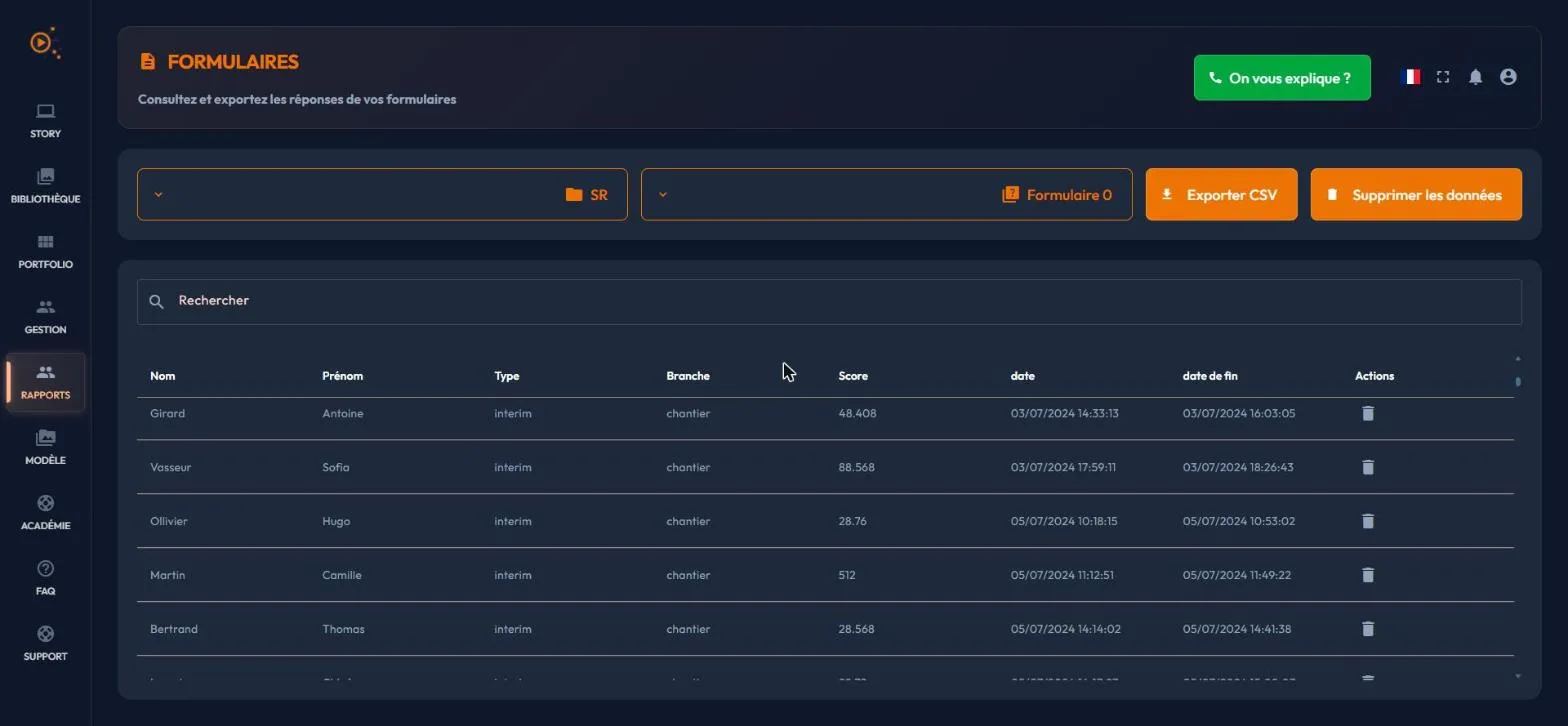
The "Formulaires" (Forms) tab of the reports page browses and exports the answers collected by your form events. Two lists drive it: "Sélectionner une story" (Select a story), which only offers stories that have a form, then "Sélectionner un formulaire" (Select a form); an untitled form is called "Formulaire N". The "Rechercher" (Search) field searches the data.
Picking a story here also sets the shared "Story" filter. Conversely, if the story of the shared filter has no form, the tab keeps the form on display and says "Aucune donnée pour cette story dans ce rapport" (No data for this story in this report).
The answers come from the Formulaire (form) event, in the "Avancé" (Advanced) category of the catalogue, which only works in web publications: the visitor clicks the form's point, fills in the fields, then clicks "Envoyer" (Send). Their answer lands here.
Each table row is one submission. The columns are those you defined in the event, one per field, under the name you gave them: the score or completion dates only show up if you added a Score field or date fields to the form. Think about it at build time, not at reading time.
The most recent answers come first. A counter "Réponses : n" (Answers: n), or "Réponses : n sur N" (Answers: n of N) during a search, gives their number. Each column sorts on a click: dates and numbers are ordered as such, and missing values, shown as a dash, go last.
The "Exporter CSV" (Export CSV) button downloads the answers on display, search and sort included, as a CSV file named after the form. Deletion exists at two scales, each with confirmation and no way back: "Supprimer cette ligne" for one answer, "Supprimer les données" (Delete the data) for the whole form.
51The portfolio: your public showcase
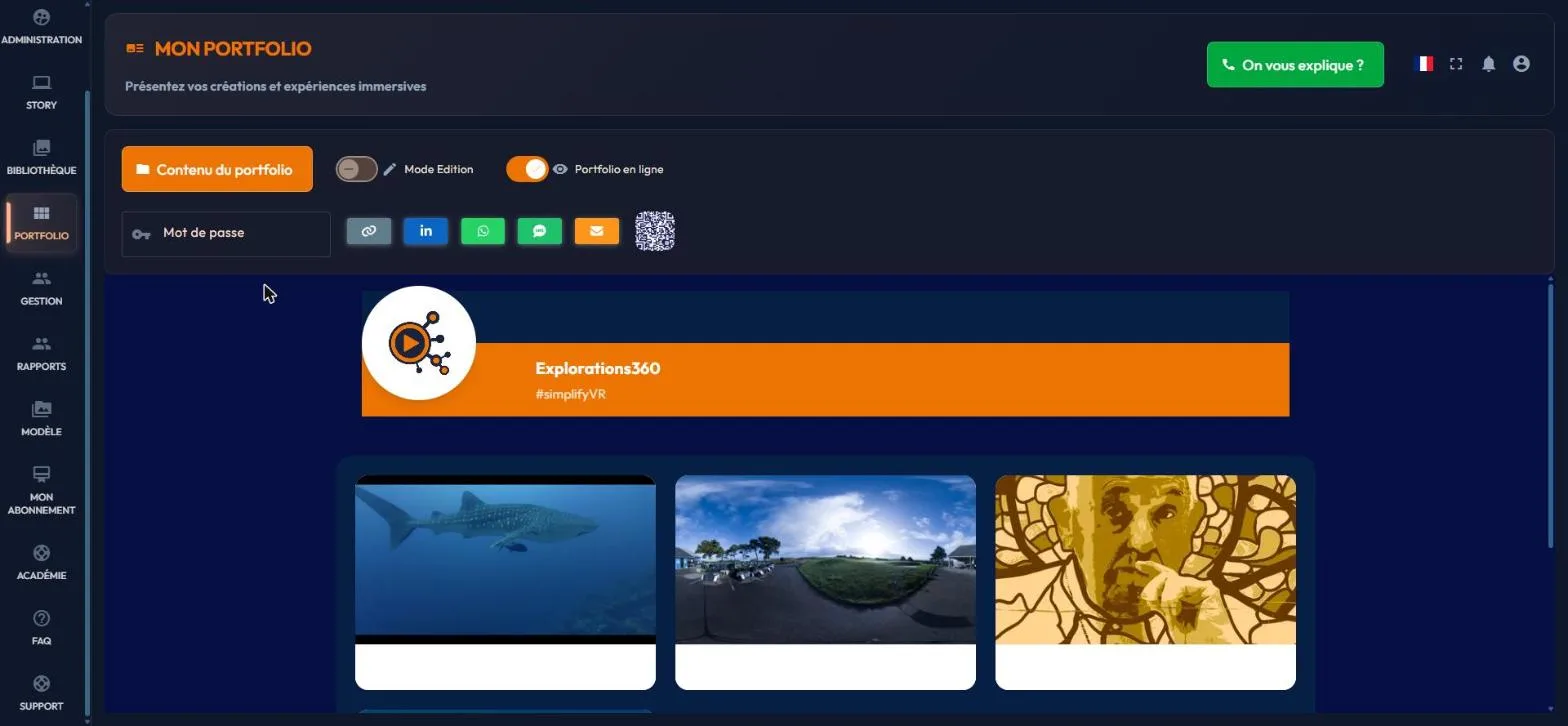
The portfolio is your account's public showcase: a single, shareable page presenting the published stories of your choice as a grid. Clicking a card opens the story. A story enters it in two ways: the "Ajouter au portfolio" (Add to portfolio) option of its broadcast window, or the "Contenu du portfolio" (Portfolio contents) selector on the page itself.
The "Mon Portfolio" (My Portfolio) page opens from the "Portfolio" menu entry, which is not offered to shared-library users. Its top bar keeps the essentials: the "Contenu du portfolio" button, the count of stories shown, the "En ligne" (Online) or "Hors ligne" (Offline) status and the "Ouvrir le portfolio" (Open the portfolio) button.
The settings are arranged in three cards, "Publication et partage" (Publication and sharing), "Accès" (Access) and "Apparence" (Appearance), next to an "Aperçu public" (Public preview) frame showing the page exactly as your visitors will see it.
Publication and sharing
The "Portfolio en ligne" (Portfolio online) switch publishes the page or withdraws it. Offline, the card says "Mettez le portfolio en ligne pour obtenir son lien de partage." (Put the portfolio online to get its sharing link.); online, "Toute personne qui a le lien peut ouvrir le portfolio." (Anyone who has the link can open the portfolio.) Then come the link, five sharing buttons (link copy, LinkedIn, WhatsApp, SMS, e-mail) and the QR code, with "Télécharger le code QR" (Download the QR code).
Access: protecting the page with a password
- Type the password in the "Accès" card; an eye shows or hides what you type.
- Use at least seven characters, otherwise the message "Le mot de passe doit contenir plus de 6 caractères" (The password must contain more than 6 characters) appears and nothing is saved.
- Click "Sauvegarder le mot de passe" (Save the password), which appears below the field as soon as what you typed differs from the saved value: the password is not saved on its own.
The visitor then sees an "Accès protégé" (Protected access) screen and must type that password. To reopen the page to everyone, click "Retirer le mot de passe" (Remove the password), offered as soon as a password is saved: without a password, the portfolio is public.
Appearance
The "Mode édition" (Edit mode) switch brings up pencils on the preview, to edit the banner, profile picture, name, description and colours. Seven buttons also lead straight to each setting: "Fond de la page" (Page background), "Fond de la bannière" (Banner background), "Bandeau du nom" (Name band), "Texte du nom et de la description" (Name and description text), "Fond de la grille des stories" (Story grid background), "Image de la bannière" (Banner image) and "Logo ou photo de profil" (Logo or profile picture).
52Templates: a faster start
The "Modèles" (Templates) menu provides ready-made starting points, in two entries, "Médias" (Media) and "Stories".
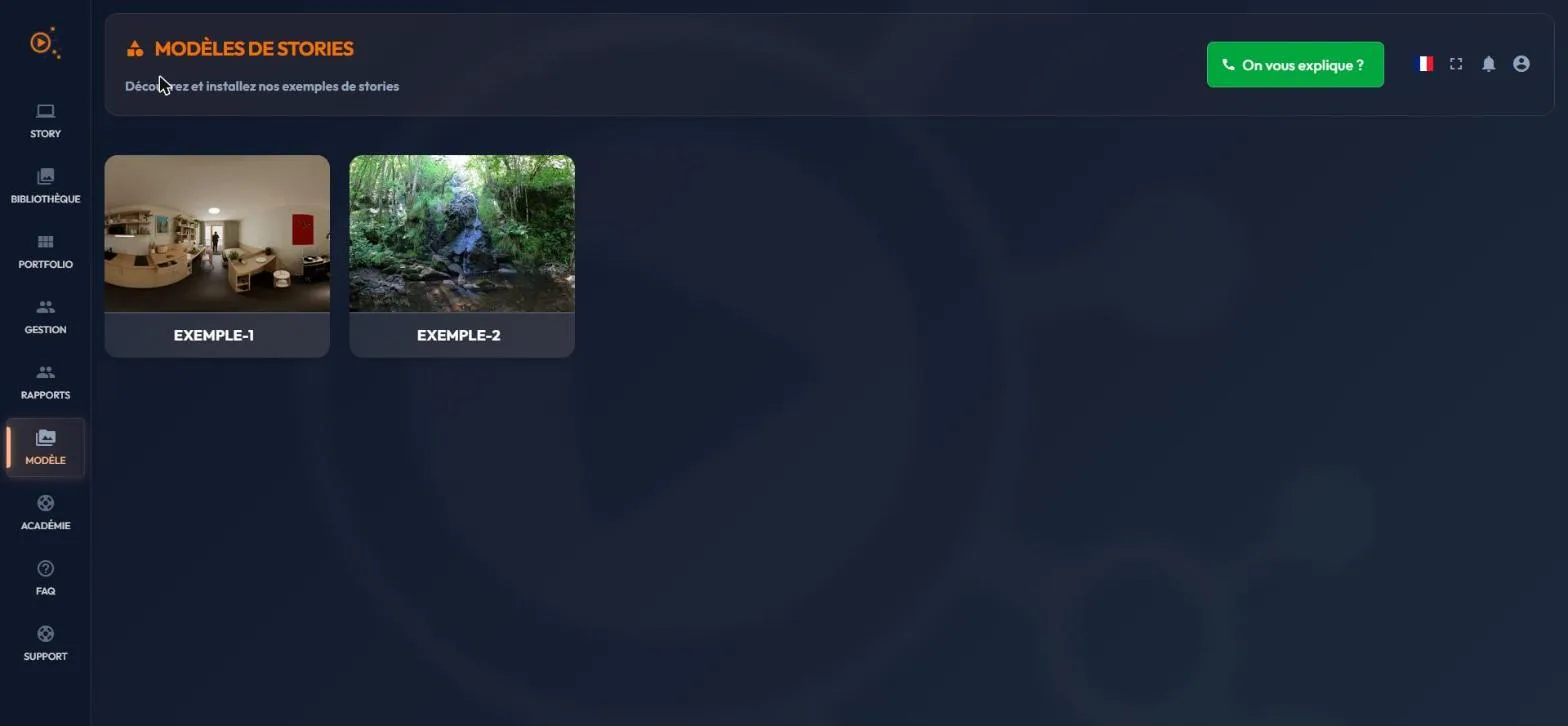
The "Modèles de stories" (Story templates) page is a catalogue of sample stories provided by the platform: "Tester votre story" (Test your story) plays them as a preview, "Installer l'exemple dans vos stories" (Install the example in your stories) copies the story and its media into your account, where you edit it freely. The page has a search, a result counter and a grid / list toggle.
The "Modèles de médias" (Media templates) page is a library of ready-made media (images, videos, audio, PDF, 3D objects, avatars...). A filter rail sorts it by three groups, "Type", "Format" and "Étiquettes" (Tags), plus a search; on a narrow screen, a "Filtres" (Filters) button folds that rail away. "Voir le média" (View the media) examines a media file, "Récupérer le média" (Get the media) copies it into your library.
The sample story of a new account
When an account has no story yet, the first opening of the "Stories" page launches a window that installs the first story template by itself, once the tutorial is closed if it shows. During installation ("Installation du modèle en cours..." (Template installation in progress...), then "Installation terminée !" (Installation complete!)), five screens present the platform, browsed with "Précédent" (Previous) and "Suivant" (Next); "Fermer" (Close) ends it.
The installed story is an ordinary story: you edit, duplicate or delete it. This window shows only once, only if your story list is empty, and it does not concern shared-library users.