

35Story options: identity, colours, startup
The "Story" panel, opened by the "Story" button on the editor's rail, sets everything that applies to the whole story; its header shows the word "Options". Four tabs: Général (General), Aperçu (Preview), Audio and Questionnaire (Quiz). The last one is covered in Question sets; here are the other three. The panel closes with "Enregistrer" (Save); the cross in the header cancels your changes.
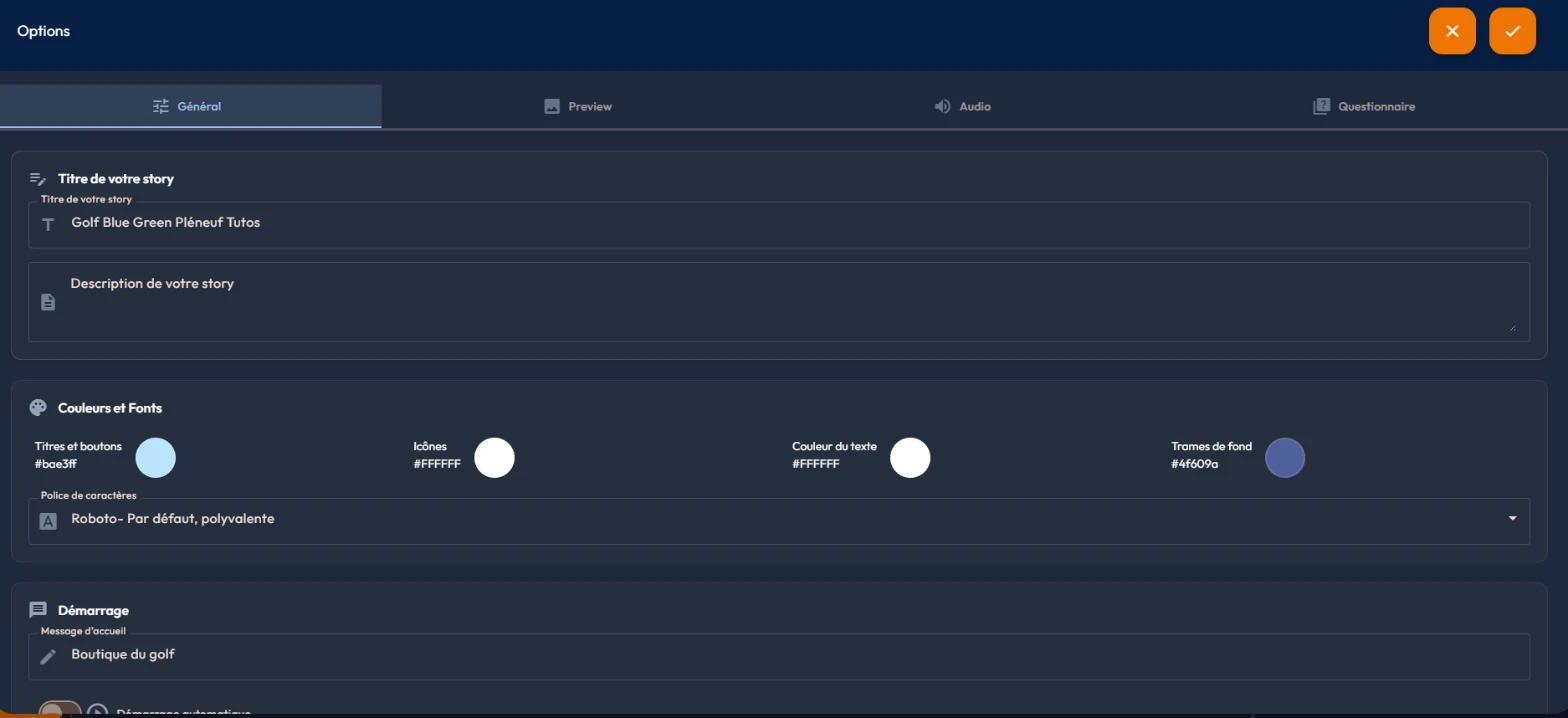
The "Général" tab
- "Titre de votre story" (your story's title, 200 characters at most) and "Description de votre story": the story's identity, reused in the list and when sharing.
- "Couleurs et polices" (Colors and Fonts): four colour swatches, "Titres et boutons" (titles and buttons, the player's main colour), "Icônes" (icons), "Couleur du texte" (text colour) and "Trames de fond" (window and panel backgrounds). Each swatch opens a picker that leads with your last eight colours, then the base colours. Those recent colours are kept from one session to the next on the machine you work at: you do not retype the same reference on every event.
- "Police de caractères" (typeface): the whole story's font, picked among ten: Roboto (default), Poppins, Inter, Montserrat, Open Sans, Lato, Nunito, Raleway, Playfair Display and Mscomics.
- "Démarrage" (startup): the "Message d'accueil" (welcome message) shown before launch ("Commencer la visite" by default), and the "Démarrage automatique" switch that starts the story without waiting for the click.
- "Options": "Afficher le bouton pause" (show the pause button) in the player, "Utiliser le gyroscope de l'appareil" (use the device's gyroscope) so the view follows the phone's or tablet's movements, and "Carte de chaleur du regard (casque et web)" (Gaze heatmap (headset and web)), off by default. That last one records where your visitors look and brings up the "Finesse de la carte" (Heatmap detail) list; it is detailed in Where your visitors look.
The "Aperçu" tab
Here you pick, from the library, the story's thumbnail image: the one representing it in your story list and when sharing. Search, tag filters and the "Sélection actuelle" (current selection) banner, as everywhere else.
The "Audio" tab
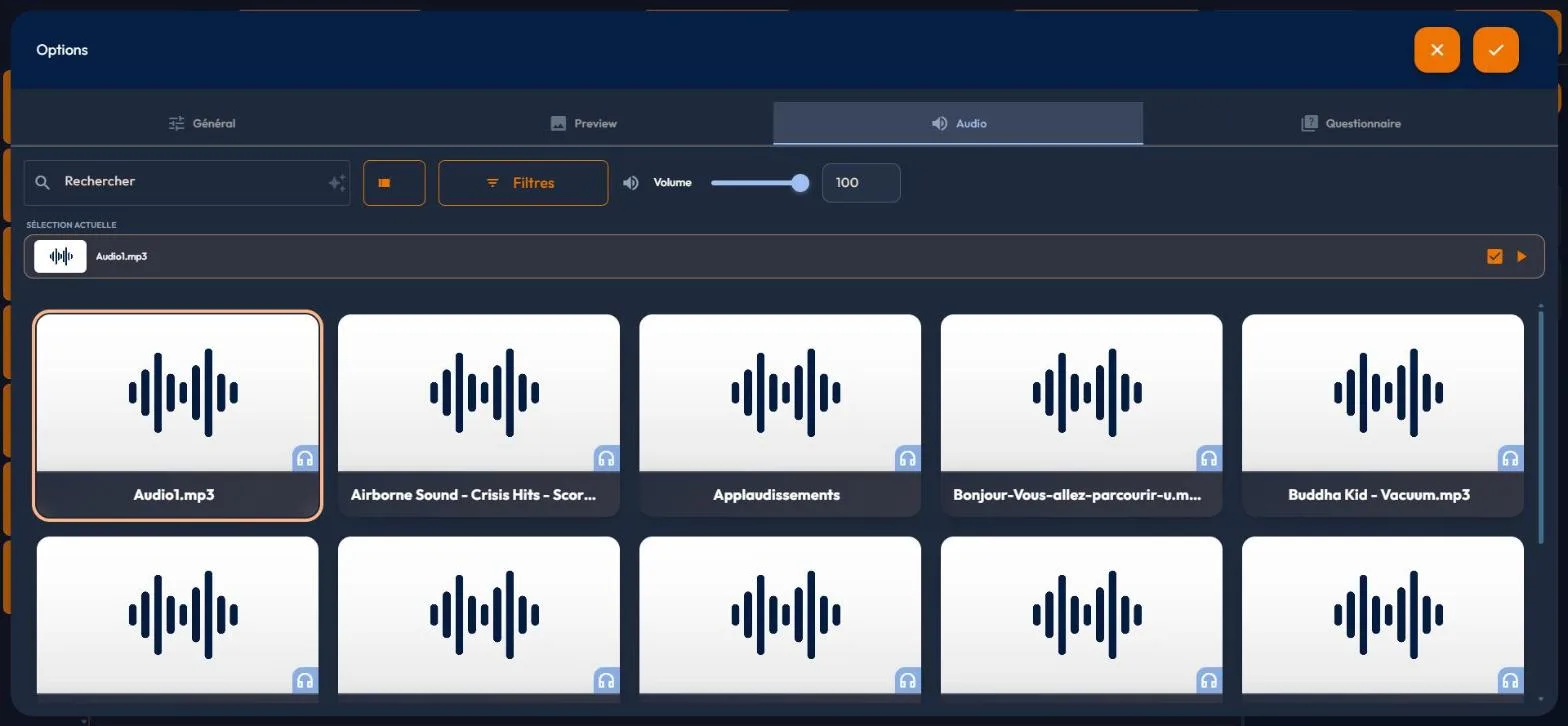
Here you pick, from the library, the story's global ambient sound, with its "Volume" slider. It applies to the whole story; each scene can also carry its own ambience in its scene options, "Audio" tab.
36The player's interface: logo, nadir, scene list
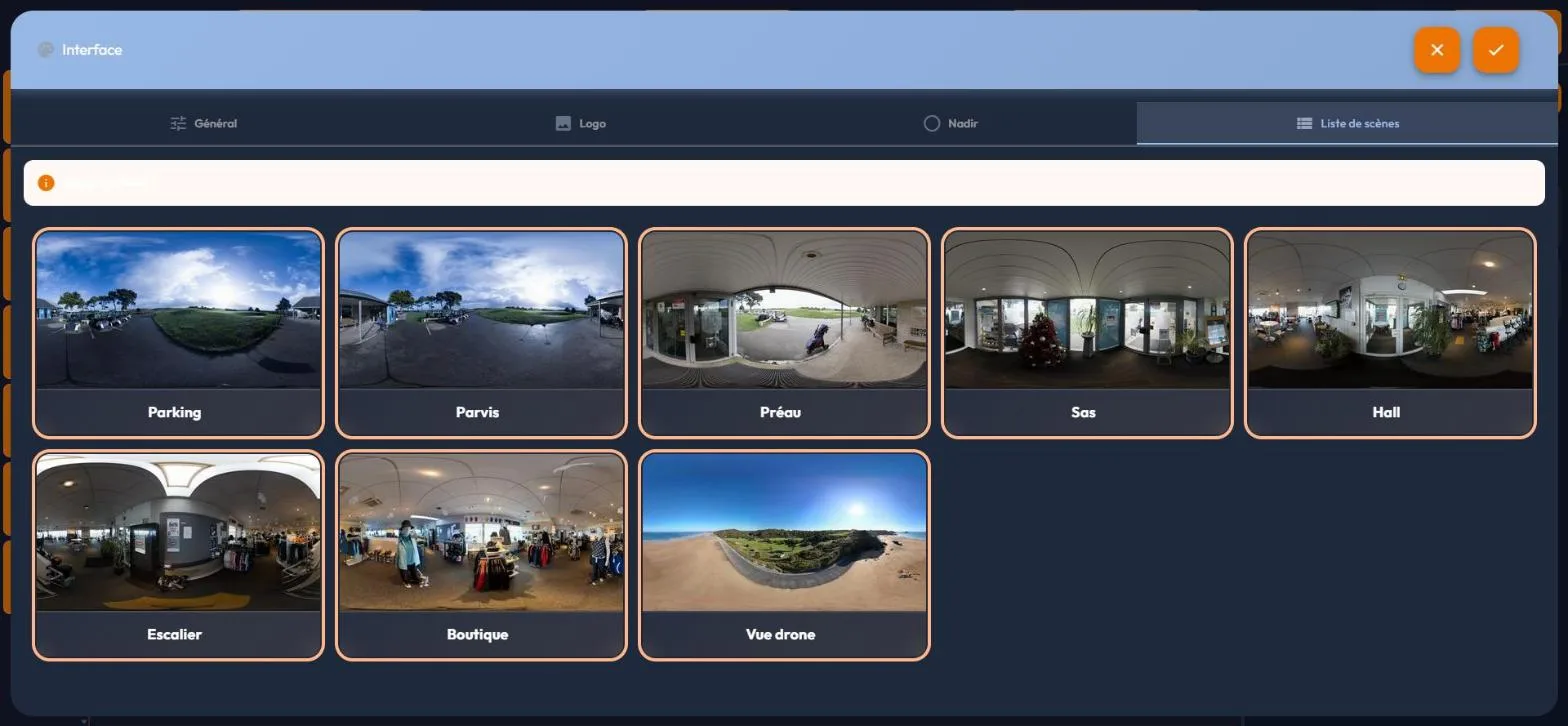
The "Interface" panel, opened by the "Interface" button on the editor's rail, dresses the player in your organisation's colours. Four tabs: Général (General), Logo, Nadir and Liste de scènes (scene list).
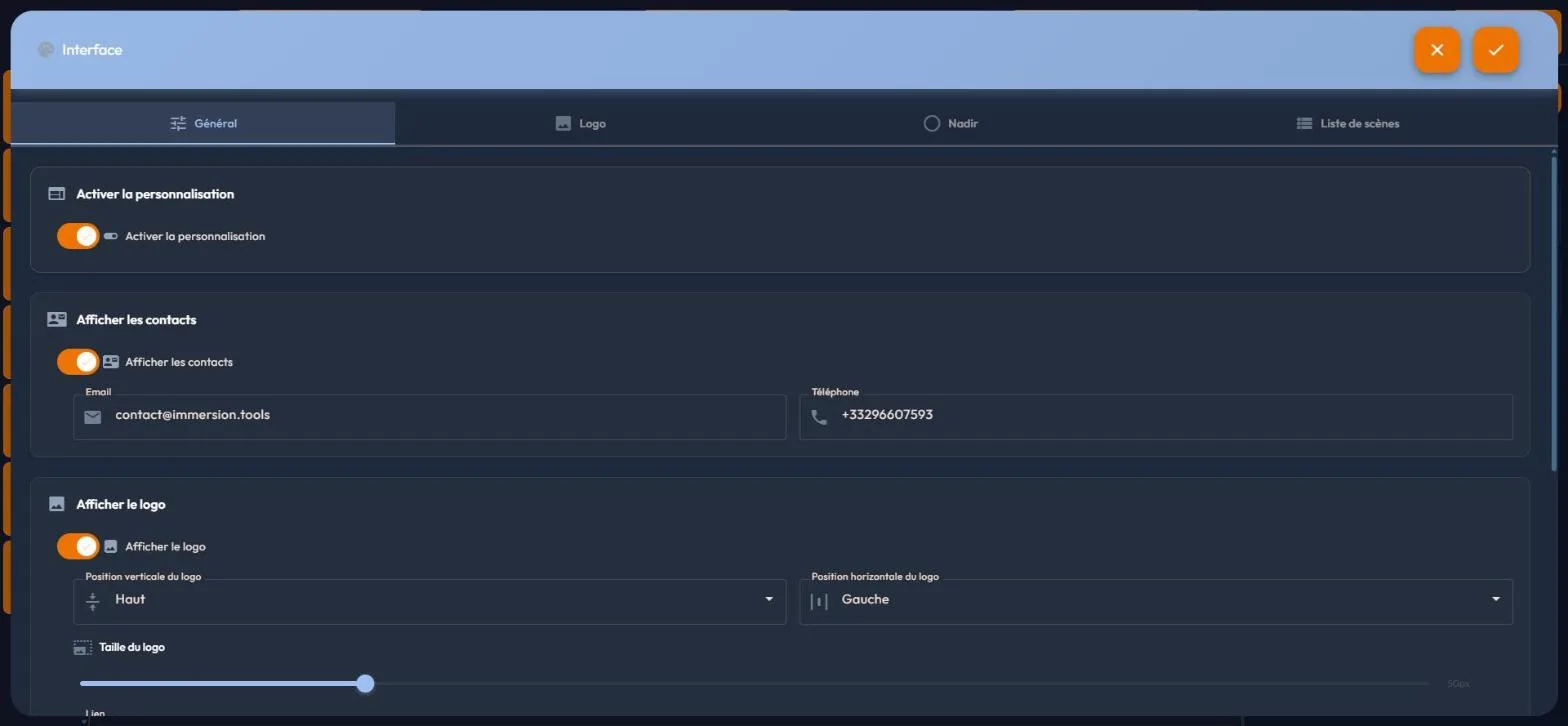
Everything starts from the master switch "Activer la personnalisation" in the Général tab: while it is off, the rest is inactive. The Logo, Nadir and Liste de scènes tabs only open when three conditions are met at once: the matching option ticked, customisation active, and the feature included in your plan.
The "Général" tab
- "Afficher les contacts" (show contacts): a contact button in the player, with your "Email" and "Téléphone" fields.
- "Afficher le logo" (show the logo): your logo as an overlay, with its "Position verticale du logo" (Logo vertical position: Haut or Bas, top or bottom), "Position horizontale du logo" (Logo horizontal position: Gauche, Centre or Droite, left, centre or right), its "Taille du logo" (size slider, 10 to 200 pixels) and a "Lien" (link) opened when the logo is clicked.
- "Afficher NADIR": an image at the nadir, the "tripod cap" laid on the ground of the 360 view.
- "Afficher la liste des scènes" (show the scene list): the scene menu in the player, with its "Position de la liste" (Gauche, Haut, Bas or Droite) and the "Liste toujours affichée" option to keep it permanently visible.
The "Logo" and "Nadir" tabs
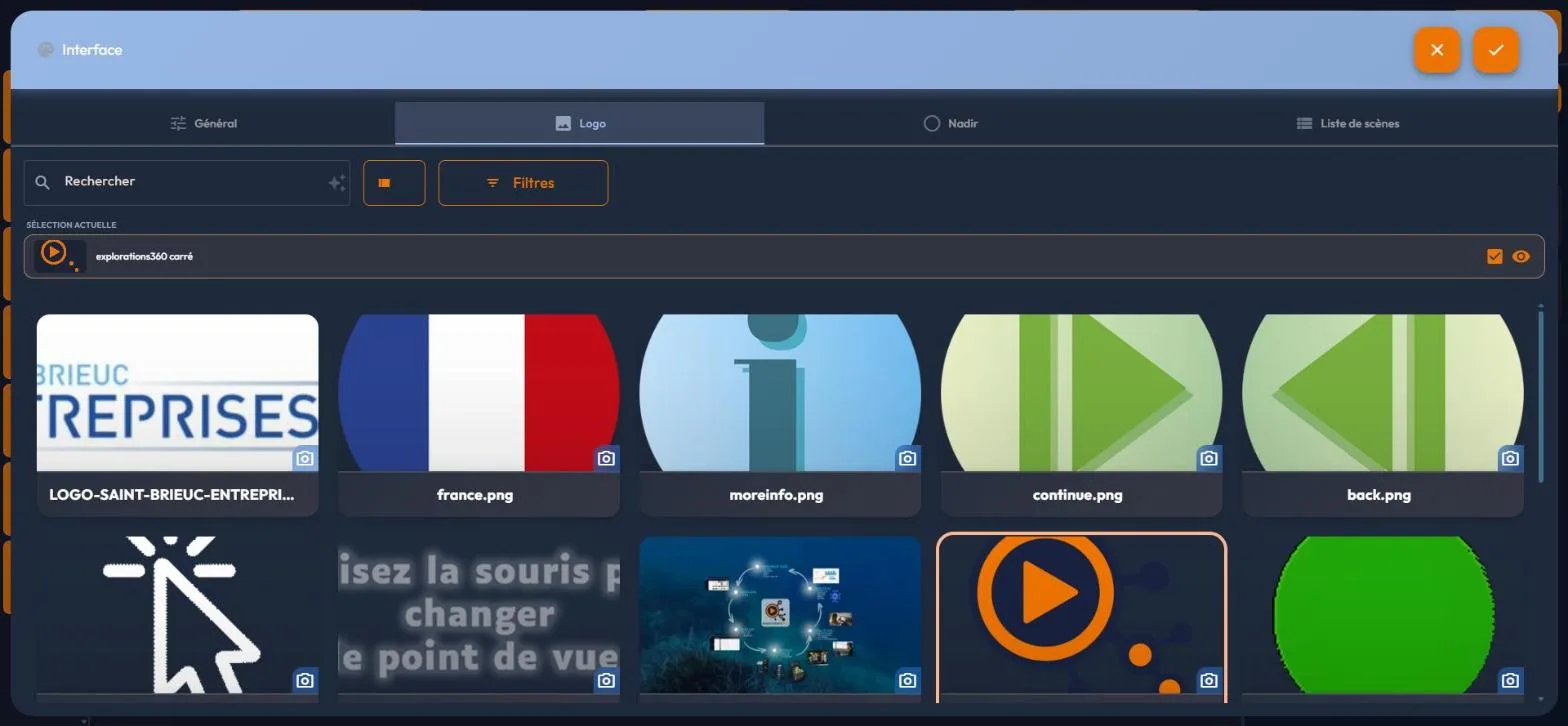
Each one picks the matching image from your library: the overlaid logo for one, the image laid on the sphere's floor for the other. The nadir is the lowest point of the 360 view: it is where the camera or tripod shows up in the photos, and the nadir image covers it.
The "Liste de scènes" tab
"Scènes à afficher" (Scenes to display), followed by the grid of all the story's scenes, each of them tickable. Unticked scenes do not appear in the list offered to the visitor: handy for hiding an ending scene or a technical one.
37Multilingual: translating texts and audio
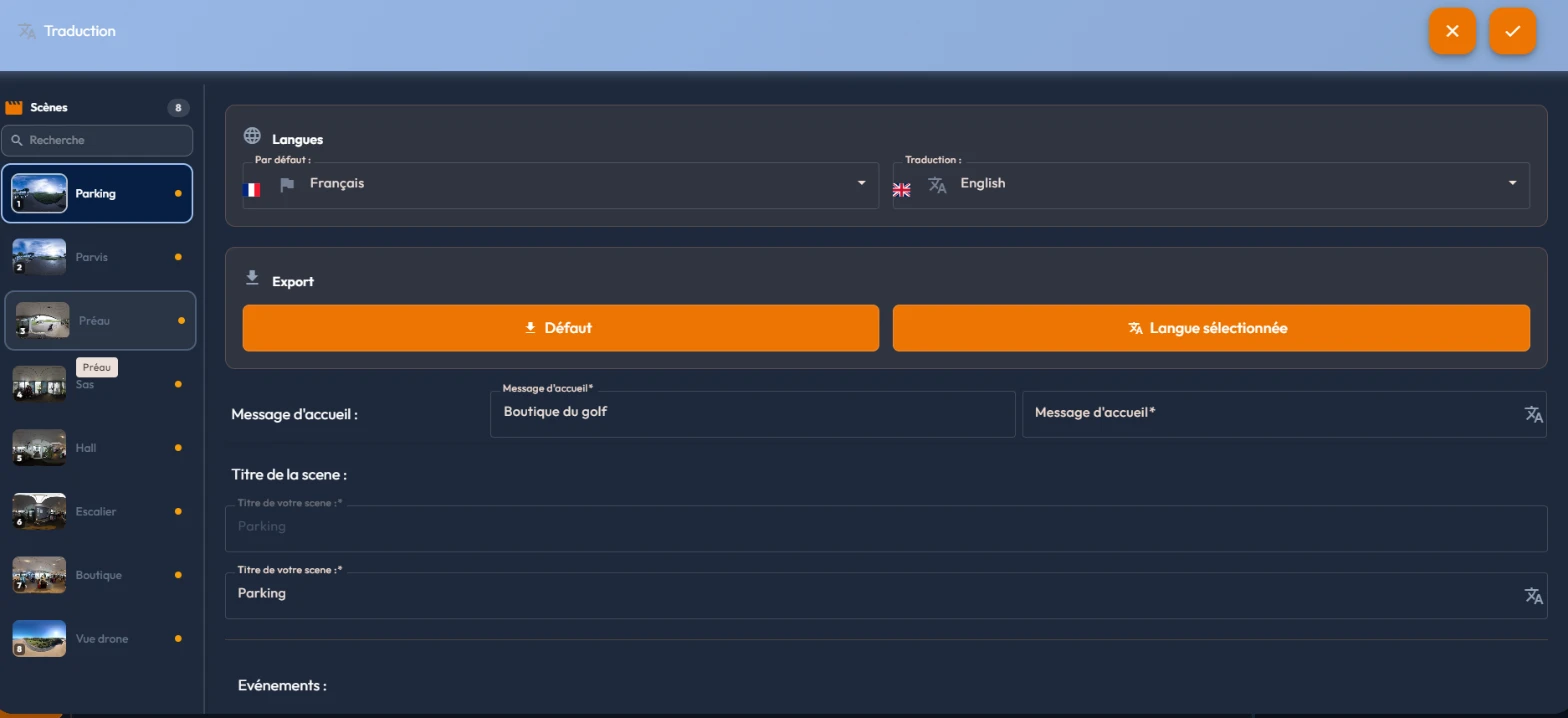
A story can speak several languages. The "Traduction" (Translation) panel, opened by the "Traduction" button on the editor's rail, translates a story's texts. At the top of the panel, the "Langues" section offers two lists: "Par défaut" (Default, the reference) and "Traduction" (Translation, the target being edited).
Available languages are first defined on your account: "Gestion" > "Mon compte" (Management > My account), "Préférences" (Preferences) section, "Langues" card, with the "Langue par défaut" (Default language) and the "Langues additionnelles" (Additional languages).
Translating a story's texts
The left column repeats the editor's rows, one per scene, with its numbered thumbnail, its title and its number of events; a search field sits above it. A "À traduire" (To translate) badge flags unfinished scenes.
For each scene, every translatable text lines up: the welcome message, the scene title, then the events with their titles, texts, questions, answers, right- and wrong-answer feedback, button labels, form field names and an image caption.
You translate in the right-hand fields, with the reference in sight: a fixed strip at the top of the work area keeps the heading, the source text and the translation visible.
Every field has a "Traduire" (translate) button offering an automatic AI translation. Translation happens field by field: there is no "translate everything" button, which lets you validate each text but calls for some method on a big story. The "Légende de l'image" (Image caption), capped at 300 characters, is only offered when a caption was typed in the event.
Exporting the texts to Excel
The Export section produces an Excel file of the texts, useful for proofreading or translating outside the platform. Two buttons sit there, but only one works: "Défaut" (default) does produce the file of the story's texts; "Langue sélectionnée" (selected language), offered as soon as you work on a language other than the original one, produces an empty file, and stays greyed out as long as no translation exists for the chosen language. Use "Défaut".
That export covers the texts of one story. Question sets have their own workbook, with its own language columns, described in "Mes quiz" (my quizzes): the two files share neither format nor purpose.
Multilingual audio and video
The Traduction panel only handles text. For sounds and videos, per-language variants are set at the media level, in the file's library form: a "Langues" section shows one tile per language of your account, where you drop the replacement file for each language. The event keeps a single media reference; the player serves the visitor the variant matching the language they chose.
When you time a scene, the room an audio event takes on the timeline is that of its longest version, across all languages, not that of the default language. The duration shown says so, in the form "1:20 (en: 1:34)": you can see at a glance which language governs the duration, and avoid a translation cut off at the end of the scene.
The visitor's language choice
On the visitor's side, the language choice goes through the "Sélection de la langue" (language selection) event (Avancé category of the catalogue). In "Multiple" mode, the visitor picks their language among those you offer, flags included; in "Unique" mode, the story switches directly to a specific language. The mode and the languages you pick are saved, and read back when you reopen the story.
Two things to know about this event: its list always offers the same five languages, French, English, Spanish, German and Italian, whatever languages your story declares; and switching to "Unique" mode keeps only the first language of your selection.
38Synthetic voices: generating audio from a text
The platform can make an audio file from a text: an instruction, a question, an answer, a feedback. It does so with the voices and on the ElevenLabs account that you link yourself. Without a linked ElevenLabs account, the feature produces nothing; your recorded or imported audio keeps working.
Step 1: link your ElevenLabs account
- Open "Gestion" > "Mon compte" (or the account menu at the top right), "IA" section, "ElevenLabs" card, subtitled "Voix de synthèse pour vos évènements" (Synthetic voices for your events).
- Paste your "Clé API ElevenLabs" (ElevenLabs API key). The link "Où trouver ma clé ? (ElevenLabs › Settings › API Keys)" (Where is my key?) recalls where to create it.
- Click "Lier le compte" (Link account).
Once the account is linked, the card shows "Compte lié :" (Linked account:), the last four characters of the key, the "Caractères utilisés ce mois" (Characters used this month) and the "Remise à zéro le" (Resets on) date. The "Dissocier le compte" (Unlink account) button erases the key. The "Comment votre clé est protégée" (How your key is protected) box explains that it is never sent back to your browser, and advises creating a dedicated key, limited to the "Text to Speech" and "Voices" permissions.
- "Voix proposées" (Available voices): tick the voices the generator will offer you (each has a sample to play), then click "Enregistrer la sélection" (Save selection). Without a selection, all the voices of your ElevenLabs account are offered.
- "Prononciation des mots" (Word pronunciation): pairs of "Mot ou sigle" (Word or acronym) and "Prononcer comme" (Pronounce as), for acronyms, proper names and technical terms. They apply to all your generations, without changing the text shown to the visitor.
Step 2: generate a voice
The "Générer une voix" (Generate a voice) button sits wherever an audio can be attached to a text:
- in the Audio section of any event that has one, below the audio choice and in the section header: the event's text is picked up;
- in a question, below each audio slot: the question itself, each answer of a choice question, the right-answer feedback and the wrong-answer feedback (hidden objects have no per-answer audio);
- in the "Story" panel, "Questionnaire" tab, "Annonces des réponses numérotées" (Numbered answer announcements) block (see Question sets).
It opens the "Générer une voix (ElevenLabs)" (Generate a voice (ElevenLabs)) panel. There you find the "Texte à lire" (Text to read), which you can adjust, then the settings: the "Voix" (Voice), with "Écouter un extrait de cette voix" (Play a sample of this voice), the "Modèle" (Model) and the "Expressivité" (Expressiveness), to pick among "Créative" (Creative), "Naturelle" (Natural) and "Stable" (Robust). The "Retirer les respirations et bruits de fin" (Remove breaths and noises at the end) switch, on by default, cleans up the end of the audio.
- Click "Générer" (Generate), then listen to the result.
- If it does not suit you, change a setting and click "Regénérer" (Regenerate), as many times as needed.
- Click "Valider et ajouter à la bibliothèque" (Validate and add to the library): the file enters your library as an ordinary audio, and at once becomes the audio of the slot you started from.
Audio tags
With the model whose label mentions "balises audio" (audio tags), the panel offers tags to insert at the cursor in the text, to mark a pause or an intention. The "Ajouter des balises audio (IA, le texte n'est pas modifié)" (Add audio tags (AI, the text is not changed)) block places them for you according to a tone: "Narration", "Dynamique" (Dynamic), "Apaisant" (Soothing), "Pédagogique" (Educational), "Conteur" (Storyteller) or "Chuchoté" (Whispered). "Retirer les balises" (Remove tags) takes them all out. Those tags are only read by that model: the block does not appear with the others.