

39Publishing a story: web and headsets
The broadcast window opens with the "Gérer la publication" (manage publication) button, when hovering the story card or in the editor's top bar. It sets where the story is broadcast (web, headsets) and gathers everything used to share it.
A story with errors cannot be published. On the card, the button is greyed out, with the tooltip "Corrigez les erreurs dans la story pour pouvoir la publier" (Correct errors on story to publish). In the editor, it stays clickable and opens the "Erreurs de la story" (story errors) list, preceded by the message "La story ne peut pas être publiée tant que ces erreurs ne sont pas corrigées." (The story cannot be published until these errors are fixed.).
The two publication switches
The window opens full screen, under the title "Diffusion de la story :" (Publication of the story:) followed by the story's name. A banner, always visible at the top, carries two dates ("Date de modification", Modification date, and "Date de publication", Publication date) and two independent switches. You can enable either, or both:
- "Activez la publication sur le web et l'application EasyKiosk360" (Activate web and EasyKiosk360 app publication) makes the story reachable through a public link; it is the same link for web and app, as the note placed underneath recalls.
- "Activez la publication sur les casques" (Activate headset publication) makes it available to your devices.
Making the story appear in headsets
The control tablet and the headsets only offer stories placed in a content group. Publishing to headsets places the story in no group: this is the first thing to check when a published story cannot be found in a headset.
As long as the story is in no group, a yellow banner shows under the switches: "Cette story n'apparaît pas encore sur les casques" (This story does not appear on headsets yet). It offers two buttons:
- "Ajouter à un groupe" (Add to a group), present as soon as your account has at least one group, lists your groups and places the story in one with a single click; it appears on the tablet and headsets at their next synchronization.
- "Organisation des contenus" (Content organization) closes the window and opens the page of the same name.
The banner disappears as soon as the story is in a group. For a headset attached to a box, that group must also be part of the box's contents: see Boxes, kiosk mode and the headset home.
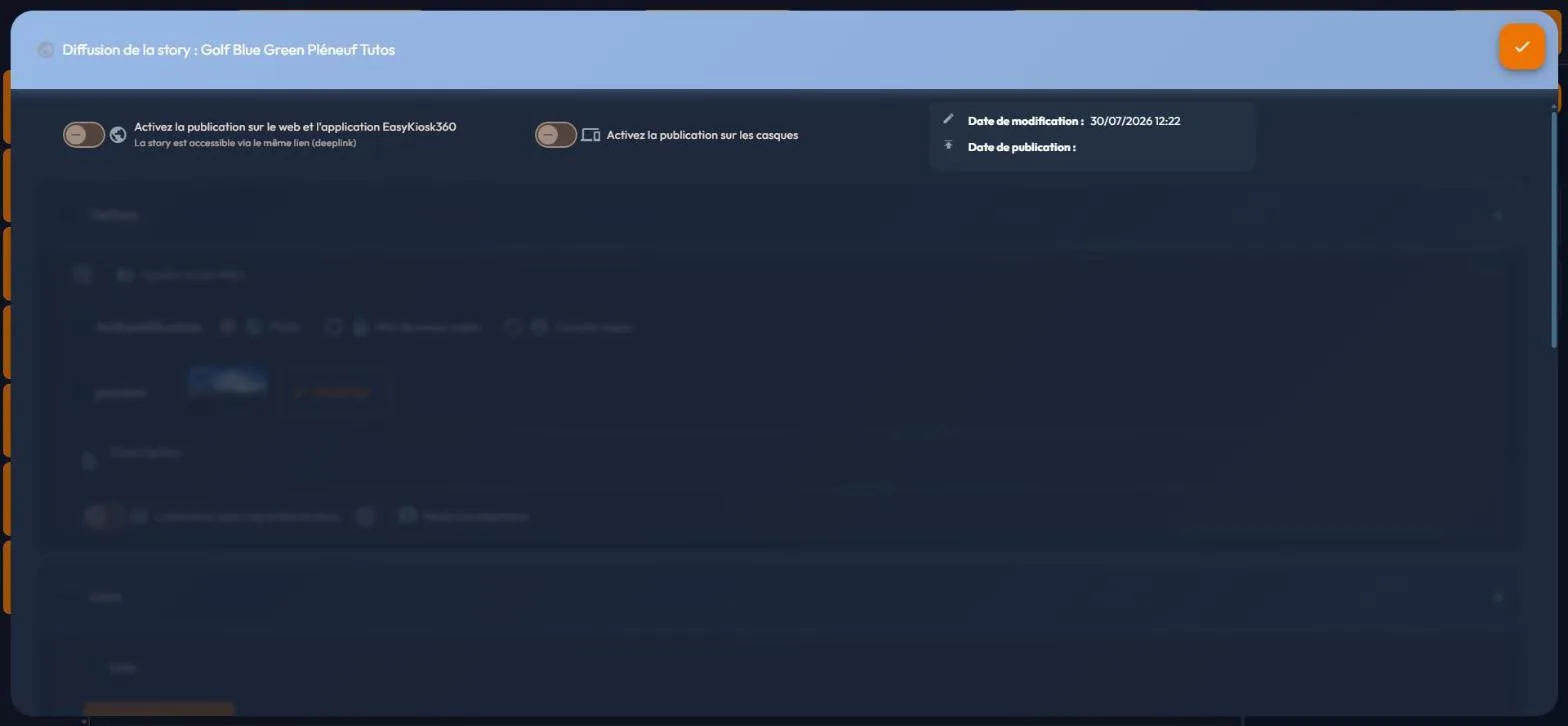
Under the banner, the window is browsed by sections, only one being shown at a time: "Options", "Liens" (Links) and "Envoyer par SMS" (Send by SMS). The last one is not offered to shared-library accounts.
Web broadcast options
As soon as web publication is on, the "Options" section offers:
- "Ajouter au portfolio" (add to portfolio): the story joins your public showcase (see The portfolio).
- "Authentification" (Authentification): who can open the link. "Public" (everyone), "Mot de passe requis" (password required: a password field appears, pre-filled with a random password of 20 characters at most, which you can replace) or "Compte requis" (account required, reserved for your users). The last two modes depend on your subscription plan.
- The preview image and the "Description": the thumbnail and text picked up when the link is shared.
- "L'utilisateur peut reprendre la story" (the user can resume the story): the visitor picks up where they left off, remembered by their browser.
- "Mode Commentaire" (comment mode): allows the visitor to comment on the story.
The password is asked for in the browser as well as in the easykiosk360 app, provided the app is up to date. Headsets ask for no password: their access goes through the account they are paired with.
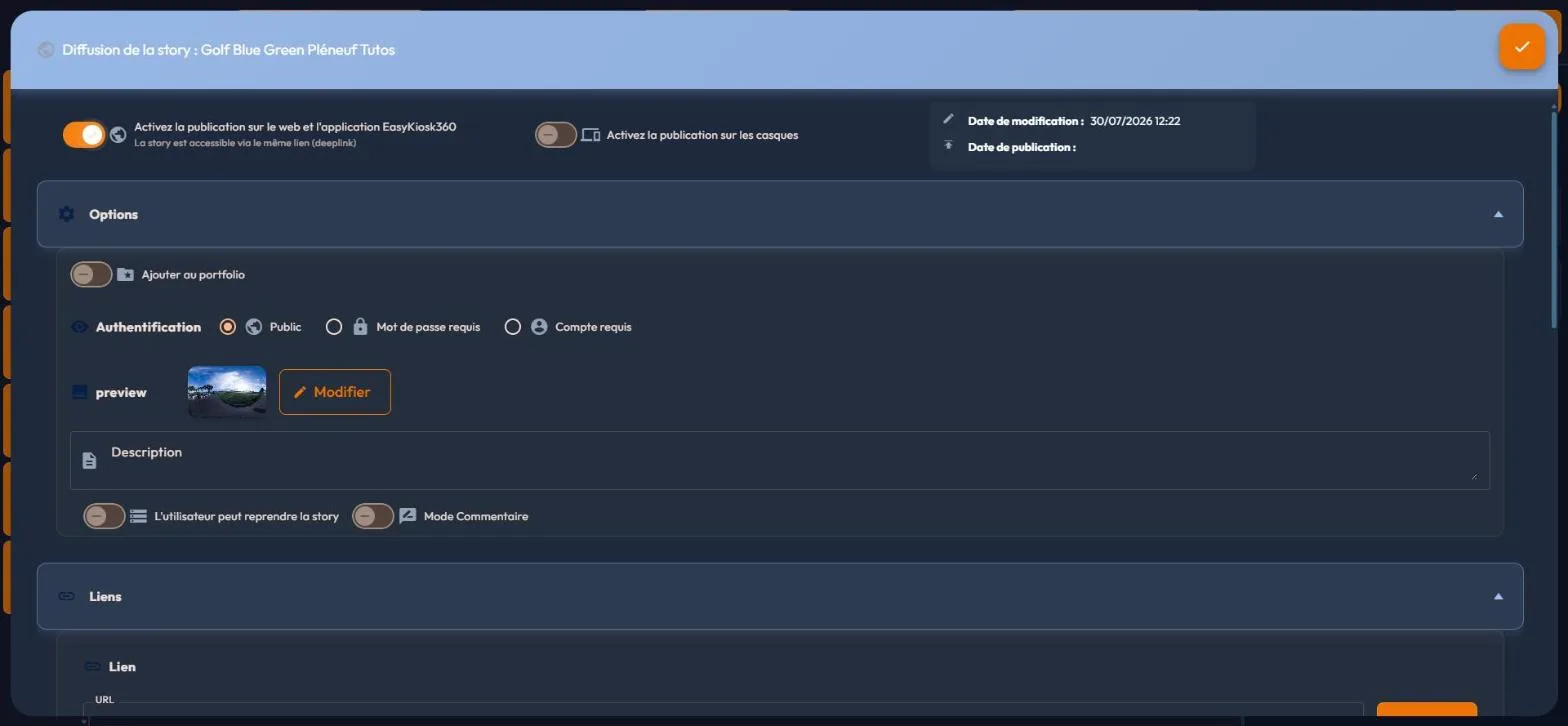
Sharing the story
The "Liens" (Links) section gathers everything used to circulate the story:
- "Lien" (link): the public short link. It is created on its own as soon as web publishing is switched on, and also when the window opens for an already published story that has none. While it is being created, the field shows "Génération..." (Generating...); the link then appears in a field headed "URL", with a "Copier" (copy) button.
- If the link could not be created: the "Générer le lien" (generate the link) button only shows as a last resort. On failure, a message gives the reason next to the "Réessayer" (Retry) button: "Le service de liens est injoignable. Vérifiez votre connexion, puis réessayez." (The link service cannot be reached. Check your connection, then try again.), "Le service de liens est indisponible pour le moment. Réessayez dans quelques minutes." (The link service is unavailable at the moment. Try again in a few minutes.) or "La génération du lien a échoué" (Failed to generate the link).
- "Code de partage" (share code): a short code to type into the easykiosk360 app to open the story. It is the suffix of the link: no link, no code.
- QR code: the link as a QR code, retrieved with the "Télécharger" (download) button for your printed material.
- Social networks: direct sharing by copy, Facebook, X, LinkedIn, WhatsApp, e-mail or SMS.
- "iframe pour votre site internet": the embed code to paste into your website, with "Copier l'iframe".
- SCORM: the "Exporter" (Export) button prepares a module for your training platform (see SCORM export for your training platform).
The share code, the QR code, the social network buttons and the embed code pick up the short link as soon as it exists. The "Envoyer par SMS" (Send by SMS) section, for its part, sends a message to your contacts from the platform: you type the "Téléphone" (phone) and "Votre message" (your message), within the monthly number of sends recalled on screen.
40Updating and stopping the broadcast
Publishing does not freeze the story: you keep editing it in the editor, and the broadcast version stays unchanged until you click "Mettre à jour" (update). Stopping, for its part, is done by flipping the broadcast window's switches back (see Publishing a story).
The story's publication state
The story card tells you where it stands, through a badge on the thumbnail: "Publiée" (Published), "Mise à jour à publier" (Update to publish), "Brouillon" (Draft) or "Erreur" (Error). The badge follows publishing and updating without reloading the page. A story with no active channel left goes back to "Brouillon"; opening the broadcast window without enabling anything does not make it count as published.
Two small icons specify the channel, with their tooltips: "La story est publiée sur le web" (This story is available on the web) or "La story n'est pas publiée sur le web" (This story is not available on the web), "La story est publiée sur les casques" (This story is available on the headset) or "La story n'est pas publiée sur les casques" (This story is not available on the headset). The same two indicators appear in the editor's top bar, next to "Gérer la publication" (manage publication).
Updating the broadcast version
On the card, the tooltips of the "Mettre à jour" button say why it is unavailable: "Votre story est à jour" (your story is up to date), "Votre story n'est pas publiée" (your story is not published) or "Corrigez les erreurs dans la story pour pouvoir mettre à jour" (fix the errors in the story before updating).
In the editor, the button has no tooltip. It activates as soon as you change an event or a scene's options, and stays greyed out when there is nothing to update, or while an options panel is open (scene, story or template options, translation, variables, plan, story map).
If the story has errors, it opens the error list instead of updating. The update replaces the broadcast version without changing the public link or the share code, and runs without a confirmation step.
Stopping the broadcast
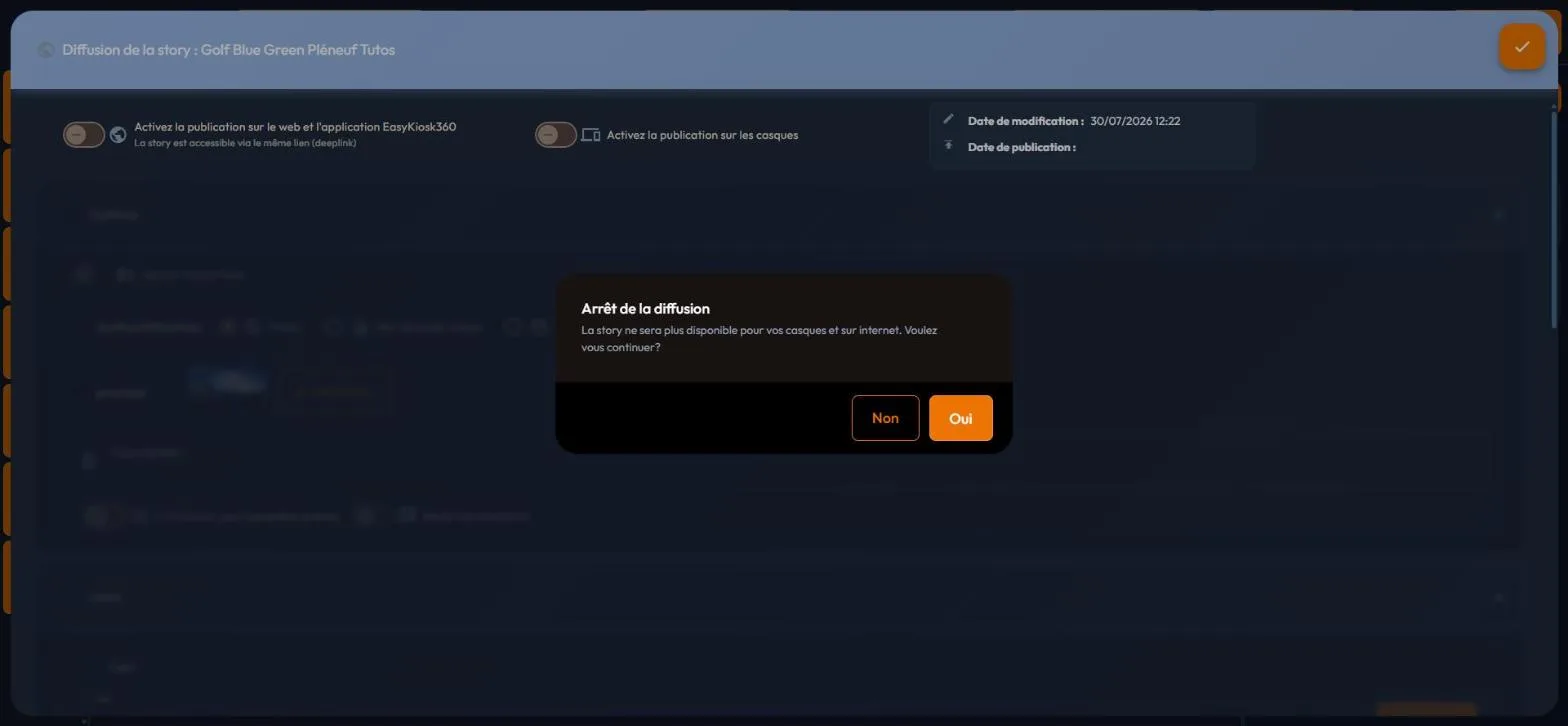
Stopping is done by flipping the broadcast window's switches back. An "Arrêt de la diffusion" (Stop streaming) dialog asks for confirmation, with "Oui" (yes) or "Non" (no), and a message and consequences that depend on the channel you cut:
| You cut | Confirmation message | What happens |
|---|---|---|
| The headsets alone | "La story ne sera plus disponible pour vos casques. Voulez-vous continuer ?" (The story will no longer be available for your headsets. Do you want to continue?) | The story is removed from your devices and from every "Organisation des contenus" (Content organization) group. The link and the statistics do not change. |
| The web alone | "Le lien vers la story ne sera plus disponible. Voulez-vous continuer ?" (The link to the story will no longer be available. Do you want to continue?) | The public link stops working and the short link is deleted: do not count on getting the same one back. The story stays on the headsets and the statistics are kept. |
| The last active channel (complete stop) | "La story ne sera plus disponible pour vos casques et sur internet. Voulez-vous continuer ?" (The story will no longer be available for your headsets and on the internet. Do you want to continue?) | The broadcast is deleted: on republishing, the story gets a new link, a new share code and a new QR code. The statistics are deleted if this complete stop cuts the web; they are kept if it cuts the headsets. |
41Pairing and managing headsets
The "Appareils" > "Mes appareils" (Devices > My devices) page, subtitled "Connectez et gérez vos appareils" (Connect and manage your devices), lists your headsets and tablets. The "Appareils" menu contains, in order, "Mes appareils", "Suivi en direct" (Live tracking), "Mes box" (My boxes) and "Organisation des contenus" (Content organization); it is not shown to shared-library accounts.
At the top of the page, a "Recherche" (search) field filters the list on name and model, next to the "Ajouter un appareil" (Add a device) button. A counter or a licence panel shows how many devices you can still pair (see "Device licences" below). Below, a selector offers "Tous les appareils" (all devices), then one entry per box. To its right, a legend recalls the dot colours: green for "En ligne" (Online), grey for "Hors ligne" (Offline).
Pairing a device
- On the device, launch the easyviewer360 app: a four-digit pairing code shows on screen. To install it on a Meta Quest, follow the tutorial installing easyviewer360 on Meta Quest.
- On the platform, Mes appareils page, click "Ajouter un appareil". A small card opens under the button, the rest of the page being dimmed. It recalls the instruction: "Entrez le code à 4 chiffres affiché sur votre appareil" (Enter the 4-digit code displayed on your device).
- Type the code into the four boxes, one per digit. Typing moves on by itself from one box to the next, and the last digit sends the code with no further click. You can also paste the whole code: it spreads across the boxes.
- The device appears in the list. Rename it right away ("Nom" column, name): a fleet of anonymous headsets quickly becomes unmanageable.
Only digits are accepted. The Backspace key goes back one box, the left and right arrows move from one box to another. The Enter key and the card's "Ajouter un appareil" button also send the code. The Escape key, the "Fermer" (close) cross or a click outside close the card. The same code works for a headset and for a tablet, and it is the only way to pair a device.
Reading the device table
Each row describes a device. The columns read in this order:
| Columns | What they show |
|---|---|
| Type (an icon), "En ligne" (Online), "Nom" (name) | The device type, its online state and its name, which is edited directly in the column. |
| Model, "Numéro de série" (serial number), "Version", "Espace disponible" (available space), "Batterie" (battery) | The device's technical identity and state. An unknown battery shows as "N/A". |
| "Média Installé" (installed media) | The percentage of your library's media already present on the device, or "N/A" if the device does not report this information. |
| "Mise à jour automatique" (Synchronisation Auto) | A setting switch (see "Per-device settings"). |
| "Dernière connexion" (Last connexion) | The date of the last connection; when unknown, it shows as a dash. |
| "Autonome" (Autonomous), "Administrateur" (Administrator), "Bloqué" (Locked) | Three setting switches (see "Per-device settings"). |
| "Box", "Utilisateur" (user) | The box and the user account the device is attached to. In a box's tab, the "Utilisateur" column disappears. |
| Actions menu | The remote actions (see below). |
An online device carries a green "En ligne" tag; an offline device only has a grey dot, whose tooltip reads "Hors ligne" (Offline). The state updates by itself, without reloading the page: a device the platform has not heard from for a minute goes offline.
- Sorting: three headers are clickable, "Type", "Nom" and "Dernière connexion". By type, headsets come first, then tablets, control tablets and other devices. By name, the order is natural ("Casque 2" before "Casque 10") and ignores case and accents. By last connection, the first click puts the most recent connection on top. With no sort chosen, the list is ordered by name; the chosen sort is kept when the list refreshes.
- Renaming: the name is edited directly in the "Nom" column.
- Adjusting columns: their width is set with the mouse and stays remembered in your browser.
Per-device settings
Four switches and two lists in the table are settings. A greyed-out setting is not broken: its tooltip says what is missing.
| Setting | Effect | Good to know |
|---|---|---|
| "Mise à jour automatique" | The device syncs its content on its own. | Headsets only: on a tablet, the switch is greyed out, with the tooltip "Réservé aux casques" (Headsets only). |
| "Autonome" | On, the headset runs by itself; off, it is driven by a control tablet. | Headsets only as well. |
| "Bloqué" | Hides the headset's menu and stops its automatic downloads. | Greyed out as long as the headset is not autonomous, with the tooltip "Disponible en mode autonome seulement" (Only available in autonomous mode). |
| "Administrateur" | Lets you choose the device's box and user. | Turn it on first to attach a headset to a box. |
| "Box" and "Utilisateur" | The box the device is attached to, and the user account it is entrusted to. | Greyed out as long as "Administrateur" is off on the row, with the tooltip "Activez « Administrateur » pour choisir" (Turn on "Administrator" to choose). |
Setting all the headsets of a box
In a box's tab, a "Pour tous les appareils de la box" (For all devices of the box) banner sits above the table. It carries four switches, "Autonome", "Bloqué", "Administrateur" and "Mise à jour automatique", and an "Actions" menu: "Installer le contenu" (Install content), "Localisez votre appareil" (Detect the headset), "Redémarrez votre appareil" (Reboot the headset), "Éteindre votre appareil" (Shutdown the headset).
Each switch applies the setting to every device attached to the box, including those hidden by the current search. A banner switch is only on if all the box's devices already have that setting: it reflects the real state of your fleet.
Remote actions
At the end of each row, a menu offers seven actions:
- "Installer le contenu", "Localisez votre appareil", "Redémarrez votre appareil" and "Éteindre votre appareil": the four basic orders, sent straight to the headset.
- "Oubliez l'appareil" (Unlink the headset): unpair it. The confirmation, headed "Supprimer l'appareil" (Remove the device), asks "Êtes-vous sûr de vouloir supprimer l'appareil ?" (are you sure you want to remove the device?), recalling its name.
- "Contenus du casque" (Headset contents): opens the panel of the same name, described below.
- "Options avancées" (advanced options): opens the advanced options panel, described further down.
Checking what a headset contains
The "Contenus du casque" panel, bearing the device's name, details what the headset really contains. It relies on the report the headset sends itself, and updates live.
- At the top: the number of installed items out of the expected total and, if there are any, the "Téléchargements en cours" (Downloads in progress) note followed by their number.
- To search: the "Rechercher un contenu" (Search for a content item) field, which ignores case and accents, and the "Manquants seulement" (Missing only) switch, which keeps only missing items and those being downloaded.
- Two lists: "Stories", then "Médias" (Media). Each row carries its state: "Installé" (Installed), "Manquant" (Missing) or "En cours" (Downloading) with a percentage. Downloads in progress come first, then missing items, then installed items, each by title. An empty list shows "Rien à afficher" (Nothing to show).
- At the bottom of the panel: the date of the last report ("Relevé le", Checked on, followed by the date), the "Installer les manquants" (Install missing items) button, which does the same as "Installer le contenu" and stays greyed out if nothing is missing, and the "Nettoyer le casque" (Clean up headset) button.
Cleaning up a headset
The red "Nettoyer le casque" button, at the bottom of the "Contenus du casque" panel, sends the headset the order to free up space. A confirmation shows first, headed "Nettoyer" (Clean up) followed by the headset's name, with the "Nettoyer" and "Annuler" (cancel) buttons.
The confirmation announces what will happen: the headset deletes the media none of its stories use and the folders of other accounts, keeps its own account and the default account, then synchronizes. No confirmation is asked for in the headset. During the operation, the panel reads "Nettoyage en cours sur le casque…" (Cleaning up the headset…), then shows the result:
- Cleanup finished: the message gives the number of media and folders deleted and the space freed, then the headset synchronizes.
- Nothing to clean up: every media item on the headset is used by its stories.
- Headset busy: "Le casque est occupé (synchronisation, téléchargement ou lecture) : réessayez plus tard." (The headset is busy (synchronization, download or playback): try again later.).
- Stories not synchronized yet: "Le casque n'a pas encore synchronisé ses stories : rien n'a été supprimé." (the headset has not synchronized its stories yet: nothing was deleted).
- No answer: the headset is off or offline. The page waits for its answer for two minutes at most.
- Other failures: "Le nettoyage n'a pas pu se faire sur le casque." (the cleanup could not be done on the headset), or a message saying that remote control is refused for this headset.
Advanced options
"Options avancées" opens a panel headed "Options avancées des casques" (Headset advanced options). Nothing is saved until you confirm the panel with the bottom button; "Annuler" closes it without changing anything. The first group of settings deals with the headset's behaviour:
- "Détection des manettes" (Controller detection).
- "Alimentation par USB" (USB power): shuts the headset down when unplugged, boots it when plugged in.
- "Redémarre la story automatiquement quand l'utilisateur met le casque" (Restart the story automatically when the headset is put on).
- "Temps d'inactivité avant redémarrage" (Time before restarting the story (in seconds)): from 5 to 30 seconds. The French label does not state the unit. This setting only becomes active when the automatic restart is on.
The "Écran et veille" (Screen and sleep) block sets two delays, "Extinction de l'écran" (Screen off after) and "Mise en veille" (Sleep after). Each list offers "Réglage du casque (inchangé)" (Headset setting (unchanged)), which touches nothing, then durations in seconds or minutes, and "Jamais" (Never). The durations offered depend on the headset model. These settings are reserved for PICO Enterprise headsets; on any other device, the block shows "Réglages disponibles sur les casques PICO Enterprise uniquement." (Available on PICO Enterprise headsets only.).
The screen cannot switch off after sleep: screen-off durations longer than the chosen sleep delay are greyed out, and shortening the sleep delay brings the screen-off delay back to the longest duration allowed. The headset applies these settings when it starts and on every change.
The startup app
The "Application au démarrage" (Startup app) block, shown for headsets only, makes a headset boot straight into the app of your choice, without going through the manufacturer's home. This is useful for an unattended installation. The "Au démarrage du casque, ouvrir" (When the headset starts, open) list offers:
- "Réglage du casque (inchangé)": nothing is modified.
- "Lanceur du casque" (Headset launcher): the headset's original home. This is the choice that brings things back to normal.
- "Application 360 (EasyViewer360)" (360 app (EasyViewer360)).
- "Application réalité mixte (EasyViewerMR)" (Mixed reality app (EasyViewerMR)).
An impossible choice is greyed out, with its reason in brackets: "(non installée)" (not installed) if the app is not on the headset, "(impossible sur ce casque)" (not possible on this headset) for the mixed reality app on a headset that does not do mixed reality, even if it is installed there, and "(introuvable)" (not found) if the headset cannot find its original launcher.
Under the list, the panel states what is really in place ("Actuellement au démarrage :", currently at startup, followed by the app's name) and, where applicable, "Changement en attente : il prendra effet au prochain redémarrage du casque." (change pending: it will take effect at the headset's next restart). If the headset cannot apply your choice, it says so and changes nothing.
Device licences
Your subscription plan does not grant you a number of devices, it sets a ceiling. Every device requires a licence, taken out from "Mes appareils", up to that ceiling. Licences are free for the first year; after that, a licence costs €10 excl. VAT per device per month.
On the Mes appareils page, the licence panel is cut down to the essentials: the "actifs" (active) and "utilisables" (usable) licences, a progress bar and the "Acheter des licences" (buy licences) button, which is not offered to free accounts. The full version appears in "Mon compte" (my account), under the heading "Licences d'appareils" (device licences): it adds the "disponibles" (available) licences and the note "Maximum pour votre plan" (maximum for your plan).
An account whose contract is managed by an administrator follows the limit that administrator sets, and shows a plain "n / N appareils utilisés" (devices used) counter. This wiki does not detail the plans and their tiers: they are listed on the prices page, the only one kept up to date.
To see what your visitors experience and launch a story remotely, move on to the next page of the menu: Following and driving headsets live. Several features in this section need an up-to-date headset app: the platform's "Aide" > "Compatibilité" (Help > Feature compatibility) page states, feature by feature, what each app can do (see Compatibility by app).
42Following and driving headsets live
The "Appareils" > "Suivi en direct" (Devices > Live tracking) page, subtitled "Ce que vivent vos visiteurs, casque par casque, en temps réel" (What your visitors experience, headset by headset, in real time), comes in two parts. On the left, the list of your account's headsets, with their state. On the right, up to four views replaying live what the wearer of each followed headset experiences. Tablets do not appear there. The page is open to every account that sees the "Appareils" menu.
The headset list
The top bar offers the "Tous les casques" (All headsets) tab, then one tab per box holding at least one headset, and a "Rechercher un casque" (Search for a headset) field, which searches names ignoring case and accents. If nothing matches, the list shows "Aucun casque ne correspond" (no headset matches); if your account has no headset, "Aucun casque appairé à ce compte" (no headset paired with this account).
Under the "Casques" (Headsets) heading, a counter shows how many headsets you are following out of the four possible. Each row then gives the headset's status dot, its name, its battery as a percentage and one of the following states:
| State shown | What it means |
|---|---|
| "En cours" (Playing) or "En pause" (Paused) | The headset is playing a story. The row gives the story title, the scene title and the time elapsed in the scene. The "Accueil" (Welcome) tag means the headset is playing its home story. |
| "Aucune story en cours" (No story playing) | The headset can be reached, but is playing nothing. |
| "Pas de suivi en direct" (No live tracking) | The headset has sent nothing, or nothing for three minutes. The tooltip reads "Casque éteint ou hors réseau" (Headset off or offline). |
| "Story absente de ce compte" (Story not found in this account) | The headset is playing a story your account does not own. |
| "Version … : mise à jour requise" (update required) or "Version inconnue : suivi indisponible" (unknown version: tracking unavailable) | The headset's app is too old for live tracking, or its version is not known. Update the headset. |
Following a headset
On a headset's row, the eye-shaped "Suivre ce casque" (Follow this headset) button opens a view; "Ne plus suivre" (Stop following) closes it. You can follow four headsets at most at a time: beyond that, the button is greyed out, with the tooltip "4 casques au plus à la fois" (Up to 4 headsets at a time). As long as you follow no headset, the right-hand part shows "Choisissez un ou plusieurs casques à suivre" (choose one or more headsets to follow). Each view carries the headset's name and the story title at the top, then four buttons:
- "Suivre le regard du visiteur" (Follow the visitor's gaze) or "Vue libre" (Free view): by default, the view follows the visitor's gaze; in free view, you look wherever you like.
- "Activer le son" (Turn sound on) or "Couper le son" (Mute): sound is off by default, because several views can play at the same time.
- "Agrandir" (Enlarge) or "Réduire" (Reduce): the enlarged view takes up the whole area and hides the others.
- The "Ne plus suivre" cross.
The view replays the current scene, at the same moment and with the same pause as the headset, along with what the visitor opens in it. You watch without acting: nothing can be clicked in the view, and your watching creates no session, no statistic and no result.
Driving a headset remotely
Under the state of each headset that allows it, round buttons send an order to the headset:
- "Lancer une story" (Launch a story): opens the list of stories present on the headset, home story excluded. A story not downloaded yet is greyed out, with the note "pas encore installée" (not installed yet). If the list is empty: "Aucune story sur ce casque" (no story on this headset).
- "Mettre en pause" (Pause) and "Reprendre" (Resume): "Reprendre" only lifts a pause set by a pause order.
- "Arrêter la story" (Stop the story): the visitor goes back to the headset's home.
While sending, the row reads "Ordre envoyé…" (Command sent…). The page waits for the headset's answer for fifteen seconds at most. On failure, a message names the headset and the reason: the story is not on the headset, it is not installed yet, no story is playing, the order did not go through, the headset did not answer (off or offline) or remote control is refused. When two orders follow each other, the last one received wins, whether it comes from the platform or from the control tablet.
Driving several headsets at once
Two buttons in the top bar act on the listed headsets, that is those of the open tab, once the search is applied. Open a box's tab to drive all its headsets at once (see Boxes, kiosk mode and the headset home).
- "Lancer sur les casques affichés" (Launch on the listed headsets): lists the stories present on at least one listed headset. Each one states on how many headsets it is ready ("prête sur", ready on, followed by the count). The order only goes to the headsets where the story is ready.
- "Arrêter les casques affichés" (Stop the listed headsets): a confirmation recalls the number of headsets concerned and warns: "Chaque visiteur quitte sa story et revient à l'accueil du casque." (each visitor leaves their story and goes back to the headset's home). The "Arrêter" (stop) button sends the order.
If not all headsets carried out the order, a summary states how many did out of the total. If no listed headset can be driven, the page says so: "Aucun des casques affichés ne se pilote à distance." (none of the listed headsets can be driven remotely).
43Boxes, kiosk mode and the headset home
A box is a dedicated account grouping headsets and the content they receive: one box for the training room, another for the trade show, each with a password generated at creation. The "Appareils" > "Mes box" (Devices > My boxes) page, subtitled "Ajoutez une box ou modifiez vos box existantes" (Add a box or modify your existing boxes), lists them, and the "Nouvelle box" (New box) button creates one.
The table has six columns: "Nom" (Name), "Description", "Nombre de projets" (Project number), "Dernière mise à jour" (Last update), "Fin d'abonnement" (Subscription end: a number of days, "Illimité", Unlimited, or "Expiré", Expired) and "Mot de passe" (Password). The password is hidden by default: an eye-shaped button shows it ("Afficher le mot de passe", Show password) then hides it again ("Masquer le mot de passe", Hide password). A second button, "Copier le mot de passe" (Copy password), copies it without showing it: the safest choice when your screen is shared.
Creating or editing a box
A box's form is organised in tabs:
- "Information" gathers three blocks: "Informations" ("Nom de la box", Box name, and "Description de la box", Box description; a missing or badly formed name shows "Un nom est nécessaire ! Lettres, chiffres et tirets uniquement.", a name is required, letters, digits and dashes only), "Période d'activité" (Activity period: "Date de début", Start date, and "Date de fin", End date) and "Options", with the "Utilisation en borne" (Used as kiosk) switch.
- "Story d'accueil" (Starter story): the story offered first on the box's headsets.
- "Contenu de la box" (Box contents): the content groups its headsets receive.
- "Options de la borne" (Born options), shown if "Utilisation en borne" is on.
Attaching a headset to a box
Attaching is done from the "Mes appareils" (My devices) page: turn on the "Administrateur" (Administrator) switch on the headset's row, then pick the box in the "Box" list. Each box then gets its own tab there, with settings that apply at once to all its headsets (see Pairing and managing headsets). The "Suivi en direct" (Live tracking) page uses the same split by box (see Following and driving headsets live).
Content organisation
Content groups are built separately, in "Appareils" > "Organisation des contenus" (Devices > Content organization). A column on the left offers two sections, shown one at a time: "Accueil des casques" (Headset home), on which the page opens, and "Groupes de contenus" (Content groups).
The "Groupes de contenus" section, subtitled "Créer ou modifier vos groupes de contenus" (create or edit your content groups), offers the "Créer un nouveau groupe" (Create new group) button and a "Rechercher" (search) field. As long as you have created nothing, it shows "Aucun groupe de contenus pour l'instant." (No content group yet.). A group's panel is headed "Nouveau groupe" (New group) or "Modification" and contains:
- the "Titre du groupe" (Group title) field, required, 100 characters at most (otherwise: "Un titre est nécessaire !", a title is required);
- the "Sélectionner des Stories" (Select Stories) tab: only stories published to headsets are offered there;
- the "Sélectionner des médias" (Select Media) tab.
A group therefore also distributes standalone media, to headsets and to the control tablet: this is what lets you send the same content to a whole fleet without attaching it headset by headset. Publishing a story to headsets is not enough: it must also be in a group, and, for a headset attached to a box, that group must appear in the "Contenu de la box" tab (see Publishing a story).
Kiosk mode
Kiosk mode turns the setup into a self-service station: between two uses, a waiting video (a regular, non-360 video, picked in the kiosk options tab) plays to draw passers-by. It is the setting for unattended installations: reception hall, trade show, museum.
For those same installations, a headset can also boot straight into the app, without going through the manufacturer's home: that is the "Application au démarrage" (Startup app) setting of the advanced options (see Pairing and managing headsets).
The headset home
The headset home is set in the "Accueil des casques" section of Content organization, subtitled "Ce que voient les casques au démarrage" (What headsets show on startup). A two-position bar gives access to two views. The one that opens first is the one in force: the story if a home story is chosen, the data otherwise.
- "Story d'accueil" (Home story): the story your account's headsets play on startup; a box's "Story d'accueil" tab does the same thing box by box. With no story chosen, the view shows "Sélectionnez une story d'accueil" (select a home story) and the "Choisissez la story d'accueil" (choose the home story) button. As soon as a story is chosen, the view carries the "Prioritaire" (Takes priority) tag.
- "Données d'accueil des casques" (Headset home data): the welcome hall shown in the headset before a story launches, with a real-time "Aperçu 3D" (3D preview). There you set the "Cadre" (a regular presentation image), the "Image de fond" (a 360 panorama wrapping the user) and the "Ambiance sonore" (ambient sound).
44SCORM export for your training platform
To integrate a story into a training platform (an LMS), open the "Liens" (Links) section of the broadcast window: the "SCORM" row carries an "Exporter" (Export) button (tooltip "Export SCORM"). A dialog headed "Export scorm" (Scorm Export) asks you "Sélectionnez la version scorm" (Select scorm version), with two buttons: SCORM 1.2 and SCORM 2004. The export produces a .zip file in the chosen format. The pass mark sent to the LMS is fixed at 75%.
That package does not contain the story: it contains a launcher that opens, inside the LMS page, the story as it is broadcast online. Three consequences:
- keep web broadcasting switched on;
- the learner needs internet access;
- a complete stop of the broadcast makes the module inoperative until a new export. "Mettre à jour" (update), on the other hand, refreshes the module without a new import.
The package declares the story's language (its default language) to the LMS, not the language in which you use the platform. If no language is set on the story, your account's default language is used, then French.
If the learner's browser blocks scripts, a fallback message invites them to allow scripts ("Autorisez les scripts dans votre navigateur pour ouvrir cette story.", Allow scripts in your browser to open this story.): it too shows in the story's language when the platform has it, in English otherwise.
Result reporting relies on a Debriefing event marked "Fin de la Story" (end of story): it is what closes the module and carries the score. That box only exists on a debriefing set to "Au clic" (on click); in "Automatique" it is greyed out.
If your story has none, the platform warns you at export time: "Aucun évènement débriefing avec l'option fin de story trouvé ! Voulez-vous continuer ?" (No end-of-story debriefing event found! Do you want to continue?). Add the debriefing before exporting, rather than pushing through.