5Importing media
The library ("Bibliothèque" menu) gathers every file your stories need. The "Importer" (Import) button, at the top of the filter column on the left of the page, uploads files from your computer. On a narrow screen, where that column is folded away, it moves to the toolbar, next to the search. You can import:
- images, flat or 360 (equirectangular projection),
- videos, regular or 360,
- audio files for commentary and ambient sound,
- PDF documents to consult,
- GPS data (tracks and geographic points),
- 3D objects, including animated avatars.
You can also pick ready-to-use content from "Modèles" > "Médias" (Templates > Media): on the "Modèles de médias" (Media templates) page, the "Récupérer le média" (Download media) button copies the chosen file into your library.
Following the upload
A card being uploaded shows "Envoi en cours" (Uploading) and its progress as a percentage. A video then goes through preparation for streaming, which can take several minutes: its card shows "En attente" (Pending) or "En cours" (In progress). If it reports "Streaming non disponible" (Streaming not available), open the media to restart the service.
The media form
A media form opens as a panel, titled "Nouveau média" (New media) on import, then "Modification" (Modification) when you come back to it through "Modifier" (Edit). Its content depends on the file type:
- For a 3D model, it shows a review: dimensions in metres, triangle and vertex counts, the textures and the size of the largest one, the animations held in the file with their duration, the file size, and warnings whenever something deserves your attention.
- For a video, the row of available resolutions carries a refresh button: the higher resolutions sometimes only arrive after encoding, and that button goes and fetches them.
Translated versions of a sound or a video
In the form, the "Langues" (Languages) section lists the languages declared in "Mon compte" (My account; see Multilingual); with no language declared, it sends you to the account settings. For each language, "Ajouter un média pour cette langue" (Add media for this language) waits for the translated file; its name, a bin and "Télécharger" (Download) then appear.
Each language video has a status button of its own, opening the "Service de streaming" (Streaming service): if an upload stays stuck, that is where you restart it, with "Générer les liens" (Generate links).
Editing or deleting a media file in use
A file imported once can be used in as many stories as needed. As long as it is used somewhere, the library flags it with a padlock, and any action on it asks for a confirmation.
That confirmation tells you how many stories use the file: it is what stops you editing an image believing it only affects the story you have open. To know which ones, open the "Fiche du média" (Media details) by clicking the media: its "Utilisé dans" (Used in) heading gives the story titles (see the media details).
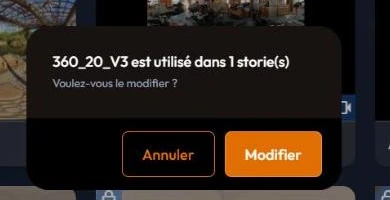
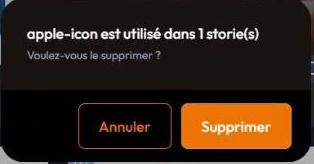
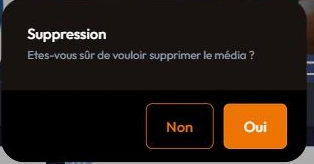
Deletion asks for a second confirmation: editing has one safety rail, deleting has two. If you confirm, the media and its translated versions are deleted, but the stories that used it are not fixed: they show an error until you pick another media there.
Deleting several media at once
Press and hold a card: the library switches to selection mode, each card carries a tick box, and a bin appears at the bottom right of the page to delete the batch. The confirmation says whether one of the chosen media is used in a story.
6Media types
The library classifies each file along two axes: its type (the nature of the file) and, for images and videos, its format (the way it is displayed). You find these two axes in the filter column, under "Type" and "Format", each type with the number of media it holds.
| Type | Content |
|---|---|
| Image | Photos, diagrams, panels, logos. |
| Vidéo (Video) | Video footage, regular or 360. |
| Audio | Commentary, music, ambience. |
| Documents to consult inside the story. | |
| Trace GPS (GPS track) | Tracks and geographic points. |
| Objet 3D (3D object) | 3D models to place in a scene. |
| Format | What it means |
|---|---|
| Standard | A flat media file, like a regular photo or video. Usable in events (displayed image, windowed video), but not ideal as a scene backdrop. |
| VR 360 | A full sphere: the visitor can look in every direction. The format of choice for scene backdrops. |
| VR 180 | A half sphere: the image covers everything in front of the visitor, not what is behind. |
| Avatar | An animated 3D character, used by the Avatar event to embody a virtual guide or trainer. |
The markers on the thumbnail
In the library, a card's thumbnail carries up to three markers: a label naming the media type, each type having its own colour; a 360 or 180 pill for an immersive media file; and a padlock when the file is already used in a story (tooltip "Média utilisé dans une story (protégé)", media used in a story, protected). A flat media file carries no format pill: its absence is the information.
Under the thumbnail, the tags you have applied to the file show as coloured dots. If you pick a flat media file as a scene backdrop, the editor warns you that immersion will be limited: the "Média non-360° sélectionné" (Non-360° media selected) message does not block you, but it deserves to be heard.
Web and headset compatibility
Not every format travels on both channels. A media file's form, opened with "Modifier" (Edit), shows in its "Média" section two compatibility pills, "Web" and "VR", each with a tooltip on hover, as soon as a file has been chosen. Green: the format works. Orange: it works, but degraded. Red: it does not work.
These pills appear neither on the library cards, nor in the details view, nor in the "Fiche du média" (Media details): open the form to see them. Here are the cases where the pill is not green.
| Media | Web | Headsets |
|---|---|---|
| Supported | Not supported | |
| GPS track | Supported | Not supported |
| 180° image | Not supported | Supported |
| Stereoscopic 360° image | Degraded: playback will not be in stereo. For the web, prefer a monoscopic file. | Supported |
| .gif image | Supported | Degraded: supported, but quality may be poor. Test it. |
| .webp image | Supported | Not supported |
| .webm video | Supported | Not supported |
| .mkv video | Not supported | Degraded |
Everything else travels fine: audio, 3D objects, standard and monoscopic 360 images, and the other video formats. A file whose type is not recognised comes out red on both sides. These pills are about the file; to know what each app can play, feature by feature, see Compatibility by app.
7Filtering, sorting, finding
As the library grows, two areas help you find a media file again. The toolbar, above the grid, gathers the "Rechercher" (Search) field, the count of media shown, the "Trier" (Sort) button and the view toggle. The filter column, on the left, stacks the "Importer" (Import) button then four groups: "Story", "Type", "Format" and "Étiquettes" (Tags).
Filters combine with each other and with the search. On a narrow screen, the column folds away behind a "Filtres" (Filters) button.
The story filter
Under the "Story" heading, a drop-down selector filters media by usage:
- "Sans Filtre" (None): all your media, regardless of usage.
- "Toutes les Stories" (all stories): media used in at least one story.
- "Non utilisé" (Not used): media not used in any story. This is the setting to pick when cleaning up and freeing storage space.
- A specific story: the selector then lists your stories, in alphabetical order; picking one shows only the media it uses.
The type and format filters
The "Type" group lines up one row per media type, "Image", "Vidéo" (Video), "Audio", "PDF", "Trace GPS" (GPS track) and "Objet 3D" (3D object), each with the number of media it holds. The "Format" group offers four chips, "Standard", "VR 360", "VR 180" and "Avatar": they only become active for the types that have a format. These two axes are explained in Media types.
Tags
Tags, "Étiquettes" on screen, are keywords you freely attach to your media ("north-site", "season-2026", "interview"...). They are your filing system: the earlier and the more consistently they are applied, the easier the library remains to navigate. In the filter column, the "Étiquettes" group shows them as chips with a coloured dot: clicking a chip filters the grid.
The pencil next to "Étiquettes" (tooltip "Modifier les étiquettes", Edit tags) opens the "Étiquettes de la bibliothèque" (Library tags) panel: there you create a "Nouvelle étiquette" (New tag) by giving it a name and a "Couleur" (Color), and you find the list of "Étiquettes existantes" (Existing tags). A tag is then applied to a media file in its form, under "Étiquettes", or in its "Aperçu" (Preview). It shows under each card of the grid, as a coloured dot.
Sorting
In grid view, the "Trier" (Sort) button offers six orders: "Date de modification" (Modification date) and "Date de création" (Creation date), each both ways, and "Nom" (Name), A to Z or Z to A. In the details view (see Two views), this button disappears: sorting goes through the column headers, including "Taille" (Size).
8Two views, the media details and the preview
A toggle button in the library toolbar switches between two presentations, "Vue grille" (Grid view) and "Vue détails" (Details view):


Your display choice is remembered. It also applies to the media pickers you open elsewhere on the platform, and to the "Mes Stories" (My Stories) page, which carries the same button.
The media details
Clicking a media file, card or row, opens its "Fiche du média" (Media details) over the library, without leaving the page. It gives the thumbnail with the type and format, the title, the "Taille" (Size), the "Format", the "Ajouté le" (Added on) and "Modifié le" (Modified on) dates, then three headings:
- "Utilisé dans" (Used in): the number of stories using the file and their titles. A file used nowhere says so plainly: "Aucune story ne l'utilise : il peut être supprimé sans risque." (No story uses it: it can be deleted safely.)
- "Étiquettes" (Tags): those applied to the file.
- "Description générée" (Generated description) and "Transcription", when the AI has produced them (see The library's AI tools).
It is a read-only sheet. At the bottom, four actions carry their label: "Modifier" (Edit), "Aperçu" (Preview; "Écouter", Listen, for a sound), "Télécharger" (Download) and "Supprimer" (Delete). To change anything, go through "Modifier": the media form opens as a panel, titled "Modification", and is confirmed with "Valider" (Validate). The "Fermer la fiche" (Close details) cross closes the sheet.
Downloading a media file
"Télécharger" fetches the original file, under its own name. While it works, the button shows "Préparation…" (Preparing…) then "Téléchargement" (Downloading) followed by the percentage; a second click restarts nothing. On failure, you read "Le téléchargement a échoué. Réessayez." (The download failed. Please try again.) The same button exists in the media details, in the media form and in the preview.
For a video hosted on the streaming service, the source video opens in a new tab instead. If the browser blocks that tab, the message "Le lien de la vidéo est prêt." (The video link is ready.) offers "Ouvrir" (Open).
The preview
Without opening the details, hovering a card reveals three actions: "Modifier", "Aperçu" (or "Écouter" for a sound) and "Supprimer". A tooltip shows the media's transcript along the way, failing that its generated description, failing that its generated tags; it never shows the "Description" you typed in yourself.
"Aperçu" opens the media file full size. Only monoscopic 360 images and videos can be explored in spherical navigation: you drag to look around, exactly as the visitor will. Side-by-side 360 files and 180 files stay flat. A toolbar gathers zoom, four movement arrows and full screen. You validate the real rendering of a media file before even creating the scene that will use it.
The bottom bar of the preview gathers the media title, the "Précédent" (Previous) and "Suivant" (Next) arrows, which move from one file to the next without closing, and "Télécharger". Under the title, your tags are lined up: a lit tag is applied to the file, and a click applies or removes it. There is no validation button: the cross in the header closes the preview.
9The library's AI tools
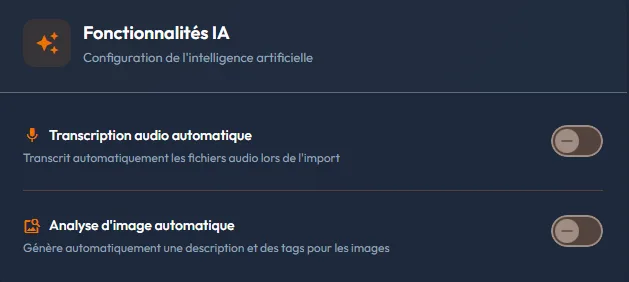
Three artificial intelligence assistants speed up the cataloguing and search of your media. They are enabled in "Gestion" > "Mon compte" (Management > My account), "IA" (AI) section, "Fonctionnalités IA" (AI Features) card, and they are off by default.
Both switches on that card, "Transcription audio automatique" (Automatic audio transcription) and "Analyse d'image automatique" (Automatic image analysis), stay greyed out, with the "Abonnement requis" (Subscription required) badge, until the account has a paid subscription: the Transcription and Analysis blocks of a media form then do not appear.
The consent request at the first import
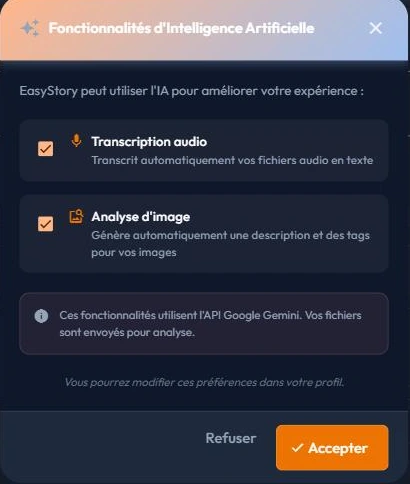
The first use, during an import, opens a consent request titled "Fonctionnalités d'Intelligence Artificielle" (Artificial Intelligence Features). Read it: it states that these functions go through the Google Gemini API and that your files are sent there for analysis.
Both boxes, transcription and image analysis, arrive ticked: untick the one you do not want before choosing between "Refuser" (Decline) and "Accepter" (Accept). The closing cross means "Refuser", and a refusal is never asked again: to revisit that choice, go back to the "Fonctionnalités IA" card in "Mon compte".
The three tools


The search ignores capitals and accents, and every word you type must appear somewhere, in any order: searching "eaux station" finds a sound that talks about "la station de traitement des eaux". The same field, with the same toggle, equips every media picker in the editor.
If nothing gets generated
These tools produce their effects in the library, but are switched on in your account. If your imported media have neither generated description nor generated tags, do not search the library: open "Mon compte", through the account icon or the "Gestion" menu, then the "IA" section, and check the two switches of the "Fonctionnalités IA" card.