

21The event bar and its configuration
Events are created from the events panel of the scene editor. It opens on two rows: a command row, then a "Favoris" (Favourites) row, which pins the events you use most for quick access. By default these are the five most used: Audio, Image, Texte (Text), Vidéo (Video) and Vers une autre scène (To another scene).
The command row
- "Évènement" (Event): the solid button, preceded by a plus sign (tooltip "Ajouter un évènement", Add an event). It opens the full events panel.
- "Groupe" (Group; tooltip "Créer un groupe d'évènements", Create event group): it opens "Groupes d'évènements" (Event Groups), where you prepare the groups that the Groupe d'évènements event will bring up.
- Paste (tooltip "Insérer l'évènement", Insert event): the icon stays greyed out until an event has been copied.
- Import (tooltip "Importer un évènement d'une autre story", Import an event from another story): described further down.
- The padlock (tooltip "Verrouiller/Déverrouiller tous les évènements", Lock/Unlock all events).
- The gear wheel, at the far right (tooltip "Configurer le menu évènements", Configure event menu): it customises the menu, see further down.
The "Favoris" row and the "Ajouter un évènement" panel
The second row starts with the word "Favoris", followed by one button per quick-access entry (its icon on a coloured square, and its label), then a "Plus" (More) button.
The "Évènement" button and the "Plus" button open the same panel, headed "Ajouter un évènement". It starts with the "Importer un évènement d'une autre story" button, then sorts the events by category: Média (Media), Quiz, Lien (Link), 3D, Masques (Masks), Avancé (Advanced). A Favoris category is added when your quick-access entries do not all fit in the width of the row.
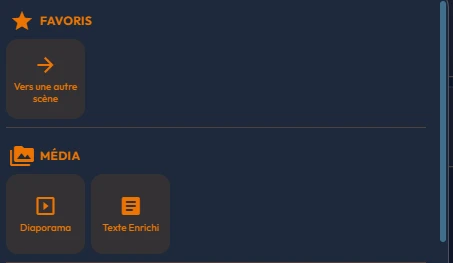
Here are the five icons pinned by default, as they appear in the "Favoris" row and in your scenes:


A video tutorial for every event
Every event type has its own short video tutorial, in the editor's language. It opens from a question-mark icon (tooltip "Voir le tutoriel vidéo", Watch the video tutorial): a window appears, with the tagline "Tutoriel vidéo" (Video tutorial) and the type's name as its title, and playback starts on its own.
- In the "Ajouter un évènement" panel, the icon sits next to each tile, not inside it: clicking the tile creates the event, clicking the icon opens the video.
- The same icon is found in the header of an open event's settings panel.
- The buttons of the "Favoris" row do not carry it: for those events, go through their settings panel.
- As long as a language does not have its video yet, the French version is shown. These videos also accompany the entries of the event catalogue.
Importing an event from another story
The "Importer un évènement d'une autre story" button opens a three-column panel: "Stories", with a "Rechercher une story" (Search for a story) field, "Scènes" (Scenes) and "Évènements" (Events). You choose in that order, then click "Importer l'évènement" (Import the event); double-clicking the event imports it directly. The event is copied into the current scene.
- Its links to the other story are not carried over: conditions, opening by other events, destinations. The variables it uses, however, are added to your story.
- Also reset: the events it used to trigger, its zone trigger and its lane in "Réalité Mixte" (mixed reality), the volume of an Effet visuel (Visual effect), the object targeted by a "Modifier un objet 3D" (Modify a 3D object). Remember to designate them again.
- Only the types present in your event menu are offered: a type unchecked in "Configurer le menu évènements" cannot be imported.
- To move an event from one scene to another without this panel, copy it from its settings panel: see Settings shared by all events.
Configuring the menu
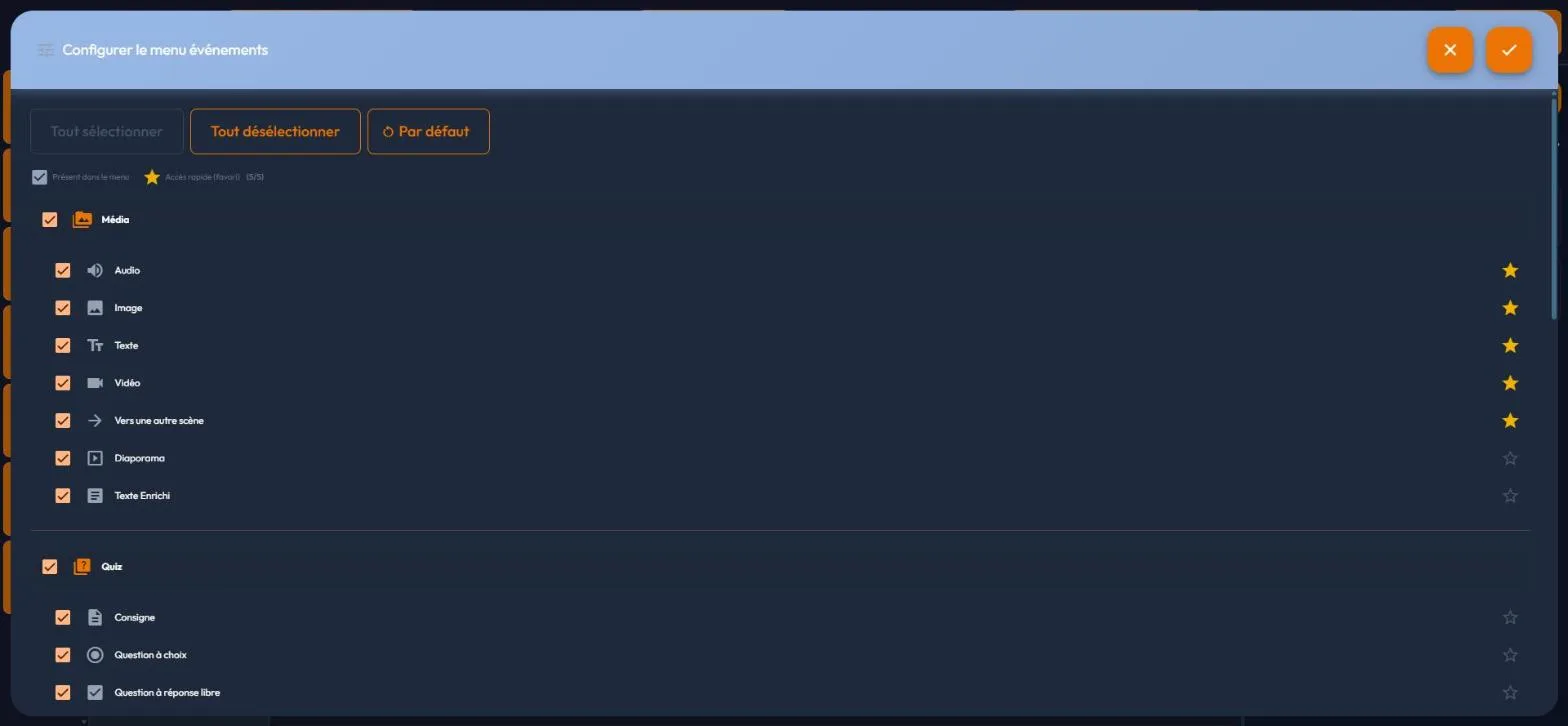
The gear wheel, at the end of the command row, opens "Configurer le menu évènements". That window doubles as the platform's best inventory: all 32 events are listed by category (Média seven, Quiz six, Lien four, 3D three, Masques two, Avancé ten). This filing is the authoritative one: Vers une autre scène is filed under Média, not under Lien. Each event has two independent settings:
- A checkbox: the event is "Présent dans le menu" (Present in menu). Uncheck whatever you never use and the "Ajouter un évènement" panel gets lighter.
- A star: the event becomes an "Accès rapide (favori)" (Quick access (favorite)), meaning pinned in the "Favoris" row.
22Settings shared by all events
Whatever its type, an event is configured in a four-tab panel: "Général" (General), "Conditions", "Ouverture / fermeture" (Opening / closing) and "Animation". The first three apply to all 32 types; the fourth, described in The "Animation" tab, only becomes active on seven types: Texte, Image, Vidéo, Diaporama, Objet 3D, Avatar and Effet visuel (Visual effect).
The entries of the catalogue do not repeat these shared settings: they only list what is specific to each event.
The panel: validate, cancel, copy
The panel header shows the type's icon and name, then the event's title. To its right, in order: the type's video tutorial icon (the same as in the "Ajouter un évènement" panel), "Copier l'évènement" (Copy the event), "Coller" (Paste) when there is something to paste, then two buttons side by side, "Annuler" (Cancel) and "Valider" (Validate). The panel has neither a close cross nor a footer.
- Your changes apply live as you type: the scene preview follows them. "Valider" keeps them and closes the panel.
- "Annuler" restores the event as it was when the panel was opened.
- On an event that has just been created and never validated, "Annuler" abandons the creation: the event is removed from the scene.
- The Escape key first closes whatever is open on top of the panel (a colour picker, a selector). In an input field it only leaves the field; a second press closes the panel. On a never-validated event it acts as "Annuler".
The "Général" tab
- "Titre" (Title): the event's name (250 characters at most).
- "Activation": "Au clic" (On click: the visitor clicks the point of interest) or "Automatique" (Automatic: the event fires on its own over its time range).
- "Nombre d'ouverture autorisée (0=tout le temps) :" (Allowed number of openings, 0 = always): two counters, "Dans la scène" (In the scene) and "Dans la story" (In the story), limiting how many times the event can fire.
- "Plage sur la timeline" (Range on the timeline): the event's start and end, detailed below.
- "Point d'intérêt" (Point of interest): the appearance of the clickable marker in the scene (icon, colours, title, attention movement, size), then its position and rotation in the sphere. Detailed further down.
- "Mode d'affichage" (Display mode): "Premier plan" (Foreground) or "Localisé" (Localized), only for Texte, Image, Vidéo, Diaporama and Consigne. Detailed further down.
An event can also be triggered by another one, but the three modes do not coexist. As soon as it is ticked in another event's "Évènements déclenchés" (Triggered events), it loses the "Au clic / Automatique" switch and its point-of-interest block, replaced by the banner "Cet évènement est déclenché par les évènements suivant :" (This event is triggered by the following events) and an "Ouvrir" (Open) button per trigger. That button closes the current panel, it does not take you to the trigger.
The range on the timeline is set by dragging the event's bar on the scene's timeline, or typed in the "Plage sur la timeline" area of the "Activation" block, with two fields, "Début (min:sec)" (Start) and "Fin (min:sec)" (End). On a one-shot event, whose duration is fixed, the end field is greyed out, and its tooltip says so: "Évènement ponctuel : durée fixe" (One-shot event: fixed duration). A badly written value is simply ignored, with no message.
Display mode and "Face à la caméra"
The "Mode d'affichage" block only exists for the Texte, Image, Vidéo, Diaporama and Consigne events. "Premier plan" shows a window on screen, "Localisé" places a panel in the 360 backdrop. "Taille" (Size) runs from 0.1 to 5 and is greyed out in "Premier plan"; "Largeur max du panneau" (Maximum panel width), from 0.1 to 5, only exists for Texte. On creation, Texte, Image and Vidéo start out "Localisé", the Diaporama and the Consigne "Premier plan".
The same block carries the "Face à la caméra" (Face the camera) setting: the "L'objet se tourne vers le visiteur" (The object turns to face the visitor) switch, then three axis checkboxes, "Y - lacet" (yaw, ticked by default), "X - tangage" (pitch) and "Z - roulis" (roll). Unticked axes keep the event's rotation. In 360 the visitor is at the centre of the sphere: content you have not rotated by hand already faces them, and the option mostly serves to follow their head movements. It takes precedence over the rotation set in the "Animation" tab.
The point of interest: icon, colours and attention movement
In the "Point d'intérêt" block, the "Icône" (Icon) area gathers everything about the marker's appearance. The scene preview follows each change live.
- A small, clickable preview of the icon, and the "Changer l'icône" (Change icon) button, which opens the icon library: one click is enough to pick one.
- A "Couleurs" (Colours) row with three swatches: "Principale" (Main), "Secondaire" (Secondary) and "Fond" (Background). The background also colours the title.
- Two independent switches, not one setting with two values: "Visible" shows or hides the icon; "Uniquement au survol" (Only on hover) only reveals it when the reticle or the mouse passes over it, and stays greyed out as long as the first one is off.
- Three lists in a row: "Affichage du titre" (Title display: "Placer sur le média." place it on the media, "Afficher au survol" show on hover, or "Ne jamais afficher" never show), "Position du titre" (Title position: "Au dessous" below, "Au dessus" above, "À gauche" left, "À droite" right) and "Animation".
- The "Taille" (Size) slider, from 0.05 to 5, and up to 20 with a custom icon.
The icon picker opens on three tabs:
- "Défaut" (Default) shows the built-in icons; at the top come the original icon of the event type, then the one the event carried when the panel was opened, so you can go back to it.
- "3D" offers about thirty raised icons (circles, emoticons, arrows), recoloured by your three colours.
- "Personnalisée" (Custom) takes a media item from your library, image or 3D object. A 3D object chosen here becomes the point of interest itself: it is shown centred, turned towards the visitor, its first animation playing in a loop, with no round background, and it is not recoloured.
The "Animation" list holds nine choices: "Pas d'animation" (No animation), "Rotation", "Échelle" (Scale), "Rotation/Échelle" (Rotation/Scale), then five attention movements, made to catch the eye without moving the target. Only the icon moves, never its title.
| Attention movement | What the visitor sees |
|---|---|
| "Onde sonar" (Sonar wave) | Circles leave the icon and widen as they fade, one per second. |
| "Flottement" (Float) | The icon gently rises and falls. |
| "Balancement" (Sway) | The icon swings like a pendulum. |
| "Retournement" (Flip) | The icon makes a full turn on itself. |
| "Lueur" (Glow) | A halo pulses behind the icon. |
With "Onde sonar" or "Lueur", a "Couleur de l'effet" (Effect colour) row appears under the list. As long as you leave it alone, the swatch reads "Fond de l'icône" (Icon background): the effect takes the icon's background colour. The "Reprendre la couleur du fond de l'icône" (Use the icon background colour) button returns to it.
Reusing an event's settings
Three gestures, from the broadest to the finest:
- "Dupliquer" (Duplicate), from the event's three-dot menu: the copy, named "… copie", opens at once and carries the whole event, including the opening sound, answers, feedback, style, conditions and destinations.
- "Copier l'évènement", in the panel header, then the "Insérer l'évènement" (Insert event) icon of the command row: the whole event is pasted into the scene of your choice, even in another story.
- The copy and paste buttons of an area only carry that area's settings: a text's advanced style and font, an image's caption, the green screen settings, a 3D object's rendering and animation.
Pasting the "Mode d'affichage" area also carries over the source event's animation and font, not just its position. To reuse an event from another story without opening it, see the import described in The event bar.
The "Conditions" tab
This tab restricts the event to cases where conditions are met, combinable with AND/OR and subgroups. The detail is in Conditions. Available conditions:
- another event being opened or closed;
- the answer chosen to a question, whether an answer was right or wrong, a question set's score (between a minimum and a maximum percentage);
- display on the control tablet only, the playback support (web or headset), the device's battery level;
- a variable's value, the number of visits to a scene;
- in "Réalité Mixte" (mixed reality) only: "Trigger", which targets a 3D object marked as a trigger, and "Ligne disponible" (Lane available).
The "Ouverture / fermeture" tab
The two halves of this tab do not offer the same things:
- On "Ouverture" (Opening): a dedicated sound ("Audio joué au déclenchement de votre évènement", Audio played when your event triggers, with its volume, overriding the global event sound), one variable to change ("Gestion des variables", Variable management) and events to launch ("Évènements déclenchés", Triggered events).
- On "Fermeture" (Closing): one variable to change and events to launch ("Évènements exécutés", Executed events), with no audio block: there is no closing sound.
Each block acts on a single variable; to change several at once, chain a "Modifier une variable" (Set a variable) event. The events offered are those of the current scene. This chaining lets you build elaborate mechanics without a line of code: a click opens a text, which on closing unlocks a navigation arrow.
23The input screens, one by one
An event's settings panel changes its content with the event type. This section details the screens you will meet most often: the text, the instruction, the questions, the bonus/malus and the hidden objects. The settings shared by all types are in Settings shared by all events.
A text
The "Texte" (Text) block opens on a "Contenu" (Content) sub-block with two fields: an "En-tête" (Heading) and a "Texte". Each field carries two small icons on its right, a proofreader and a writing-assistance wand.
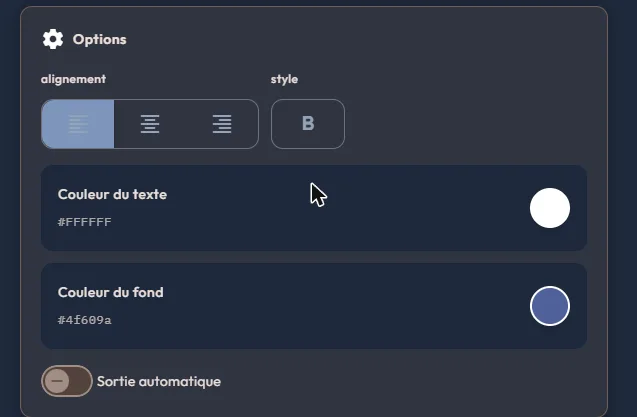
The "Options" sub-block handles appearance: alignment (left, centre, right), style (bold), the font, which follows the story's own until you pick another, the text colour, the background colour, and a "Sortie automatique" (Automatic exit) switch. Two buttons at the head of this sub-block copy and paste that formatting from one text to another, without carrying the content over.
A "Style avancé" (Advanced style) section goes further: on the text side, letter spacing, line height, an outline and its drop shadow; on the frame side, "Rayon des coins" (Corner radius), "Bordure" (Border) and "Marge intérieure" (Inner margin).
A text panel starts out with a thin edging in the background colour, hence tone on tone: the "Couleur de la bordure" (Border colour) swatch sets it apart from the background, and the slider brought down to zero (it then reads "Aucune", None) removes it. The "Réinitialiser le style avancé" (Reset advanced style) button returns to the starting state. An "Audio" block finally lets you back the text with a sound.
Below the advanced style, an "Étiquette" (Label) block changes the nature of the text. The "Afficher comme étiquette" (Show as a label) switch leaves it displayed in place in the scene for its whole time range: no icon and no click, no banner and no close button, never full screen. It is the way to caption an element of the scenery permanently. A "Flèche" (Arrow), to be switched on, links the label to what it points at:
- Its line: "Pointes" (Arrowheads: "Aucune" none, "Au début" at the start, "À la fin" at the end, "Aux deux bouts" at both ends), "Style du trait" (Line style: "Plein" solid, "Tirets" dashed, "Pointillés" dotted), "Forme" (Shape: "Droite" straight or "Courbe" curved, with a "Courbure", curvature), "Largeur" (Width) and "Couleur de la flèche" (Arrow colour), the text's colour by default.
- Its two ends: the simplest way is to drag, in the 360 preview, the handles of the arrow's start and end. The panel also gives the "Horizontal" and "Vertical" values of each, and the "Replacer la flèche sous l'étiquette" (Reset the arrow below the label) button straightens everything out.
- Its limits: the arrow is only available in 360 scenes; in "Réalité Mixte" (mixed reality) the label works, the arrow does not. A label ignores "Sortie automatique". Copying then pasting a text's options carries the arrow's style, not its positions.
An instruction
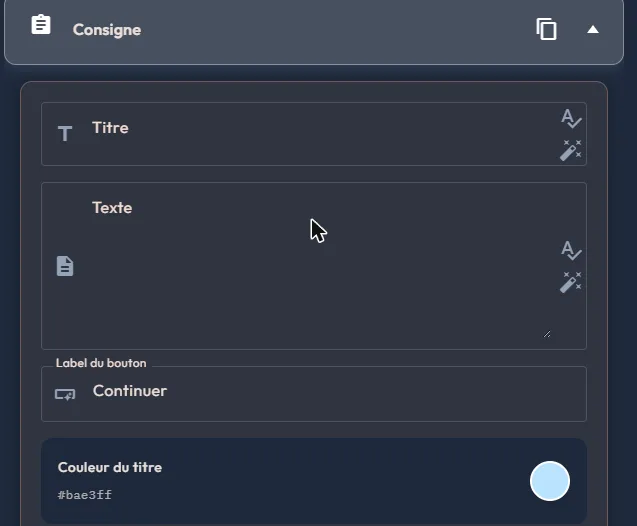
The instruction looks like a text, but plays a different role: it is a panel the visitor closes themselves, and the story waits until they press the button. Its "Consigne" (Instruction) block gathers a "Titre" (Title), required (100 characters at most), a "Texte" (1,000 characters) and a "Libellé du bouton" (Button label; 50 characters; "Continuer" by default, "J'ai compris" or "Commencer" sometimes fit better), then three colours: title, text and background.
"Image" and "Audio" blocks follow. The "Options avancées" (Advanced options) set the "Position de l'image" (Image position: top, bottom, left or right) and the maximum sizes.
A choice question
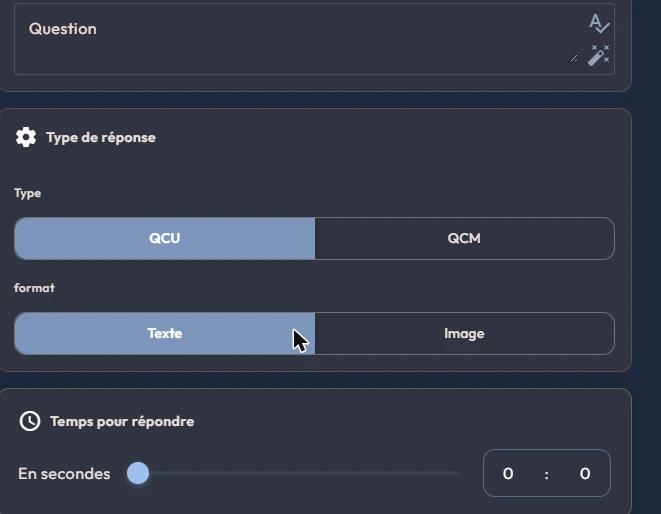
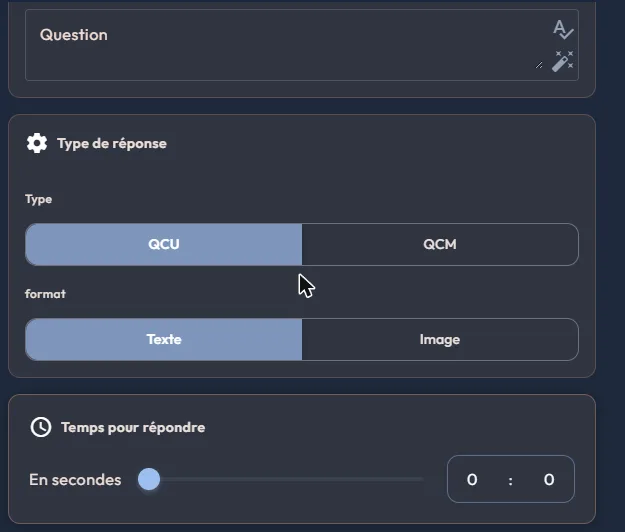
The "Question" block carries the wording, then the "Type de réponse" (Answer type) block gathers the settings that decide how it behaves:
- "Type": QCU, a single possible answer, or QCM, several.
- "Format": "Texte" or "Image". In image format the answers are thumbnails: ideal for "which of these three pieces of equipment is compliant?".
- "Temps pour répondre" (Time to answer): a slider in seconds, zero by default, meaning no limit. The slider stops at the duration set in "Temps sur la scène (mm:ss)" (Time in the scene): on a scene with no duration it stays stuck at zero, so set the scene duration first. The seconds field next to it does accept a value even in that case.
- "Ordre des réponses aléatoire" (Random answer order): each participant sees the answers in a different order, drawn once per session. The order you enter remains the reference for conditions and records. This shuffle is not played on the kiosk.
- "Numérotation des réponses" (Answer numbering): "Aucune" (None), "1, 2, 3" or "A, B, C". The number follows the displayed order, even when drawn at random: do not type it into the answer text. If some answers already start with a hand-typed number, a warning counts them and the "Retirer les numéros tapés" (Remove typed numbers) button cleans them up.
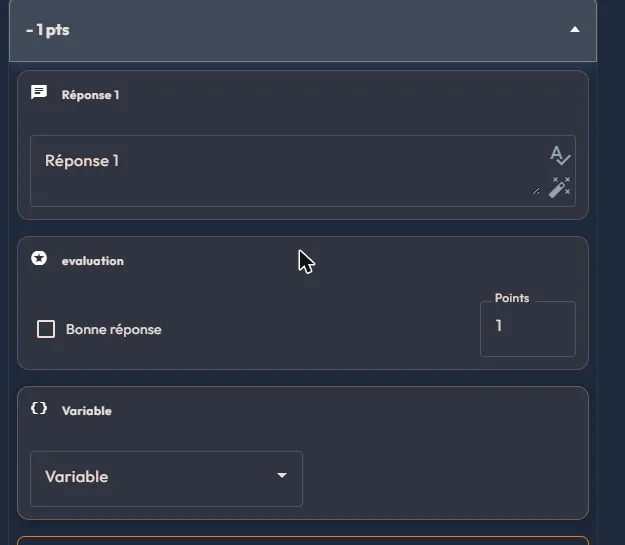
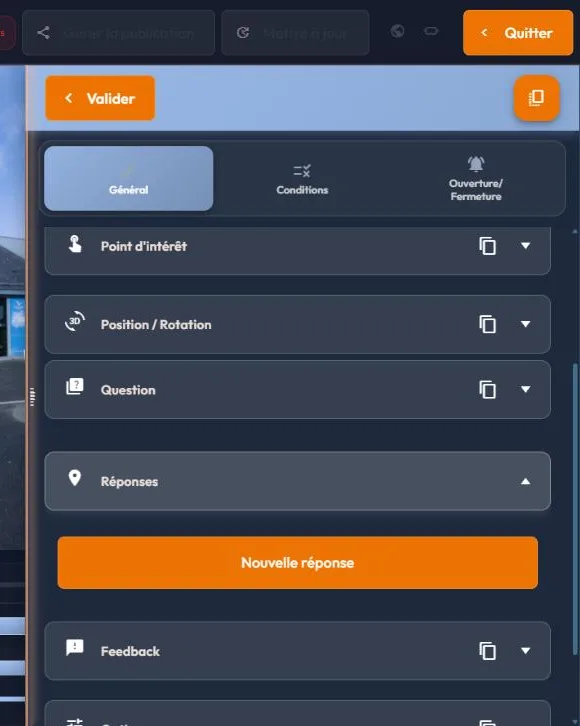
The "Réponses" (Answers) block fills up with the "Nouvelle réponse" (New answer) button. Each answer opens its own card: its text, an "Évaluation" (Scoring) sub-block with the "Bonne réponse" (Right answer) checkbox and the "Points" field, a "Variable" sub-block, an "Audio" sub-block, and a delete button. Collapsed, the card summarises its score.
An answer's audio is played after the question's, in the displayed order. If a speech synthesis service is linked to your account, the "Générer une voix" (Generate a voice) button produces that sound from the text; the same button exists under the question's audio and under each feedback's. With numbering and the "Annonces des réponses numérotées" (Numbered answer announcements) of the story options, a question becomes fully audible, answers included: useful in a headset, and for accessibility.
An open question
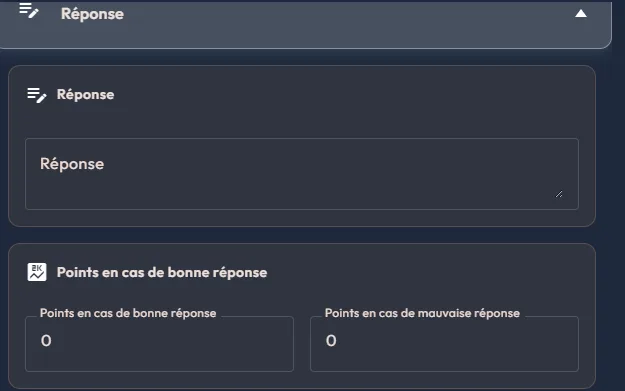
Here there is no answer list: a single "Réponse" (Answer) field that holds the expected answer, and a scoring block with two fields, "Points en cas de bonne réponse" (Points for a right answer) and "Points en cas de mauvaise réponse" (Points for a wrong answer), both zero by default. This question is only played in the web viewer: headsets, the control tablet and the kiosk do not display it yet, and no banner in the panel reminds you of it.
The difference from the choice question lies in the scoring. On a choice question, each answer carries its own points, from -100 to 100: a ticked wrong answer can therefore take points away. On an open question, the question itself carries two values, one for a right answer and one for a wrong one.
A bonus or a malus
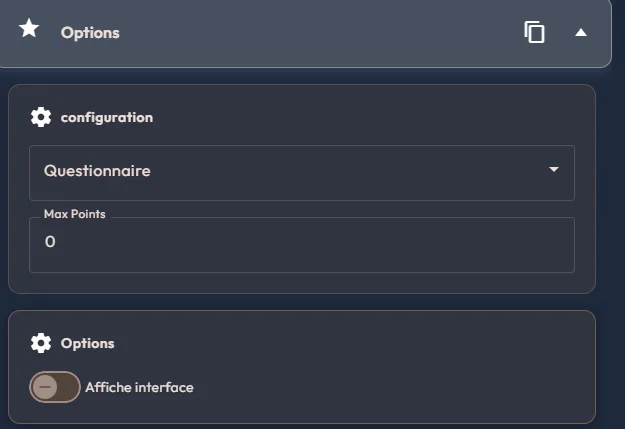
Bonus/Malus is not a question: it is a score adjustment. Its "Options" block holds three settings: the "Questionnaire" (Question set) list, naming the score concerned; the "Max Points" field, positive for a bonus or negative for a penalty; an "Affiche interface" (Show interface) switch, depending on whether the adjustment should be visible to the visitor or silent.
A hidden object game
This is a multiple-choice question set in the scenery rather than in a list: the answer is not a label, it is a place in the image. The visitor clicks the points they believe are correct, then validates their selection, as on a single or multiple choice question. To build one:
- Write a question in the "Question" block, say "Trouvez les équipements de sécurité" (Find the safety equipment).
- Create as many answer points as there are answers, right and wrong alike, with the "Nouvelle réponse" (New answer) button of the "Réponses" (Answers) block. Each answer gets its own place in the scene straight away and drops a numbered marker there, the number being its rank in the list.
- As long as the panel is open, drag each marker onto its element, in the 2D view as in the 360 view. Adding, removing, reordering or resizing an answer updates the preview at once.
These same screens are also used outside a story, in "Mes quiz" (My quizzes), to write your questions ahead of time or import a batch from a spreadsheet.
24The 32 events, category by category
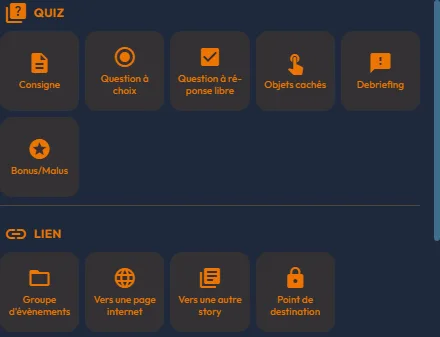
Here is the full catalogue of the 32 events you can create from the editor, in the order of the "Ajouter un évènement" (Add an event) panel. Each entry says what the event is for, then its specific settings; the settings of Settings shared by all events always apply on top. Event names are given as they appear in the French interface, with their English label. Every event also has its video tutorial: in the editor, from the question-mark icon described in The event bar; here, from the video placed under its entry, which starts when you click its preview.
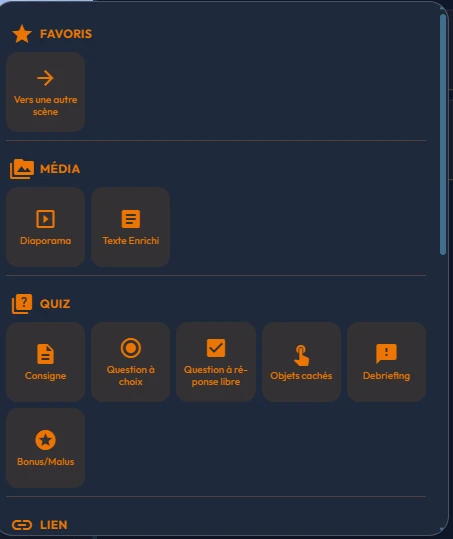
Each event is preceded by its icon, the one identifying it in the "Favoris" (Favourites) row and in the "Ajouter un évènement" panel. Do not confuse it with the icon the visitor will see: that one is chosen freely, event by event, in the "Point d'intérêt" (Point of interest) block of the shared settings. The first helps you find your way in the editor, the second dresses the scene.
Favoris (Favourites)
This category holds no events of its own: it gathers the quick-access entries that do not fit in the width of the "Favoris" row. Its content therefore changes with the width of the panel.
Média (Media)


An image can carry a caption, in a "Légende" (Caption) block of its own: a text of at most 300 characters, its alignment, its font, its size from 0.5 to 2.5, the text colour, the background colour and that background's opacity. As long as the text is empty, none of these settings appears, and the visitor sees no caption.
On a video, a third route joins the green screen and the separate mask: packed transparency, where the video already carries its own mask, the picture on one side and the mask on the other. The "Transparence intégrée (alpha packé)" (Packed alpha transparency) list offers "Aucune" (None), "Haut / bas" (Top / bottom) and "Gauche / droite" (Left / right). This setting takes precedence over the other two: choose it and the green screen and the mask are ignored.
Quiz


Lien (Link)


3D

A 3D file can carry animations and colourways of its own. The "Animation du modèle" (Model animation) block lists the clips with their duration ("Premier clip par défaut", First clip by default, or the one you choose) and sets the "Mode" ("Boucle" loop, "Une fois" once or "Aller-retour" back and forth), the "Vitesse" (Speed, 0.1 to 3) and "Démarrer au chargement" (Start on load): unticked, the animation only starts when the event opens.
If the model contains material variants, the "Variante de matériaux au chargement" (Material variant on load) list offers "Matériaux d'origine" (Original materials), then each of them: the same shoe in red, yellow or blue. The "Essayer dans l'aperçu 3D" (Try in the 3D preview) area plays each clip or applies each variant, without saving anything; it requires the preview's "Vue 360" (360 view) to be on.
Do not confuse this block with The "Animation" tab: the tab moves the event through the scene over time, the block plays a movement already inside the file. The two stack.
The "Rendu" (Rendering) block holds four settings: "Non éclairé (unlit)" (Unlit), for stylised models whose colours must be shown as they are, without scene lighting; "Luminosité" (Brightness), from 0.2 to 3; "Aspect métallique" (Metallic look), from 0 to 100, to be lowered if a metal looks black (hidden when "Non éclairé" is on); "Double face" (Double-sided), which also shows the back of thin surfaces (leaves, fabrics, panels), otherwise invisible when seen from behind.
The "Modèle" (Model) block shows the dimensions, the triangle count, the textures and the file size, with an "Analyser" (Analyse) or "Réanalyser" (Analyse again) button and, in mixed reality, a "Taille réelle 1:1" (Real size 1:1) button. If a model imported long ago does not show its material variants, click "Réanalyser".

Masques (Masks)


Avancé (Advanced)


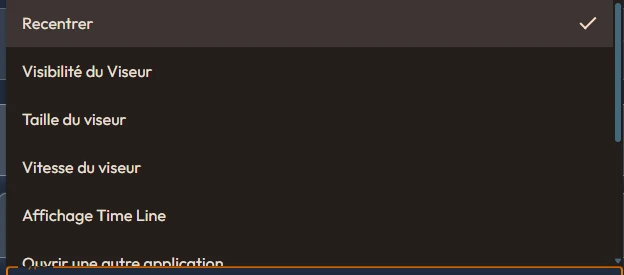
| Type | Setting opened |
|---|---|
| "Recentrer" (Recentre) | None: it is placed as it is. |
| "Visibilité du Viseur" (Reticle visibility) | "Affichage du viseur en permanence" (Permanent reticle display) switch. |
| "Taille du viseur" (Reticle size) | "Taille min" (0.1 to 0.5) and "Taille max" (0.5 to 2). |
| "Vitesse du viseur" (Reticle speed) | "Délai avant la validation de l'interaction" (Delay before the interaction is validated, 0.5 to 5 seconds). |
| "Affichage Time Line" (Show timeline) | A switch. |
| "Ouvrir une autre application" (Open another application) | "Identifiant de l'Application" (Application identifier) field. |
| "Affichage UI : Envoi de message" (Show the message-sending UI) | "Afficher" (Show) switch. |
| "Affichage des manettes" (Show controllers) | "Afficher" switch. |
| "Affichage UI : Notifie Formateur" (Show the notify-trainer UI) | "Afficher" switch. |
| "Volume" | Percentage slider, at 50 by default. |


| Effect | Specific settings |
|---|---|
| "Eau" (Water) | Level (0 to 3 m), Colour, Opacity, Wave amplitude, Wave speed; switches Underwater tint, Caustics on the floor, Ambient sound, Entry and exit effects. |
| "Lumière" (Light) | Colour, Intensity, Range (0.5 to 20 m), Light type (Point source or Ambient light), Flicker; Entry and exit effects. |
| "Brume" (Mist) | Colour, Density, Layer height (0.1 to 3 m), Drift; Ambient sound, Entry and exit effects. |
| "Feu" (Fire) | Colour, Height (0.1 to 3 m), Width (0.05 to 2 m), Intensity; switches Smoke, Sparks, Ambient sound, Entry and exit effects. |
| "Météo" (Weather) | Type (Rain or Snow), Colour, Density, Speed, Wind; Ambient sound, Entry and exit effects. |
| "Particules" (Particles) | Colour, Density, Size, Speed, Rise; Entry and exit effects. |
Every slider of an effect carries a "Valeur par défaut" (Default value) button, and all switches start out on. The panel warns you when the effect cannot be rendered: in a 360 story, which has no room; as long as no zone exists in the room; as long as no volume is chosen; or when the chosen volume has since been deleted. The menu nevertheless offers the event even in a 360 story: the warning only appears once the panel is open.
Imported from another story, an effect loses its volume, which must be designated again. One note stays displayed at the bottom of the block: "L'aperçu web n'est qu'une approximation visuelle : le rendu final se juge au casque." (The web preview is only a visual approximation: the final result is judged in the headset.). Finally, the slider settings can be animated over time: see The "Animation" tab.
Events that do not work everywhere
Most events behave the same way in the five applications: the web, the 360 headset, the mixed reality headset, the control tablet and the kiosk. For six types, five of which are in the menu, the platform warns you itself: a banner appears at the top of their settings panel. It reads "Cet évènement fonctionne uniquement pour les publications Web." (This event only works for web publications.) or "Cet évènement est uniquement disponible sur les casques VR." (This event is only available on VR headsets.).
| Event | Banner shown | Good to know |
|---|---|---|
| Texte Enrichi (Rich Text) | Web publications | Neither headsets, nor tablet, nor kiosk. |
| Vers une page internet (To a web page) | Web publications | In a headset and on the tablet, a web address opens nothing. The kiosk opens the page in the device's browser. |
| Formulaire (Form) | Web publications | Neither headsets, nor tablet, nor kiosk. |
| Rotation automatique de la caméra (Automatic camera rotation) | Web publications | No effect elsewhere. |
| Paramètres des casques (Headset parameters) | VR headsets | On the web, nothing happens. |
| Vers un média (To a media item) | Web publications | Absent from the menu; may linger in older stories. |
That banner does not tell the whole story. Other events have a limit, total or partial, with no banner to flag it:
| Event | Its limit |
|---|---|
| Question à réponse libre (Open question) | Web only: neither headsets, nor tablet, nor kiosk. |
| Effet visuel (Visual effect) | Mixed reality headset only; approximate web preview. The panel announces it with its own warning. |
| Reconnaissance vocale (Speech recognition) | Web and headsets, in French only. Neither tablet nor kiosk. |
| Afficher carte (Show map) | Web and headsets. Neither tablet nor kiosk. |
| Vers une autre story (To another story) | Web and headsets. The tablet only plays its opening sound; not on the kiosk. |
| Point de destination (Destination point) | Web and headsets. Not on the kiosk. |
| Groupe d'évènements (Event group) | Everywhere; outside the web, the group's delay is ignored. |
| Avatar | Everywhere; outside the web, without lip sync. |
| Modifier un objet 3D (Modify a 3D object) | Everywhere; on the tablet, a change made in the headset is not yet passed on to the preview. |
| Objets cachés (Hidden objects) | Everywhere; in a mixed scene, the objects are placed around the visitor, not in the room. |
| Masque 360 (360 mask) | Everywhere; in a mixed story, only in its 360 scenes. |
| Fin de story (Story end) | Everywhere; on the kiosk, no end screen and no return to the menu. |
The platform publishes its own inventory. In the "Aide" (Help) menu, the "Compatibilité" (Compatibility) page, headed "Compatibilité des fonctionnalités" (Feature compatibility), states what each application can play, in five columns ("Web", "Casque 360" 360 headset, "Casque réalité mixte" mixed reality headset, "Tablette de pilotage" control tablet, "Kiosque" kiosk) and four levels: "Pris en charge" (Supported), "Avec une limite" (With a limitation), "Non pris en charge" (Not supported), "Sans objet" (Not applicable). A search and a "Limites seulement" (Limitations only) filter go straight to what concerns you.