

The control tablet user guide
From powering on the case to live piloting of multiple VR headsets: launching stories, live headset view, facilitator tools (paint, quiz, debrief), multilingual playback and troubleshooting. Click a section below to jump straight to it.
Who is this guide for
This user guide details the functions of the control tablet app for the easybox360 case: powering on the case, connecting headsets, launching and synchronising stories on N parallel headsets, live monitoring of what each user sees, facilitator tools (annotations, quiz, debrief), multilingual handling and basic troubleshooting.
It is aimed at facilitators and trainers running an in-person VR session (training course, patient workshop, sales demo, event). The application that creates the stories played by easybox360 is covered separately in the easystory360 guide.
1. System overview
The easybox360 case is a standalone VR distribution system designed to work with no installation, no Internet during a session and no technical handling. Three components work together:
- The case router: provides the local Wi-Fi network the tablet and all headsets connect to. No Internet connection is required during a session: everything goes through this standalone network.
- The control tablet: this is the facilitator's command centre. The piloting app launches automatically in kiosk mode at every startup, and it stores your stories downloaded from easystory360. This is the app this guide documents.
- The VR headsets: (Pico G2/G3, Meta Quest, Vive Flow…) on which the viewer app also launches in kiosk mode at startup and connects automatically to the tablet via the router.
2. First startup
Power up in this order:
- Plug in and switch on the case router. Wait for the LEDs to stabilise (around 30 seconds).
- Switch on the tablet: the piloting app launches automatically.
- Switch on the headsets: their app launches automatically and they connect on their own to the tablet via the case Wi-Fi.
You're ready to run a session. The active-headset counter is shown at the top right of the tablet screen and increases as users put onthe headsets.
3. Pre-paired at the factory
When you receive your case, the tablet and all the headsets are already paired by explorations360. You have nothing to configure: no codes to enter, no Wi-Fi network to choose, no password to memorise.
If you want to add your own headset to the case (in addition to the supplied gear), a dedicated procedure exists - see easyviewer360 on Meta Quest.
4. Headset connection
In the piloting app, on the "My headsets" screen:
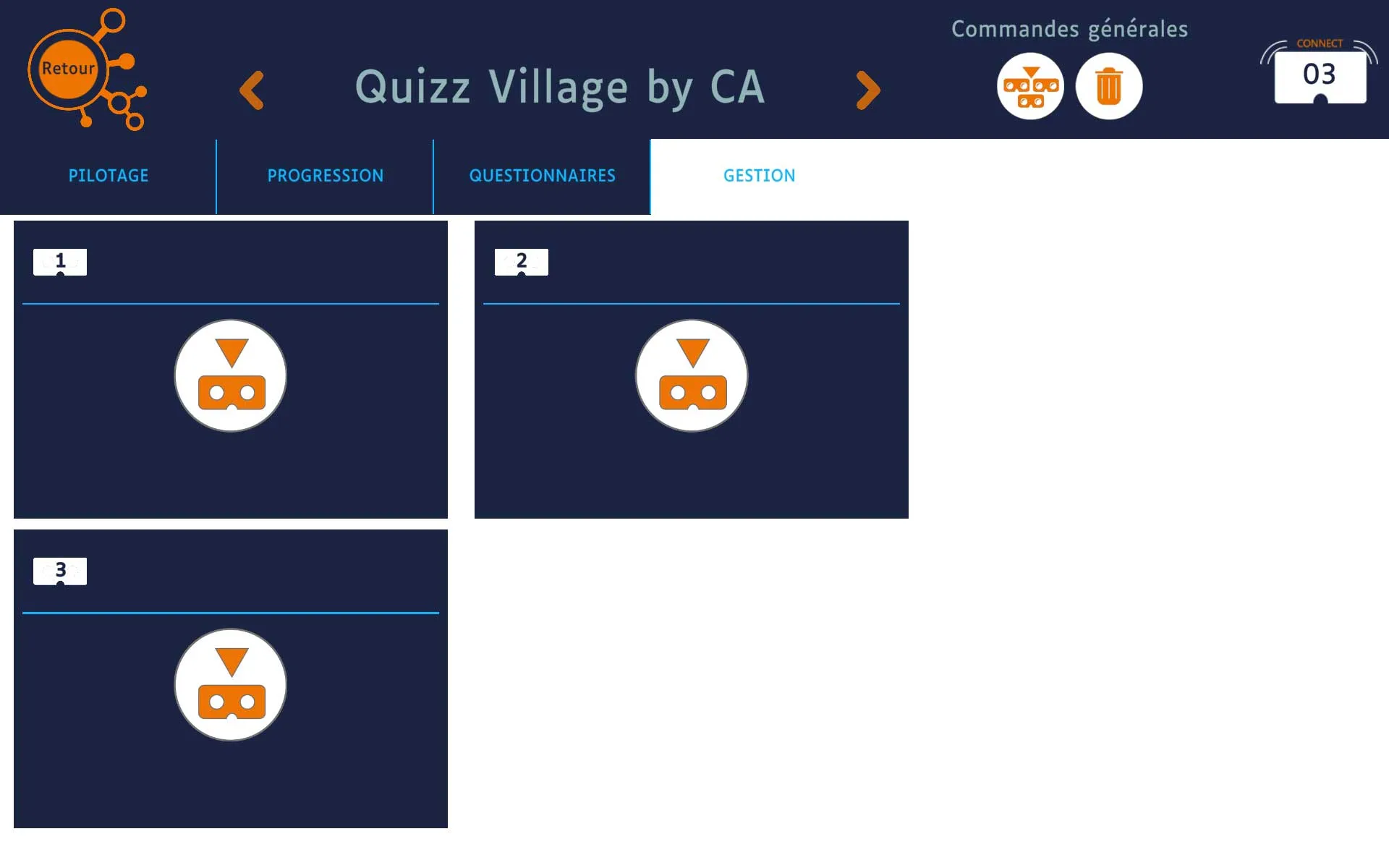
- Each headset that is worn appears automatically with a number (1, 2, 3…), its battery level and its name (editable).
- A thumbnail shows in real time whether it is idle, playing or standby (put down / not worn).
- The counter at the top right of the tablet displays the number of active headsets in real time.
- If a headset doesn't show up while being worn, see §20 Headset not detected.
5. Story selection
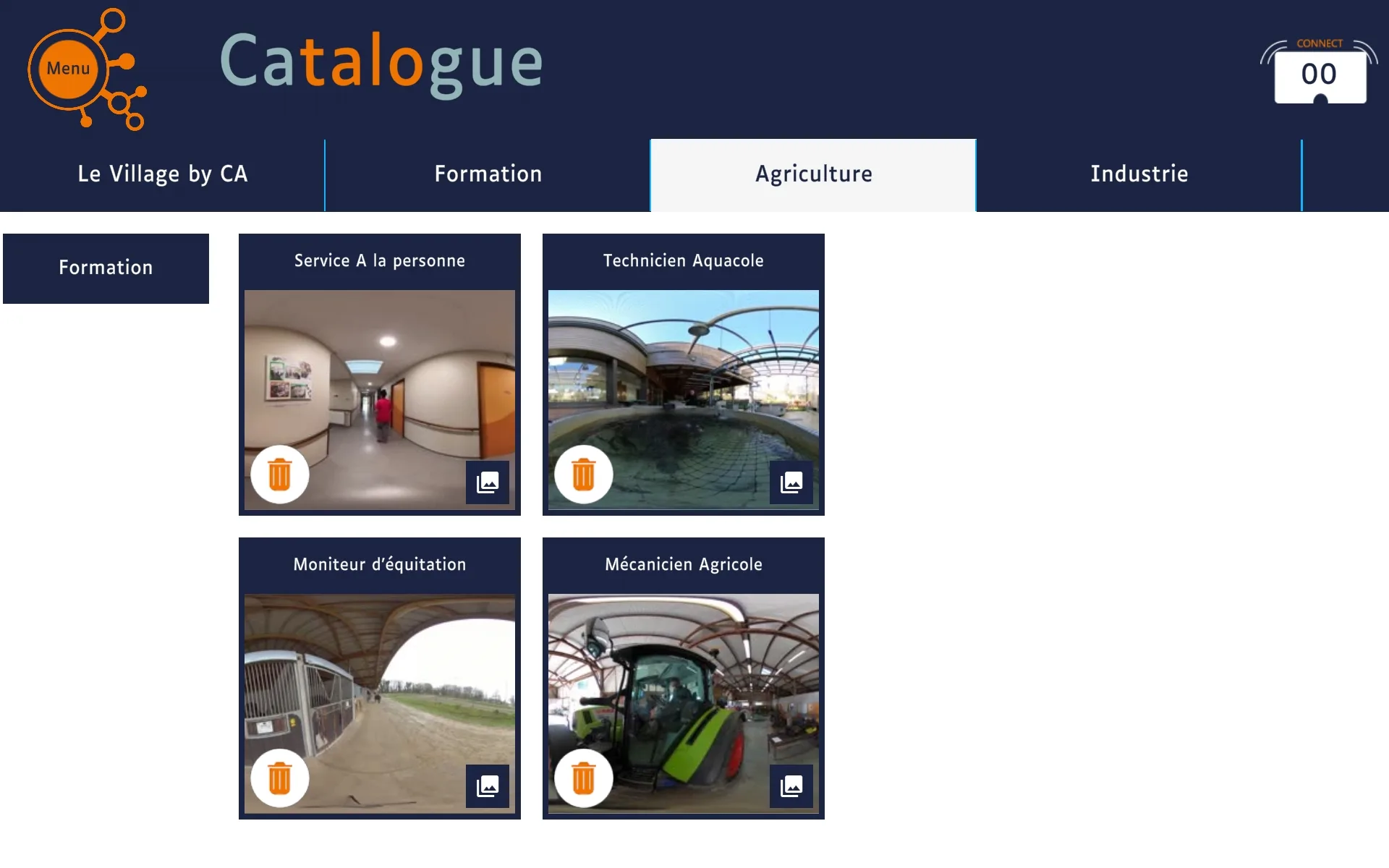
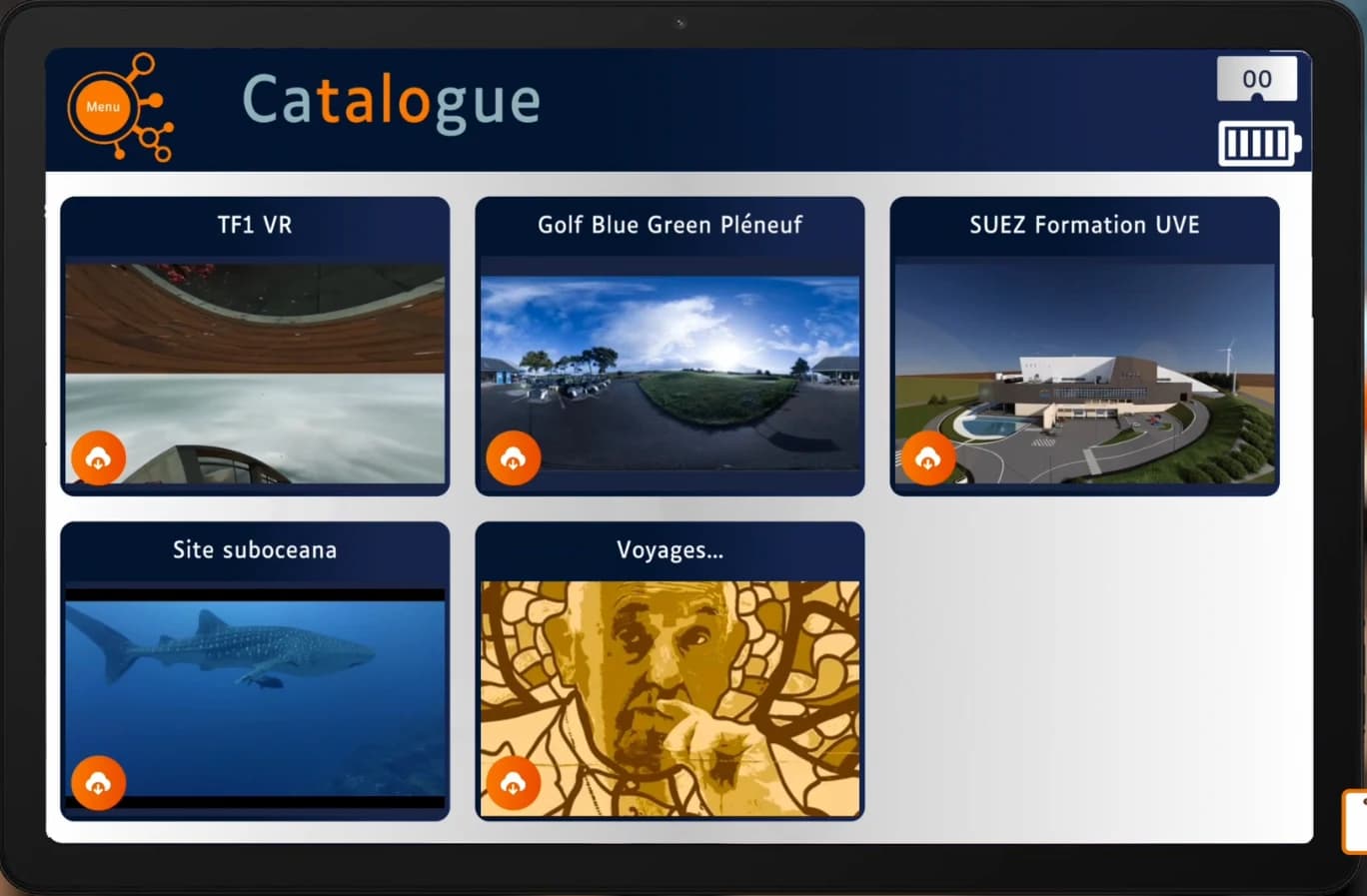
The home screen of the app shows the list of stories downloaded on the tablet. Stories are first published to the tablet from easystory360 (see Sync easystory360 with easybox360).
- Each story is shown by its cover thumbnail, its title, its duration and the available languages.
- Tapping the thumbnail opens the story details: description, duration, languages, scenes.
- Sorting is by portfolio (groups defined in easystory360) or via free-text search.
6. Target headset selection
Once the story is chosen, select the headsets that will play it. You can:
- Select all: every connected headset starts together.
- Partial selection: a subgroup of headsets (e.g. the 4 at the back of the room).
- Headset by headset: useful to start in different languages (see §7).
7. Multilingual per headset
If the story is multilingual (set up in easystory360 with several audio tracks + subtitles), you can assign a different language to each headset at launch.
- The app shows the list of available languages for that story.
- Pick the desired language for each headset (flag or ISO code).
- The default language is the one set on the story's portfolio (configurable in easystory360).
8. Control modes
Two modes determine how the facilitator intervenes during the session:
- STANDALONE mode: the facilitator does not intervene. Each user navigates at their own pace inside their story (gaze, hotspots, scene choice). This is the right mode for self-service and workshops where everyone explores autonomously.
- TABLET mode (facilitator): the facilitator pilots the session from the tablet: chooses what each headset receives (the same story for everyone, or different stories per headset), starts, pauses, stops. Once the story is launched, the user keeps control over their own navigation (scenes, hotspots) inside their story. The facilitator can sync everyone to a given scene, force a viewpoint or step in, but it's not systematic.
9. Launch and navigation
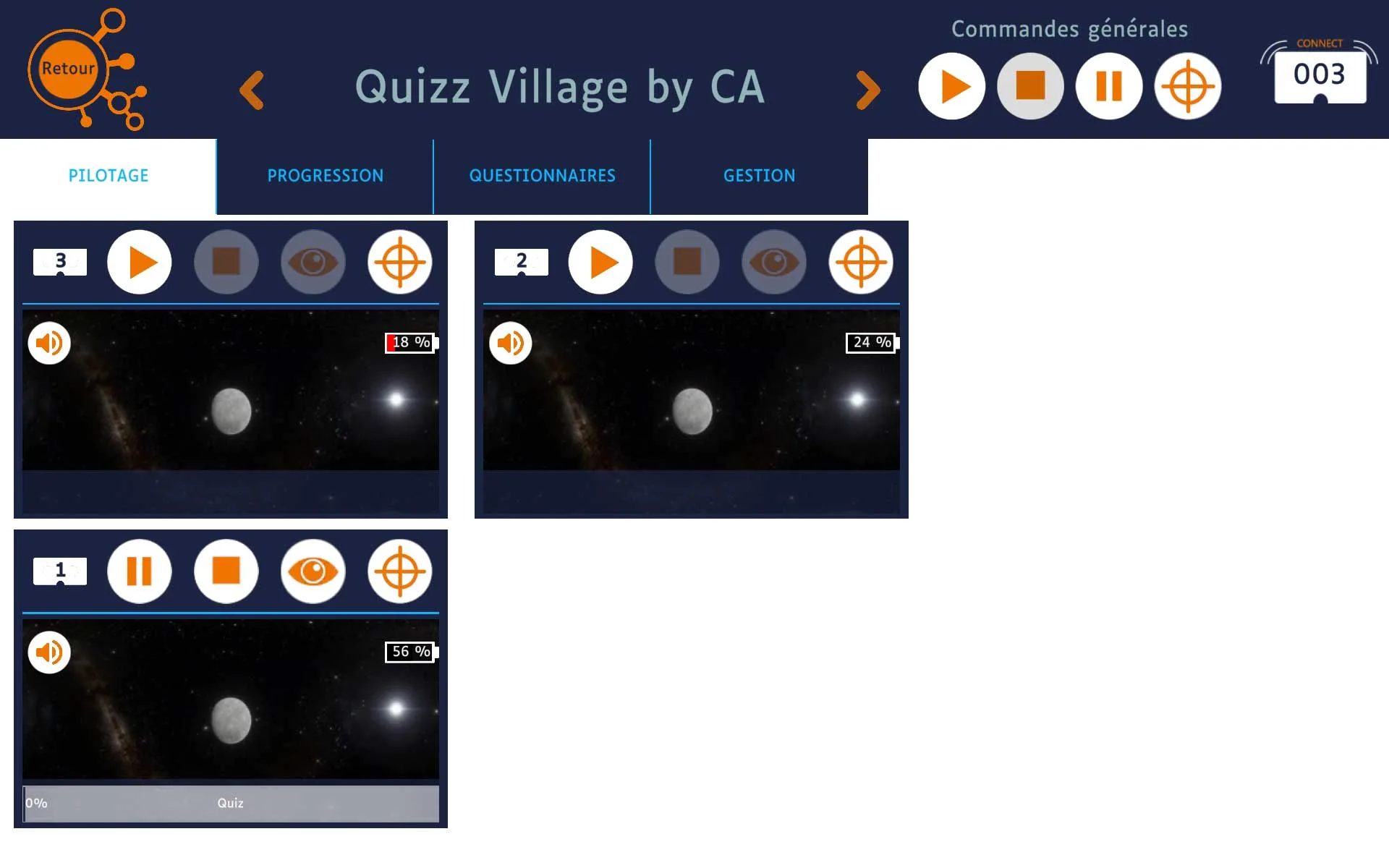
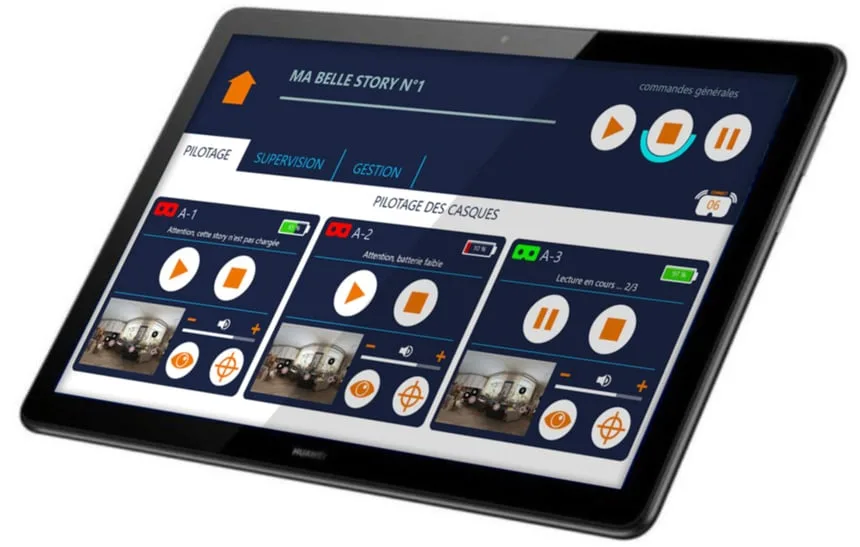
Start button: the story starts simultaneously on all selected headsets. The tablet then switches to the "Now playing"screen which shows:
- The story timeline (scenes, key events).
- The state of each headset (language, current scene, pause/play).
- Global controls: Pause, Resume, Stop.
- The Progression tab lets you sync all headsets to a given scene (useful to catch up someone who fell behind).
10. Headset list (live state)
The PILOTAGE (Piloting) tab, in turn, shows each headset's live state during playback (idle, playing, standby, battery, etc.). During playback, the side panel lists all active headsets with their information in real time:
- Number and name: headset identifier (1, 2, 3… or custom name: "Room A", "Pico Marc"…).
- Battery: charge level in %, visual alert under 20%.
- Active language: the language chosen for that headset.
- Playback state: playing, paused, scene X/N, standby (headset down / not worn).
11. Live headset view
Tapping a headset in the list, the tablet shows in real time what the user is looking at (flattened 360° view). It's the key tool for following a session:
- See who's looking where, who's lost.
- Help a confused user remotely ("look right").
- Cycle through the headsets to check that everyone is keeping up.
12. Facilitator tools
On the live headset view, several tools can be triggered from the facilitator side bar:
- Annotation (paint): draw or write on a headset's view to point out an element. The annotation appears as an overlay in the headset and can be shared with several headsets in collaborative mode.
- Sync to a scene: force all selected headsets to the same scene (useful when someone has fallen behind).
- Force a viewpoint: send a headset to a specific hotspot (in TABLET mode).
- Play / Pause / Resume: global or per-headset transport controls.
- Volume per headset: adjust each headset's volume individually, e.g. for a hard-of-hearing user or a noisy environment.
- Stop a single headset: stop the story on one headset without interrupting the others (useful when a user removes their headset or has to leave early).
13. Quiz, questions and debrief
If the story contains question, object quiz or image quiz events (set up in easystory360), the piloting app lets you:
- See live which headsets answered and what answer was given.
- Display the correction on all headsets at once.
- Review the results at the end (debrief panel): per-user score, average score, missed questions.
The debrief can be displayed on the headsets (each user sees their own score) or on an external screen via the mirror video output (§14).
14. Mirror video output (option)
To show what one learner is experiencing to a whole room, we offer a dedicated case kit with a more powerful tabletthat connects directly to an external screen (TV, projector).
This is a deliberate choice: the tablet already has the headsets' video feedback locally, so sending it to the screen requires no casting to a third device. This avoids extra load on the Wi-Fi network and guarantees session stability, even with many headsets.
- Pick the source headset in the piloting app.
- Quick switch from one headset to another to rotate the VR "microphone".
- Live display on the external screen with no network casting.
15. Story download and update
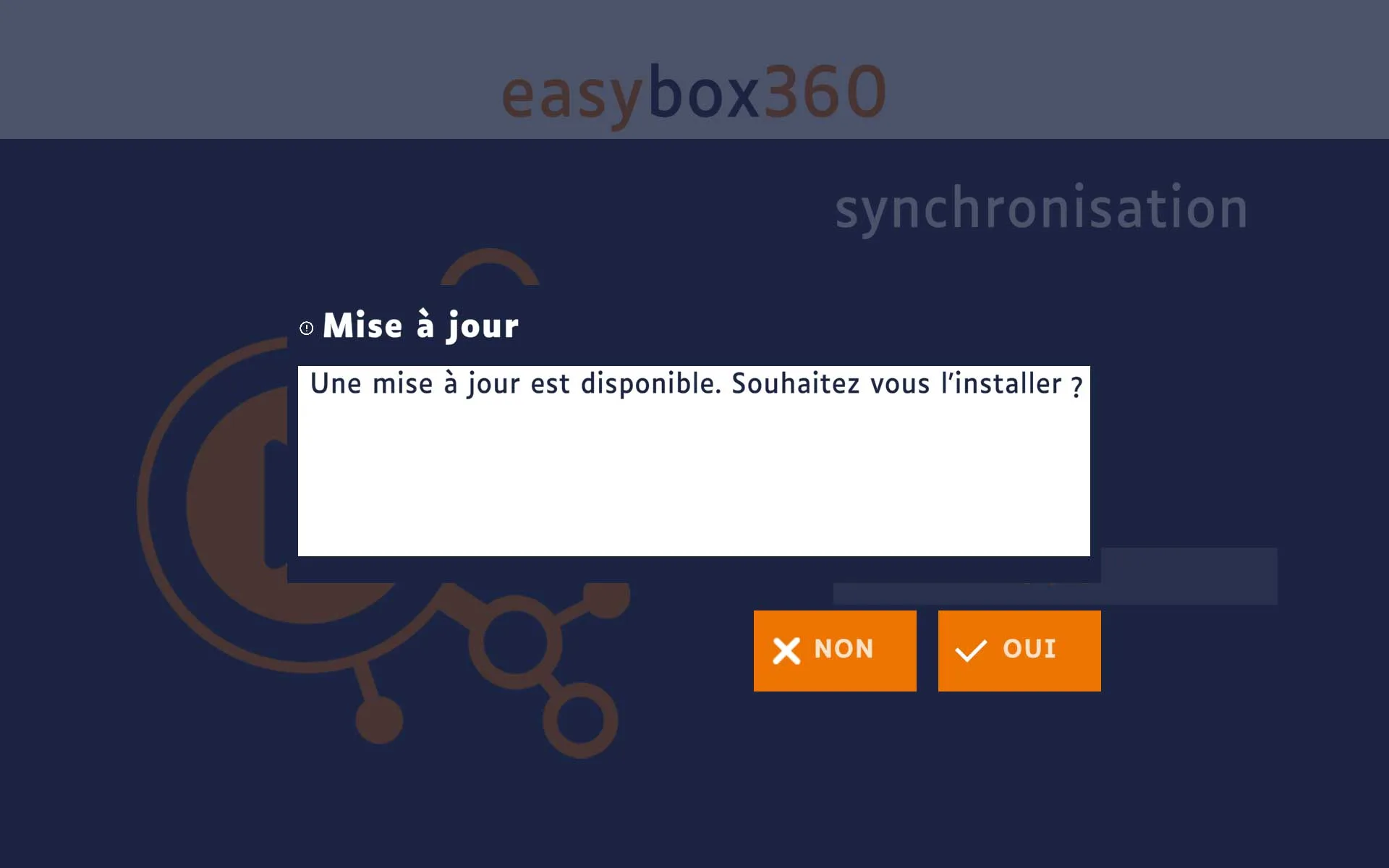
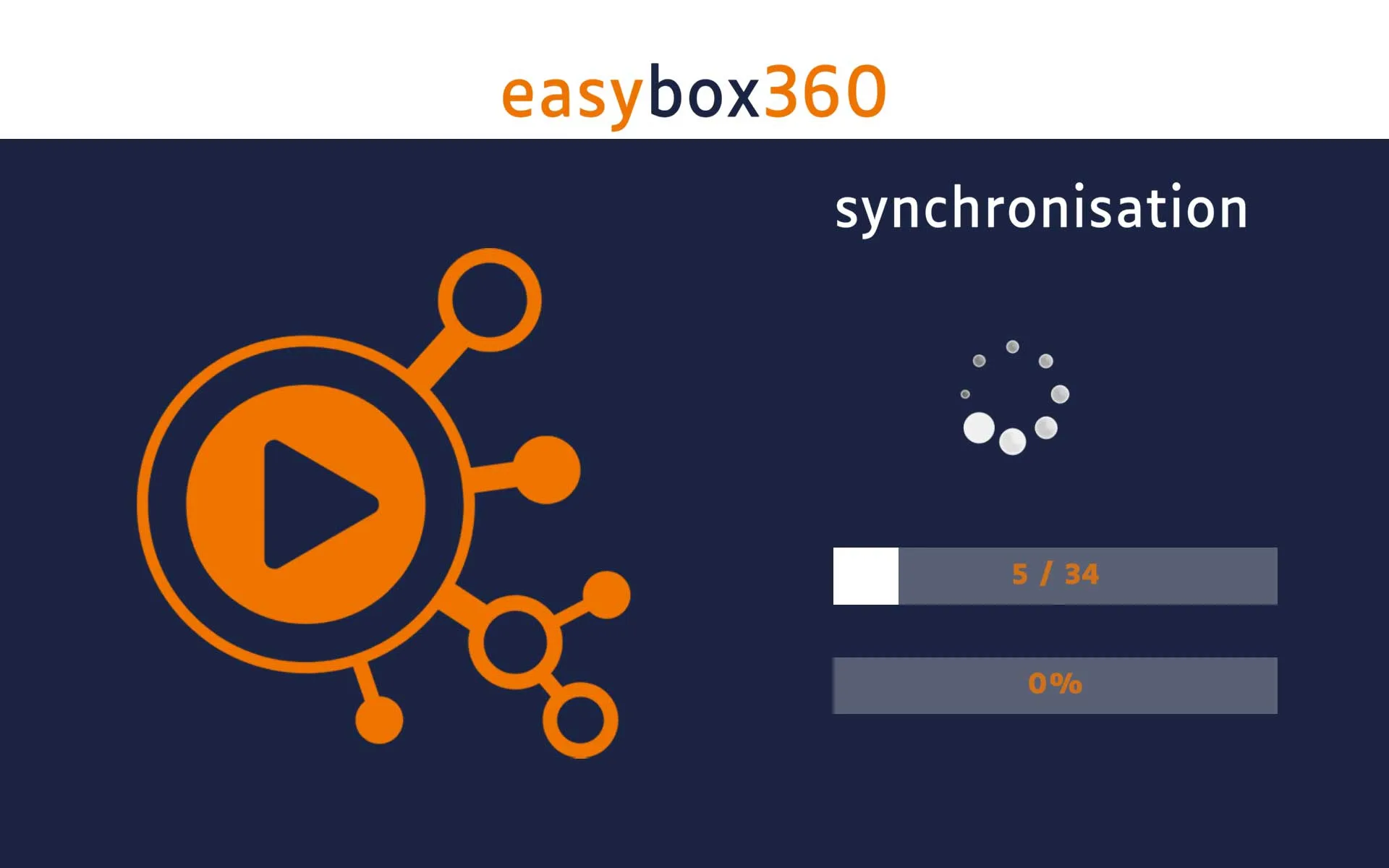
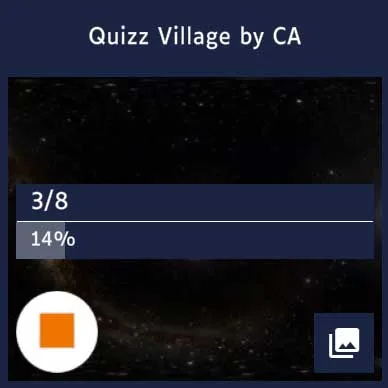
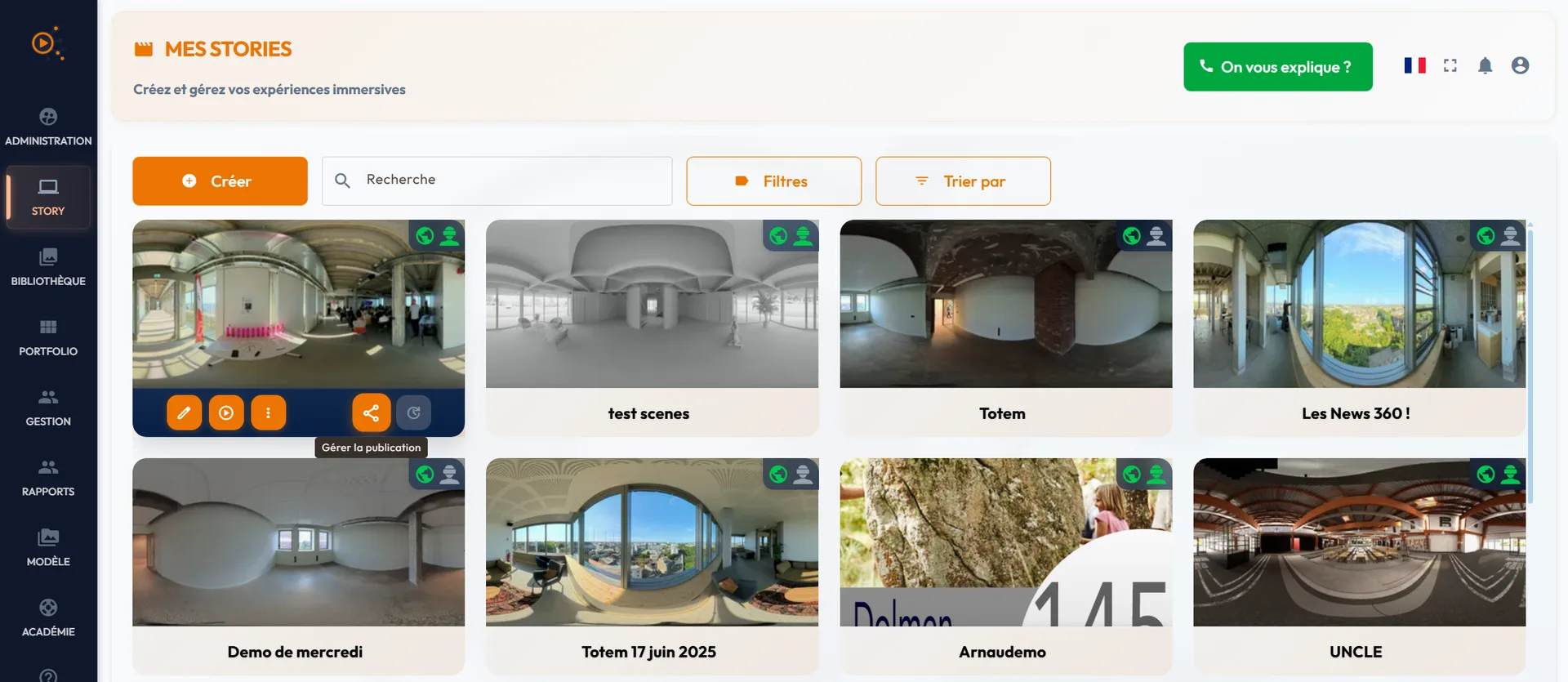
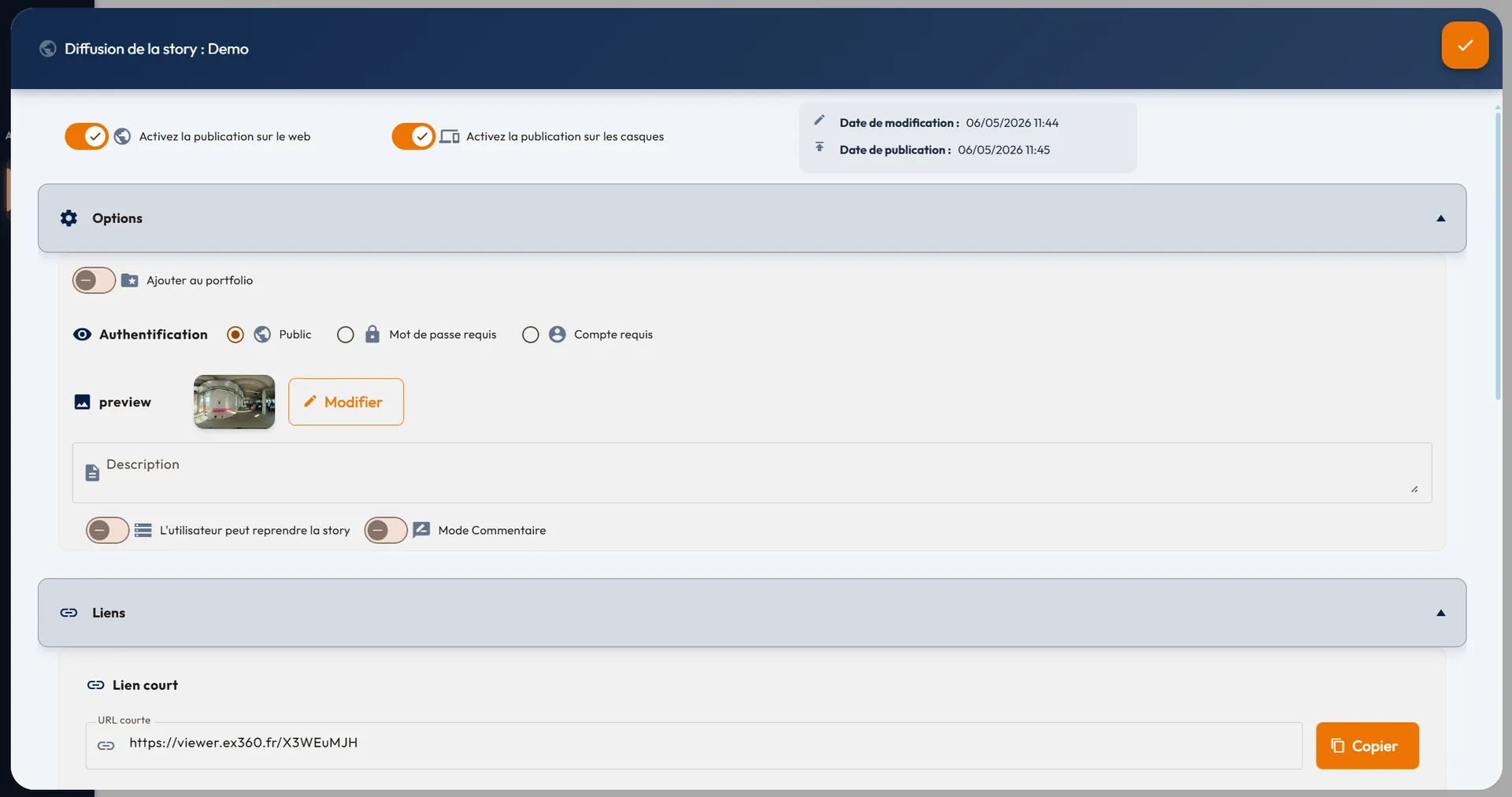
Stories are created on easystory360 and then downloaded onto the case tablet (which then plays them offline during sessions). On the tablet, the Library or Stories tab lets you:
- Download a new story: sync your easystory360 portfolio onto the tablet (requires Internet while downloading, then everything stays local for sessions).
- Update a modified story: when you change a scene or a video on easystory360, the app detects the new version and offers to update the story on the tablet.
- See used storage: total size and per-story size. Lets you decide what to keep on the tablet to avoid filling up the storage.
Full procedure details: Sync easystory360 with easybox360.
16. Rename / identify a headset
On the My headsets screen, a long press on a headset opens its detail card:
- Rename: replace the generic number with a meaningful name ("Room A Pico", "Marc's headset").
- Identify: flash the headset's screen to find it physically in the room.
- Restart: send a remote restart command (useful when a headset is sluggish).
17. Available settings
The case is delivered locked in kiosk mode to guarantee stable, reliable operation. Technical settings (Wi-Fi, OS updates, OS language, launching other apps) are not accessible on the user side.
During a session, the piloting app still lets you adjust:
- Default headset language: the language proposed by default at the start of a new story (you can always change it per headset at launch, see §7).
- Sound volume: global volume and toggle of UI sounds (per-headset volume also accessible during a session, see §12).
18. Account and license
Account tab:
- Login and email of the easystory360 account associated with the case.
- easybox360 license number and validity date.
- For any account or license change, contact support.
19. Everything frozen: restart the case
Symptom: the piloting app no longer responds, no headset is listed, or an error message prevents launching a session.
- Switch off the tablet, the headsets and the case router.
- Switch the router back on first and wait for the LEDs to stabilise.
- Switch the tablet back on: the piloting app relaunches automatically.
- Switch the headsets back on one by one: they reconnect automatically.
If, after this full restart, the issue persists, contact support (see §22).
20. Headset not detected
Symptom: a powered-on headset doesn't appear in the tablet list or disappears from the counter.
- First check that the headset is worn: on the table, it goes to standby to preserve battery and no longer appears in the list. It comes back as soon as it's worn again.
- Check that the headset is properly charged and powered on (charge / state LED).
- If the headset is worn and charged but still missing, restart it (the app launches again automatically).
- If several headsets are missing at once, restart the entire case (see §19).
- If a headset still doesn't show up, contact support.
21. Story not downloading
Symptom: a download stays at 0% or fails.
- Check that the case has Internet access during the download (the app shows a connection indicator; downloads are typically done from your office or before the event, not during the session).
- Check that the story is published on easystory360 (status "published").
- Check available storage on the tablet (see §15).
- For very large media (long 4K videos), prefer story-by-story update over a bulk update.
22. Help and support
You have several channels to get help, from quickest to most in-depth:
- Alixe, explorations360's AI assistant, can answer most easybox360 questions live (usage, troubleshooting, use cases). Click the chat icon at the bottom right of any page on the site.
- Help tab in the app: contextual FAQ for the most common cases.
- Export logs button in the app to send a precise diagnostic to explorations360 when an issue stays unexplained.
- For a request that needs a human: the contact formor the support phone number listed in the Help tab of the app.
Annex: where to find what
Quick-reference table of features and the tab where they live in the app:
| You want to… | Tab / screen |
|---|---|
| Launch a story | Home > Stories |
| See connected headsets | My headsets |
| See what a user is looking at | Now playing > tap on the headset |
| Annotate / draw on a headset | Headset view > Paint tool |
| Pick a headset's language | Before launch > Headset selection |
| Force everyone to the same scene | Now playing > Sync |
| Rename a headset | My headsets > long press |
| Update stories | Library > Sync |
| See a quiz score | Now playing > Debrief |
| Export logs | Help > Export logs |
FAQ
Answers to the most frequent questions about the easybox360 case and its piloting application.
How many VR headsets can a single easybox360 case pilot?
The easybox360 case can pilot multiple VR headsets simultaneously from a single facilitator tablet. We have tested up to 60 headsets in parallel without issue. The right number for your case depends on your usage and the chosen headset model. Contact us to size your case according to your needs (training, event, self-service…).
Do I need an Internet connection to run a session with easybox360?
No. The easybox360 case runs fully standalone: the router provides a local Wi-Fi network between the tablet and the headsets. Internet is only needed when initially downloading stories from easystory360, which is typically done before the event from your office.
Can I play several different stories at the same time on different headsets?
Yes. In TABLET mode, the facilitator can send the same story to all headsets or assign a different story per headset. This makes differentiated paths possible in the same workshop, or testing several versions of an experience in parallel.
Can the stories be played in several languages?
Yes. If the story is multilingual (set up in easystory360 with several audio tracks and subtitles), the facilitator can assign a different language to each headset at launch. Ideal for international groups or tourism sites.
What does the facilitator see on the tablet during a session?
The tablet shows in real time the list of all active headsets with their battery level, language, playback state and current scene. The facilitator can open a headset's view to see live what the user is looking at, annotate the scene, sync everyone, adjust volume per headset or stop a headset individually.
How long does it take to start a session?
Less than a minute. Switch on the case router, the tablet (the piloting app launches automatically) and the headsets (same), and the session is ready. Everything is pre-paired at the factory, no setup needed.
Can I use my own VR headsets with an easybox360 case?
Yes. Meta Quest 2/3, Pico G2/G3, Vive Flow and other compatible headsets can be added to your case. See easyviewer360 on Meta Quest for the procedure on Meta Quest.
Why does a headset sometimes disappear from the list?
A headset is only counted as active when worn (the headset's proximity sensor must be triggered). Put down on the table or removed, it goes to standby automatically to preserve battery. It reappears in the list as soon as a user puts it back on.
Can I project what a user is looking at to an external screen?
Yes, as an option. We offer a dedicated case kit with a more powerful tablet that connects directly to an external screen (TV, projector). This deliberately avoids casting to a third device: the tablet already has the headsets' video locally, so nothing extra loads the Wi-Fi, which guarantees session stability. The kit is slightly more expensive (more powerful tablet). Contact us for sizing.
How do I update the stories on my case?
From the tablet, in the Library or Stories tab, the app automatically detects new versions published on easystory360 and offers the update. Full procedure: Sync easystory360 with easybox360.
This guide is being enriched (more screenshots and animated tutorials coming). A question or a case not covered? Contact us or ask Alixe via the chat at the bottom right.