

Introduction
Are you a videographer wondering which resolution to use for your 360° videos on the Pico G2 4K and easybox360? This guide provides key recommendations for achieving the best possible rendering.
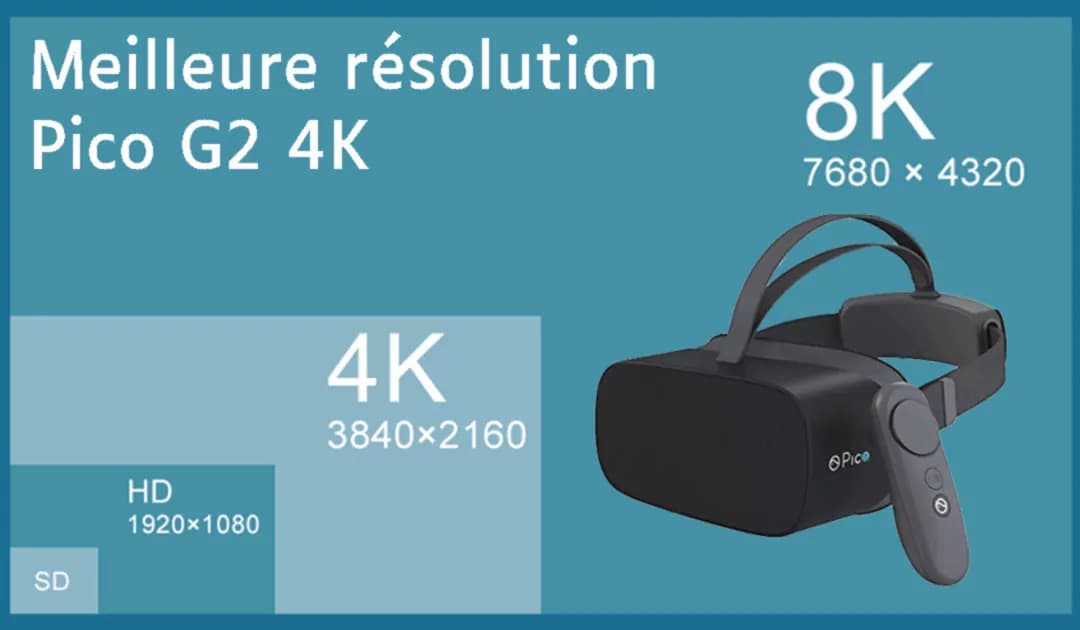
Key takeaway: The Pico G2 4K features a 3840×2160 display. To fully leverage this quality, your videos must be encoded at the right resolutions and with the proper settings.
Recommended resolutions
Monoscopic 360° video
Monoscopic video (2D spherical) is the most common format for 360° experiences.
| Parameter | Recommended | Maximum |
|---|---|---|
| Resolution | 5120 × 2560 | 5760 × 2880 |
| Framerate | 30 FPS | 30 FPS |
| Codec | H.264 | H.264 |
| Bitrate | 60-80 Mbit/s | 100 Mbit/s |
Tip: Go with the 5120×2560 resolution for an optimal balance between quality and smoothness. It ensures stutter-free playback and prevents the headset from overheating during extended sessions.
From experience: In practice, a resolution of 5760×2880 with a lower bitrate (30 to 50 Mb/s) is acceptable. Run tests with your video editing software's export settings.
Stereoscopic 360° video (3D)
Stereoscopic video provides a sense of depth by using two distinct images (one for each eye).
| Parameter | Recommended |
|---|---|
| Resolution | 4096 × 4096 |
| Framerate | 30 FPS |
| Codec | H.264 or H.265 |
| Format | Top-Bottom or Side-by-Side |
180° Side-by-Side video
The 180° VR format is ideal for front-facing content with a depth effect.
| Parameter | Maximum |
|---|---|
| Resolution | 5760 × 2880 |
| Framerate | 30 FPS |
| Codec | H.264 |
| Bitrate | 100 Mbit/s |
Why choose H.264?
The H.264 codec is recommended for several reasons:
- Fewer artifacts: cleaner rendering, especially during motion
- Better compatibility: natively supported by all Pico headsets
- Lower heat output: H.264 decoding uses fewer resources, which prevents the headset from overheating during long sessions
- Faster export: less demanding encoding on the editing side
Warning: H.265 (HEVC) can be used for stereoscopic content, but it may sometimes produce visual artifacts and causes the headset to heat up more. Always test before deployment.
Resolution vs Performance
Important: The highest resolution is not always the best choice. A slightly lower resolution can provide:
- Better battery life: lower power consumption
- Less heat: extended comfort for the user
- Smoother playback: stable framerate without drops
- Equivalent experience: the visual difference is often imperceptible
For extended sessions (training, exhibitions), opt for 4K rather than 5K.
Recommended export settings
Here is a summary of the optimal settings for exporting your 360° videos:
| Parameter | Value |
|---|---|
| Resolution | 5120 × 2560 (mono) / 4096 × 4096 (stereo) |
| Framerate | 30 FPS |
| Video codec | H.264 (AVC) |
| Profile | High |
| Bitrate | 60-80 Mbit/s (VBR recommended) |
| Audio codec | AAC, 48 kHz, stereo or ambisonic |
| Container | MP4 |
Tips for extended sessions
If your content is intended for presentations or exhibitions lasting several hours:
- Slightly reduce the resolution: choose 4K (4096×2048) instead of 5K to avoid any overheating
- Limit the bitrate: 50-60 Mbit/s is sufficient for excellent quality
- Avoid high-order ambisonic audio: stick with stereo or first-order ambisonics to reduce processor load
- Test under real conditions: play your video for 30 minutes before deployment to verify stability
Production workflow
- Shooting: film at the maximum resolution of your 360° camera
- Editing: work at your native resolution
- Export: apply the recommended settings listed above
- Metadata injection (optional): use the Google Spatial Media Metadata Injector tool so the video is recognized as 360°.Not required for easystory360.
- Headset testing: verify the final rendering on the Pico G2 4K
- Upload to easystory360: integrate your video into your experience
Additional resources
Share this article: