

Introduction
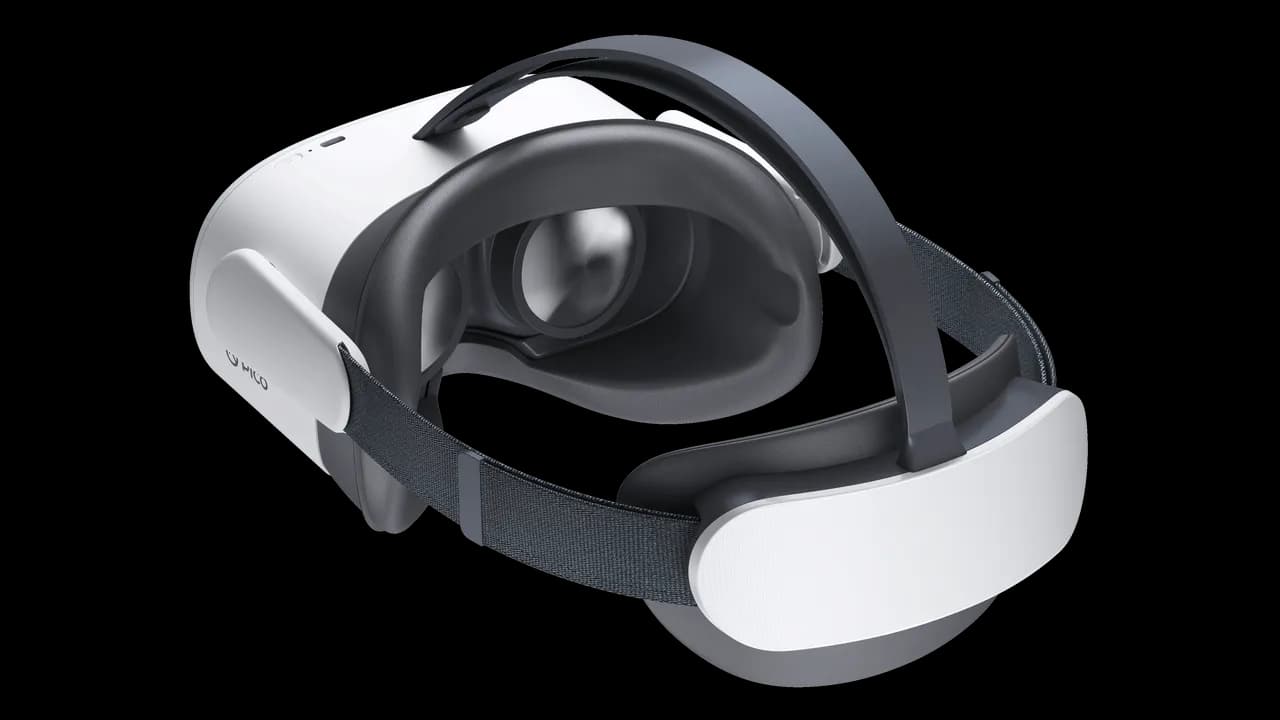
This tutorial guides you step by step through configuring your Pico G3 headset in easybox360 mode. This setup turns your headset into a standalone VR kiosk that boots directly into the easybox360 viewer.
Prerequisites: download the application
Before starting the configuration, you need to download and install the easybox360 viewer application on your Pico G3:
Download the Pico G3 application (APK)
Installing the application
- Extract the downloaded ZIP file
- Connect your Pico G3 headset to your computer via USB
- In the extracted folder, run the install_Viewer.bat file
- Wait for the installation to complete; the headset will restart automatically
Video tutorial
Configuring easybox360 mode
Go to Settings → Developer* → Enterprise settings, then follow these steps:
1 - System
In the System section, configure the home button:
- Customize home button
- Single click → System default value
- Double click → Not valid
2 - Home screen
Configure the home screen to automatically start easybox360:
- Select easybox360 viewer as the startup application
- Click Restart to apply the changes
After restarting, your Pico G3 will boot directly into the easybox360 viewer.
Enabling developer mode*
If developer mode is not enabled on your headset, follow these steps to unlock the advanced features required for the easybox360 configuration.
1. Access the headset settings
- Turn on your Pico G3
- From the main menu, open Settings
2. Unlock developer options
- In the settings, go to the General section
- Select About
- Find the Software version entry
- Tap the version number 7 times quickly
- Developer options are now enabled
3. Access developer options
Once developer mode is enabled:
- Go back to Settings
- A new section called Developer is now visible
- From here you can enable USB debugging, force GPU rendering for certain apps, or allow unknown sources
4. Disable developer options (optional)
If needed, you can disable developer mode by repeating the same procedure (tapping the version number 7 times) in the About device section.