

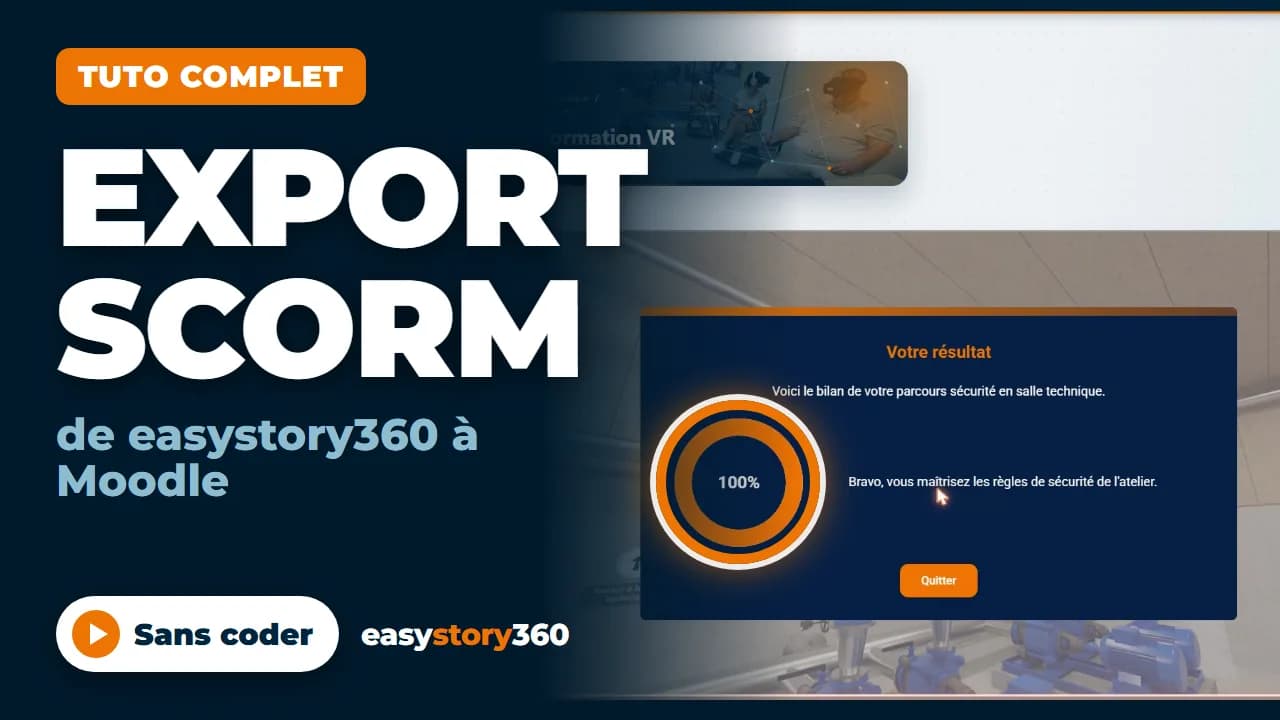
Why connect a VR training course to an LMS
A successful virtual reality training course is not always enough: in a company, a training provider or a school, you also need to prove who took it, how far they went and with what result. That information lives in the training platform, the LMS(Moodle, for example): it is where learning paths, certificates and reports are managed.
SCORM is the common language between a training module and an LMS. A SCORM module is uploaded to the LMS like any online course, and it reports each learner's progress and score. Exporting an easystory360 story as SCORM therefore brings an immersive 360° tour into the same tracking as the rest of your training, with no development.
The full video tutorial: from easystory360 to Moodle
This 9-minute video walks through the whole process on a real workshop safety course: preparing the story, exporting, importing into Moodle, then checking the result on the learner side and in the activity report. The interface is in French; English subtitles are available.
What an easystory360 SCORM module sends to the LMS
- Completion: the LMS knows the learner has finished the module.
- The score, calculated by the story's Debriefing event, as a percentage.
- The "passed" status, based on a pass mark set at 75%.
- The story's language, its default language, so the LMS presents the module correctly.
Each visitor's detailed answers remain available in easystory360, under Reports, "Résultats" (Results) tab: the LMS receives the summary, the platform keeps the question-by-question detail.
The "End of story" debriefing: the piece that carries the score
For a result to reach the LMS, the story must contain a Debriefing event with its "Fin de la Story" (End of story) box ticked. It calculates the score, shows the learner the message for the band they reached, and tells the LMS the module is closed.
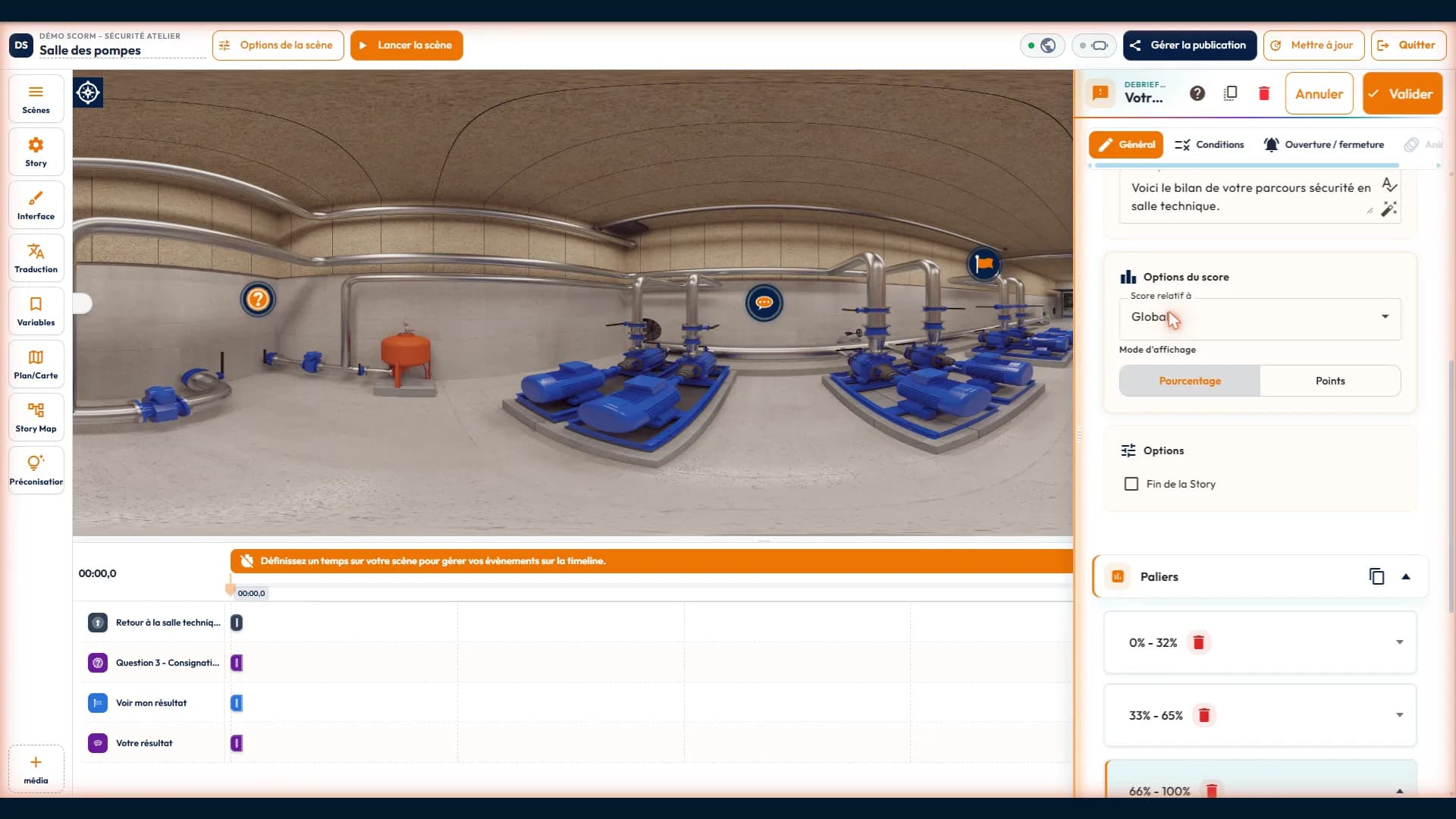
Three settings make the difference when you design the course:
- "Au clic" (On click) activation: the "Fin de la Story" box works with a debriefing triggered on click, for example when a "Voir mon résultat" (See my result) instruction is closed.
- Score bands aligned with the 75% pass mark: a 75 to 100% band for the congratulations message, a band below it that invites the learner to try again. What the learner reads on screen then matches exactly what the LMS records.
- One questionnaire per topic if the course covers several, with a debriefing for each: the "Score relatif à" (Score relative to) setting chooses which questionnaire is assessed.
If you only need to know that the course was followed to the end, with no score, the "Fin de story" (End of story) event is enough: the SCORM module then receives the completion.
SCORM 1.2 or SCORM 2004: which one to choose
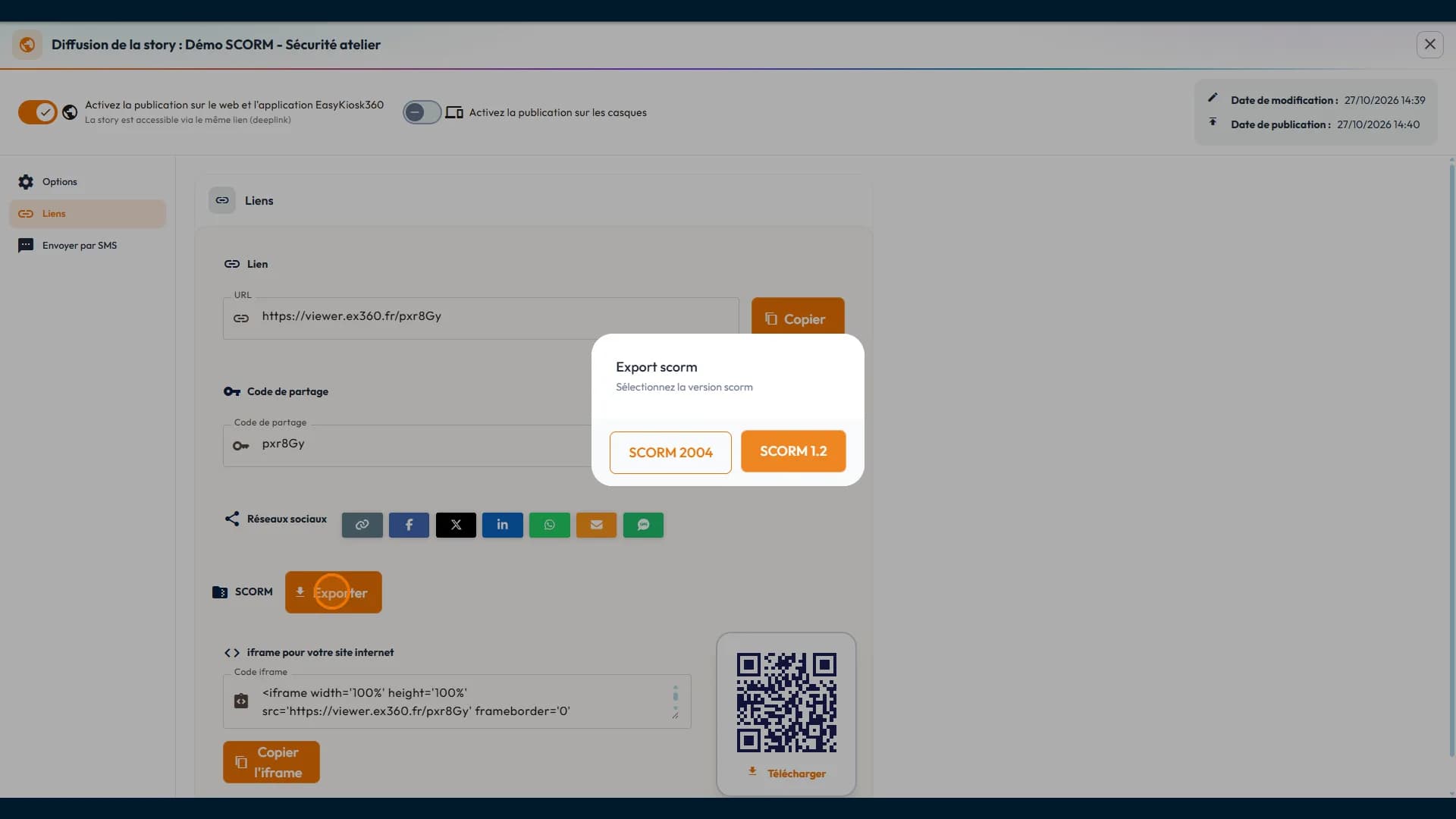
The export offers both versions. SCORM 1.2 is the most widespread: almost every platform reads it. SCORM 2004 separates the "completed" and "passed" statuses more precisely. The right choice is the one your LMS accepts; if in doubt, ask your platform's administrator or start with 1.2.
A light package that follows your updates
The exported .zip file contains a launcher: it opens, inside the LMS page, the story as it is published online. This design has three advantages for a course built from 360° photos and videos:
- the package stays very light, however large your 360° media are;
- a correction (a reworded question, an added scene) is published with "Mettre à jour" (Update), without re-importing the module: the LMS always opens the latest published version;
- the same content serves the LMS, the web link and the VR headsets.
Two conditions follow: keep the story's web distribution on, and make sure the learner has an internet connection. SCORM export depends on your subscription plan.
On the learner side and on the trainer side
The learner opens the activity in their LMS and clicks "Enter": the story launches right inside the page. They answer the questions along the tour, with no counter, and discover their result at the end.
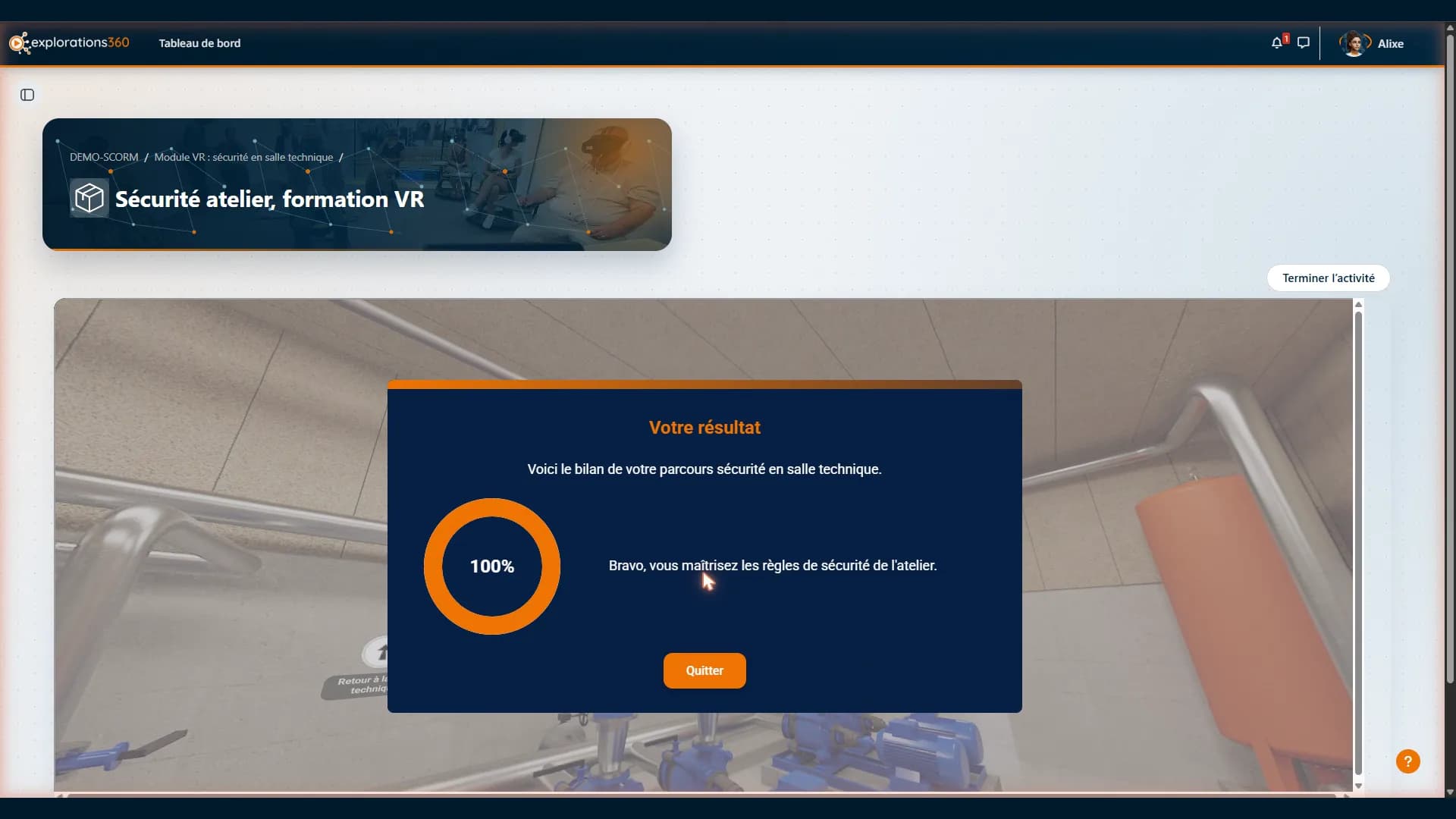
The trainer finds the result in the activity report, with the status of the attempt.
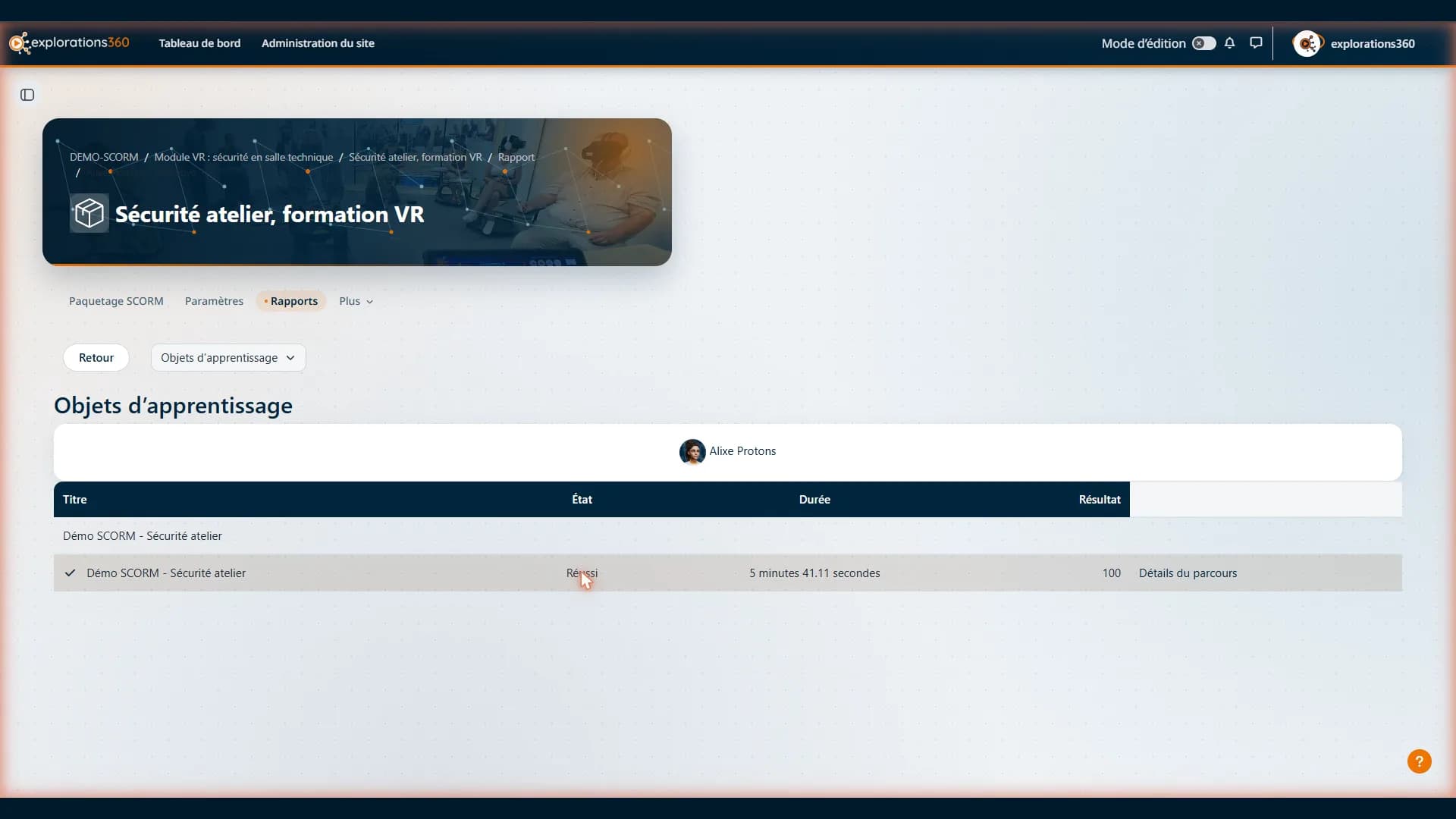
The steps, in short
- Add a debriefing with "On click" activation and tick "Fin de la Story" (End of story).
- Publish the story on the web, or click "Mettre à jour" (Update) if it already is.
- Open "Gérer la publication" (Manage publication), "Liens" (Links) section, then "SCORM" and "Exporter" (Export).
- Choose SCORM 1.2 or SCORM 2004: the .zip file lands in your downloads.
- In the LMS, create a SCORM activity and upload the .zip file to it.
- Test with a learner account, then check the activity report.
The written step by step, with the exact interface labels, is in the easystory360 wiki: SCORM export for your training platform.
See our articles first on Google, including in AI answers.
Add us as a preferred source on Google