

The idea: describe the course, the assistant builds it
Since November 2026, easystory360 is listed in the official Claude connectors directory. Once the connector is linked to your account, you can ask the assistant, in plain language, to do what you would do in the editor: create 360° scenes, write instructions, set a quiz, translate, check, publish.
To show what this looks like in practice, we ran the exercise on our tutorials account: a short workshop safety course, built end to end by Claude, then tested and refined the way a trainer would. Here is exactly what happened, including what worked first time and what had to be fixed. The screenshots show the French version of the course; the English version is included in the same story.
The starting request
“Create a workshop safety course in three 360° scenes, using royalty-free workshop photos: moving around, working near machines, the material handling area. Add an instruction in each scene, then a three-question quiz and a debriefing with the score. Translate it into English, check that it works on headsets and publish it.”
One request, containing everything an instructional designer would give a colleague: the topic, the structure, the media, the assessment, the languages and the release.
What the assistant did, step by step
- Find and import the media. It chose three 360° workshop photos under a CC0 licence (Poly Haven) and imported them into the account library.
- Create the story. Four scenes linked in order (the three workshop areas, then the quiz), with a “Continue” arrow to move from one to the next.
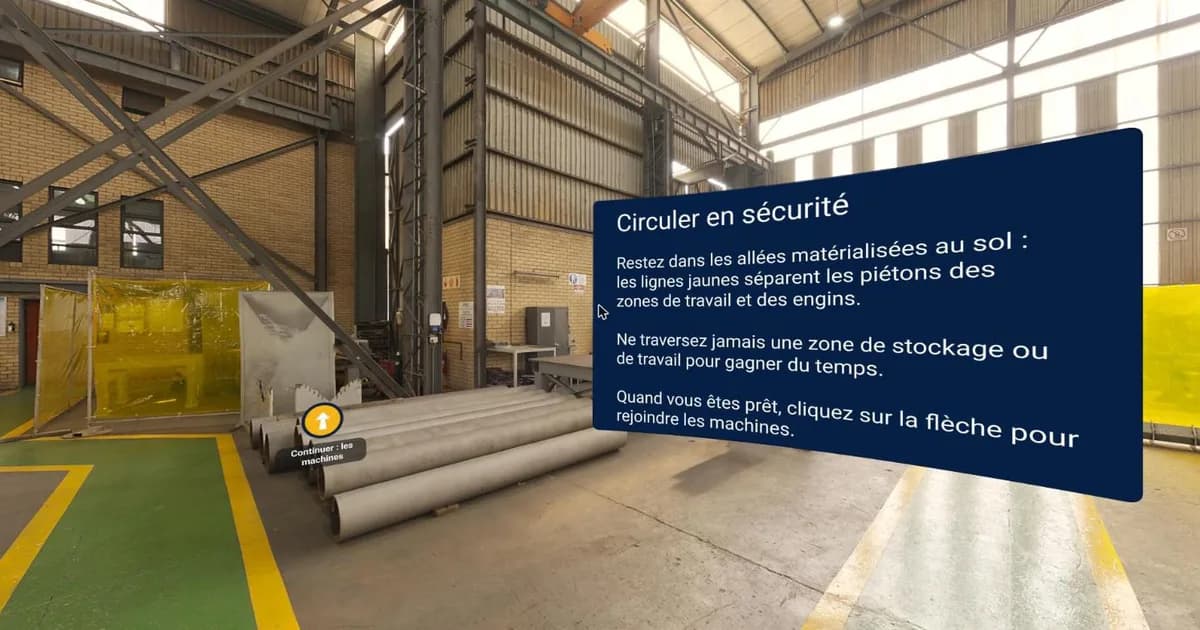
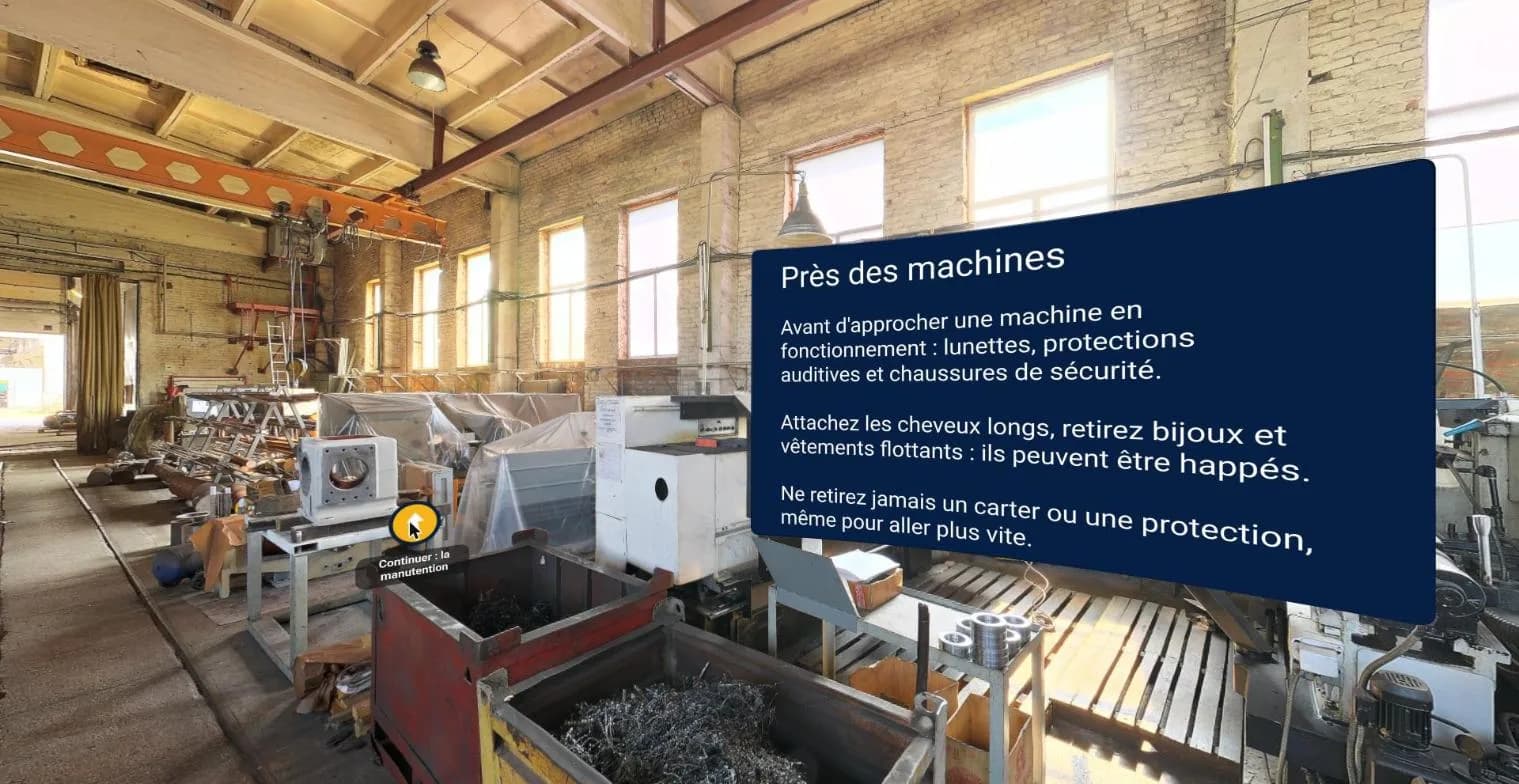
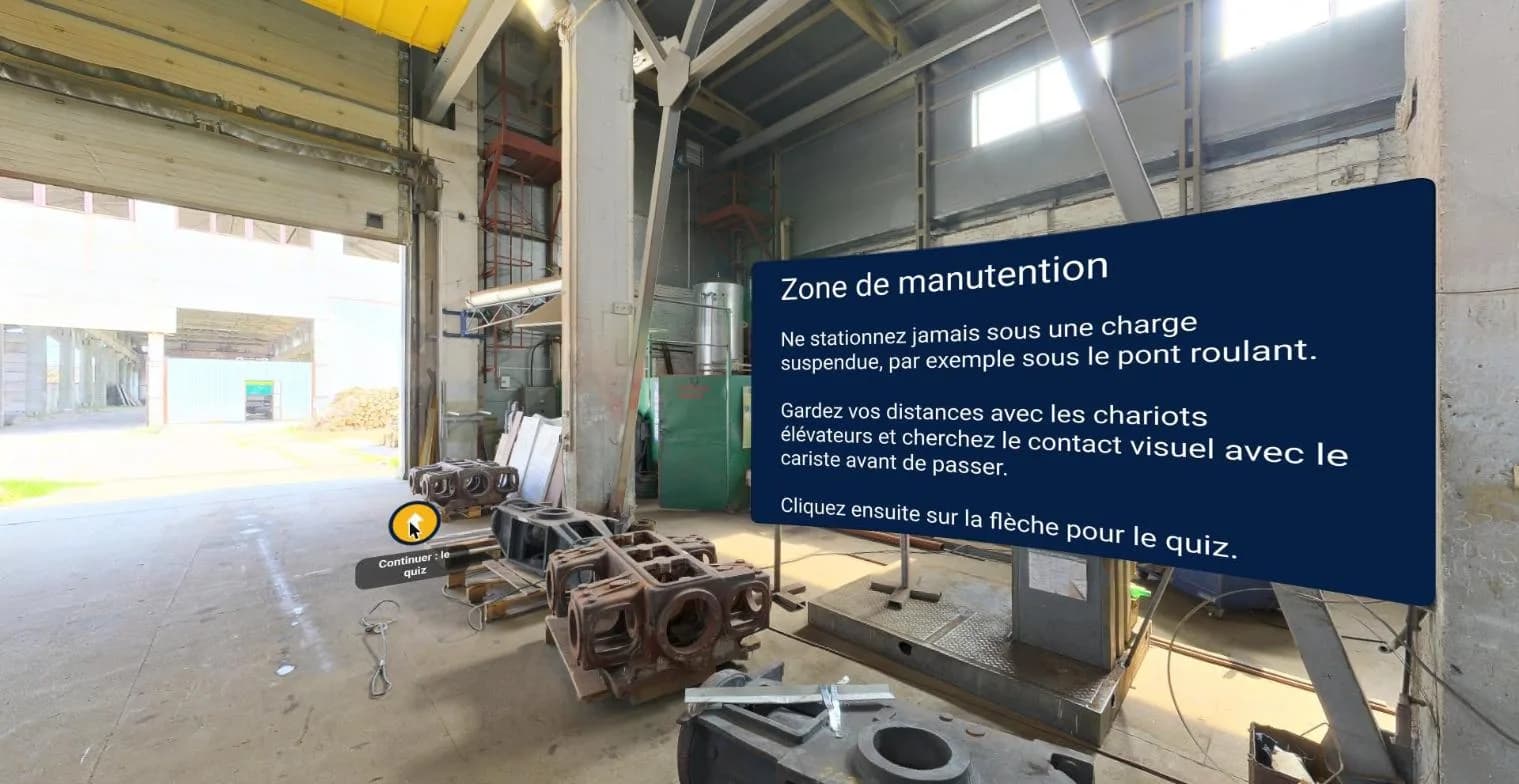
- Write the instructions. One panel per scene: stay in the marked walkways, wear protective equipment before approaching a machine, never walk under a suspended load.
- Build the assessment. Three single-choice questions, chained one after the other, with feedback for every answer, then a debriefing showing the score.
- Check. It ran the story check for the web and 360 headsets: no errors, no warnings.
- Translate. It added English and translated every text: instructions, questions, answers, feedback and debriefing.
- Publish. The story was published on the web, with its link and access code.
The test, and two refinements
A story that passes the technical check is not necessarily a good course. So we went through it as a learner would, and two things were not right:
- The “Continue” arrow was hidden behind the instruction panel. Valid for the software, invisible for the learner. One sentence was enough: the assistant moved the three arrows to the left of the panel and republished.
- The debriefing praised too quickly. With two right answers out of three (67%), it said “Well done, you have the right reflexes”. In safety, one mistake out of three is not a success: the thresholds were revised to keep “Well done” for 100%, with an “Almost” message between 66 and 99%, in French and in English.
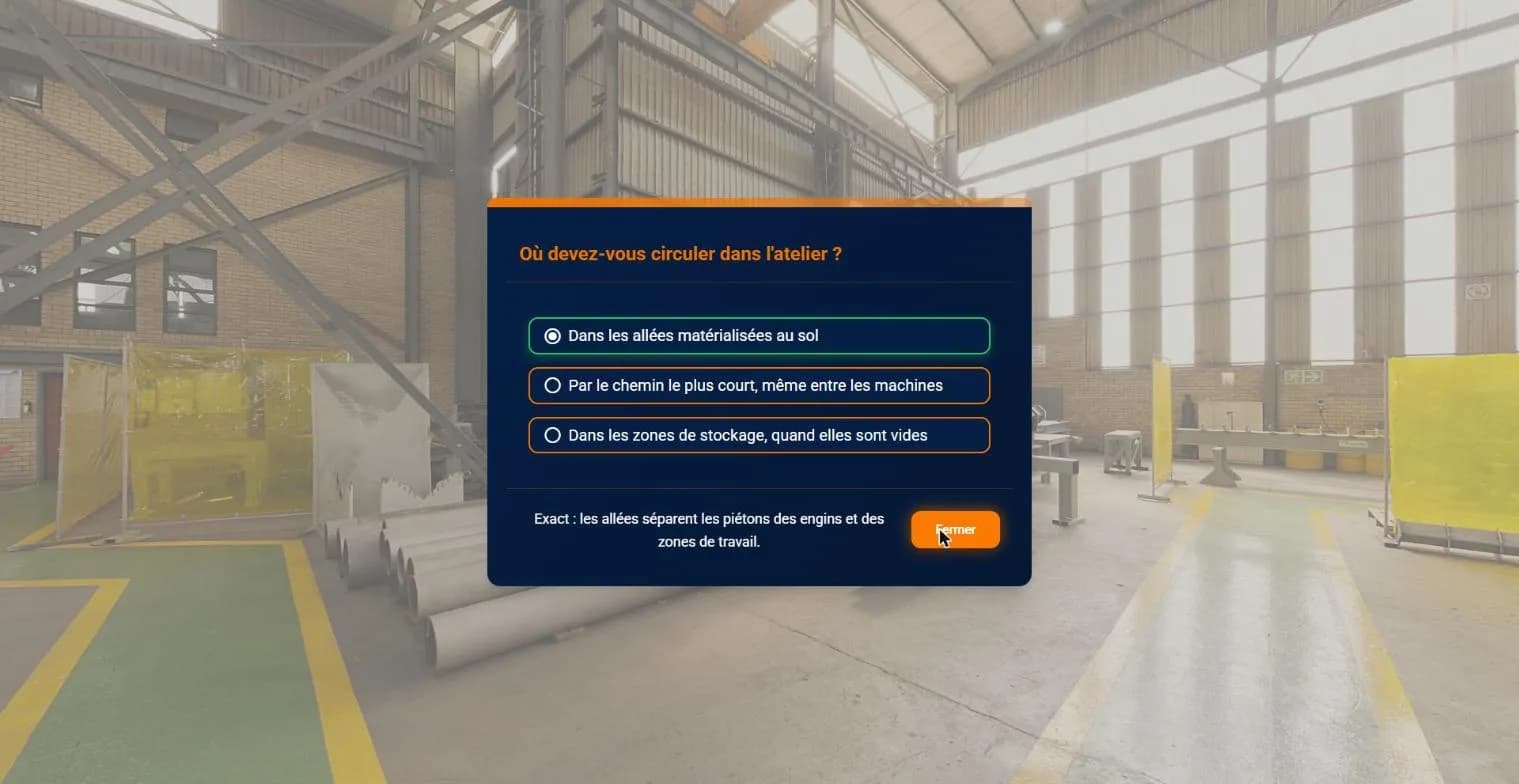
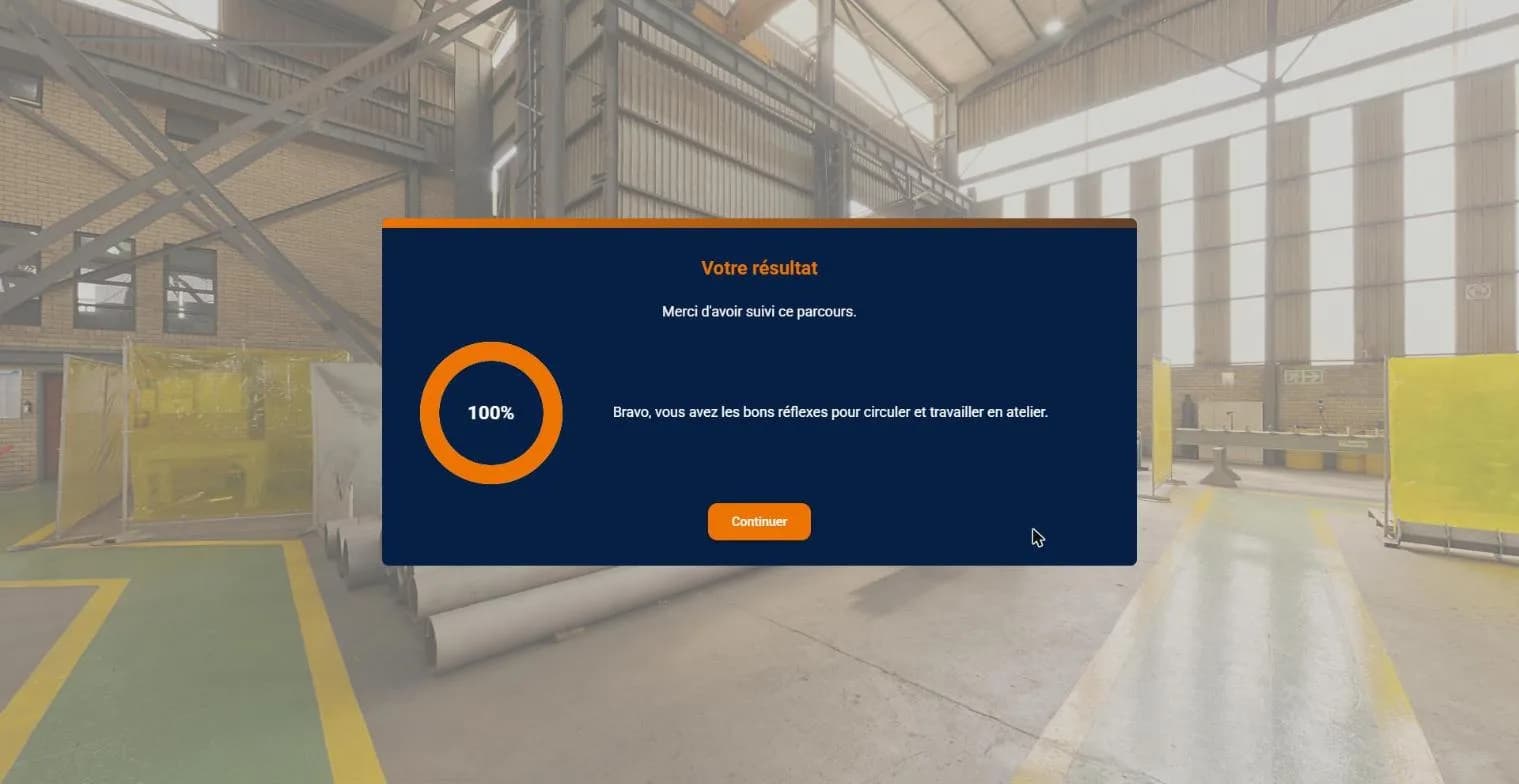
Try the story: https://viewer.ex360.fr/jsvQMTk (in English or French, in your browser).
What the assistant does well, what remains your job
The assistant takes on the most repetitive part: creating scenes, placing events, entering questions, chaining the quiz, translating every text, checking and publishing. Everything it produces stays visible and editable in the easystory360 editor, as if you had done it by hand.
The trainer's eye remains essential: making sure the content is right for your trade and your regulations, that the staging reads well in the headset, and that the assessment measures what matters. The two refinements in this example are exactly of that kind.
Writing a good request
- The audience and the goal: who takes the course, and what they must be able to do at the end.
- The structure: how many scenes, in what order, with which media (your own 360 photos already imported, or media to find).
- The assessment: number of questions, type of answers, pass mark and debriefing messages.
- The languages to offer learners.
- The check on the target devices (web, 360 headset, mixed reality), before any release.
- Publishing last, once you have reviewed.
Your data stays under your control
The connector is never active by default: you link it to your account yourself, and the assistant only sees that account. Its changes apply to the working copy of your stories: your learners only see the new version once it is published. You can revoke access at any time in your profile, under “Connections”. The data read and stored is detailed in our privacy policy.
Getting started
Setup, example requests and FAQ are on the easystory360 with an AI assistant page. The connector works with Claude, ChatGPT and any MCP-compatible assistant. To then track results in your LMS, see our guide SCORM export to Moodle and your LMS.
See our articles first on Google, including in AI answers.
Add us as a preferred source on Google